.png)
Managing Meetings
Introduction
Creating a meeting in PerformYard is simple and streamlined, allowing organizing discussions with ease. Whether you’re planning a one-on-one, team meeting, project discussion, or brainstorming session, this feature enables you to set the name, time, and description. On the meeting workspace page, each meeting workspace participant has a green Add Meeting button at the top to create a meeting.
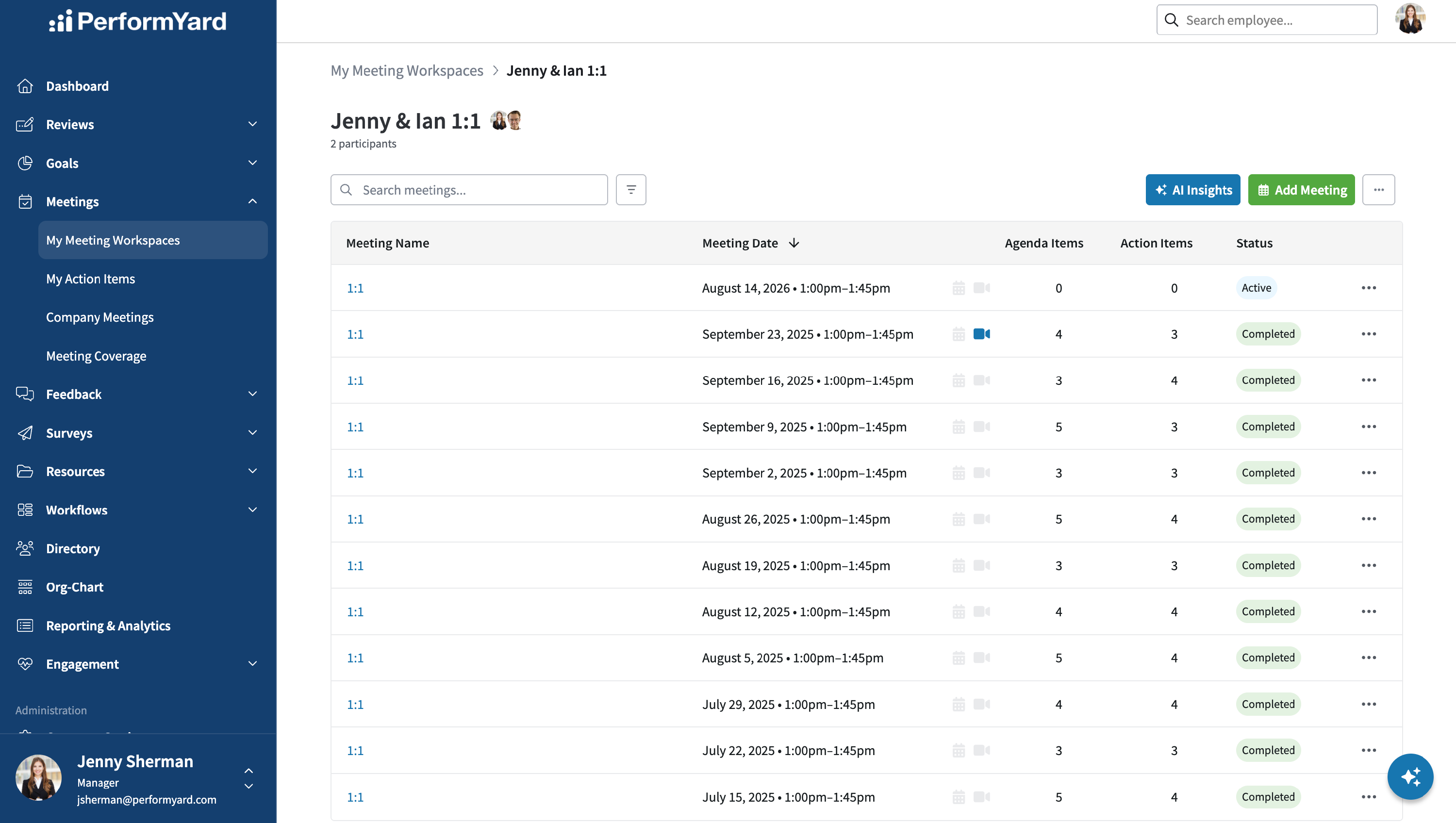
Creating a Meeting
 Items to include when creating a meeting:
- Name (Required): The name of your meeting.
- Start Date and End Date (Required): These represent the start and end dates of your meeting.
- Defaults to today’s date.
- Start Time and End Time (Required): These represent the start and end times of your meeting.
- Time selections are available in 15-minute intervals throughout the entire day.
- The Start Time will default to the nearest 15-minute interval based on the current time.
- The End Time will default to the 60 minutes following the start time.
- The drop downs are linked to each other and the selected date. If you choose the same start and end date, you can pick any available start time, and we’ll automatically show only future end time options. If you select different start and end dates, both start and end times will offer a full range of available times for the entire day.
- Description (Optional): A description for your meeting.
- Please note, descriptions cannot exceed 2000 characters in length.
- Carrying over unchecked items from previous meetings: Carryover is the ability to bring forward any incomplete, unchecked action items or agenda items from the previous meeting to a meeting being created. Often, tasks or discussions are not completed due to a variety of reasons so allowing them to be carried over ensures they don’t get forgotten. By checking the box, we’ll bring any incomplete items from the previous meeting over to the meeting currently being created.
- Add Meeting to My Calendar: If your company has Calendar Integration enabled and you've linked your calendar in user settings, you have the option to add newly created meetings directly to your calendar. This will automatically send a calendar invite to the other participant and sync future meeting changes from PerformYard to your calendar. Meeting name, start date and time, end date and time, and description will all be used to create the calendar event.
- Important: Calendar integration is one-way only. Changes made in PerformYard will update your calendar event, but changes made directly in your calendar will not update the PerformYard meeting.
- You'll be able to add a meeting to your connected calendar at anytime after creation.
Click Create Meeting to create your meeting. The new meeting will appear in the meeting table, and if you added it to your calendar, you'll see either the Google Calendar or Outlook icon next to it.
Updating a Meeting
Once a meeting is created in PerformYard, you can easily update both its details and status. You can modify core meeting information like the name, date, time, and description, as well as change the meeting's status to reflect its current state (Active, Completed, Canceled, or Archived).
Please note: Only the creator of the meeting can change its details.
Editing a Meeting
You can edit a meeting either from the Meeting Workspace page or directly from the meeting page.
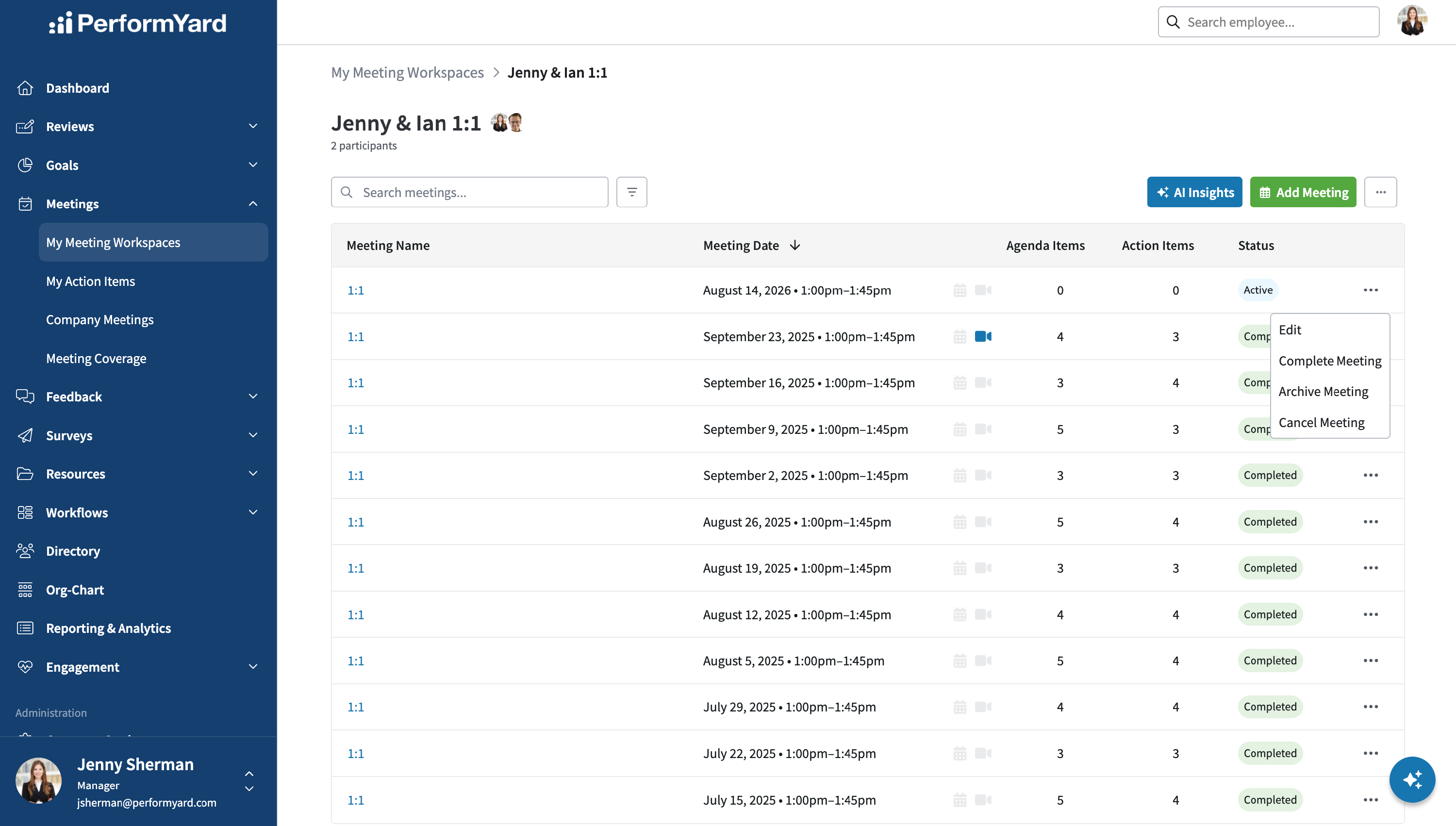
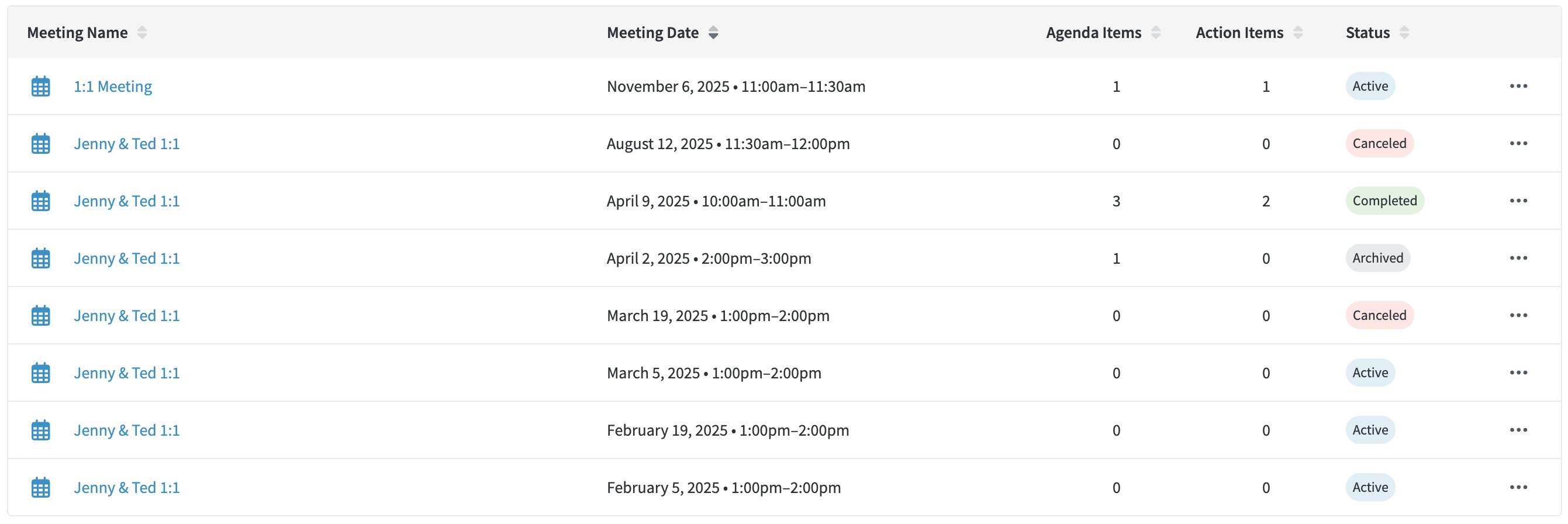
To edit a meeting from the Meeting Workspace page, click the ellipsis next to the meeting you want to update, then select Edit.
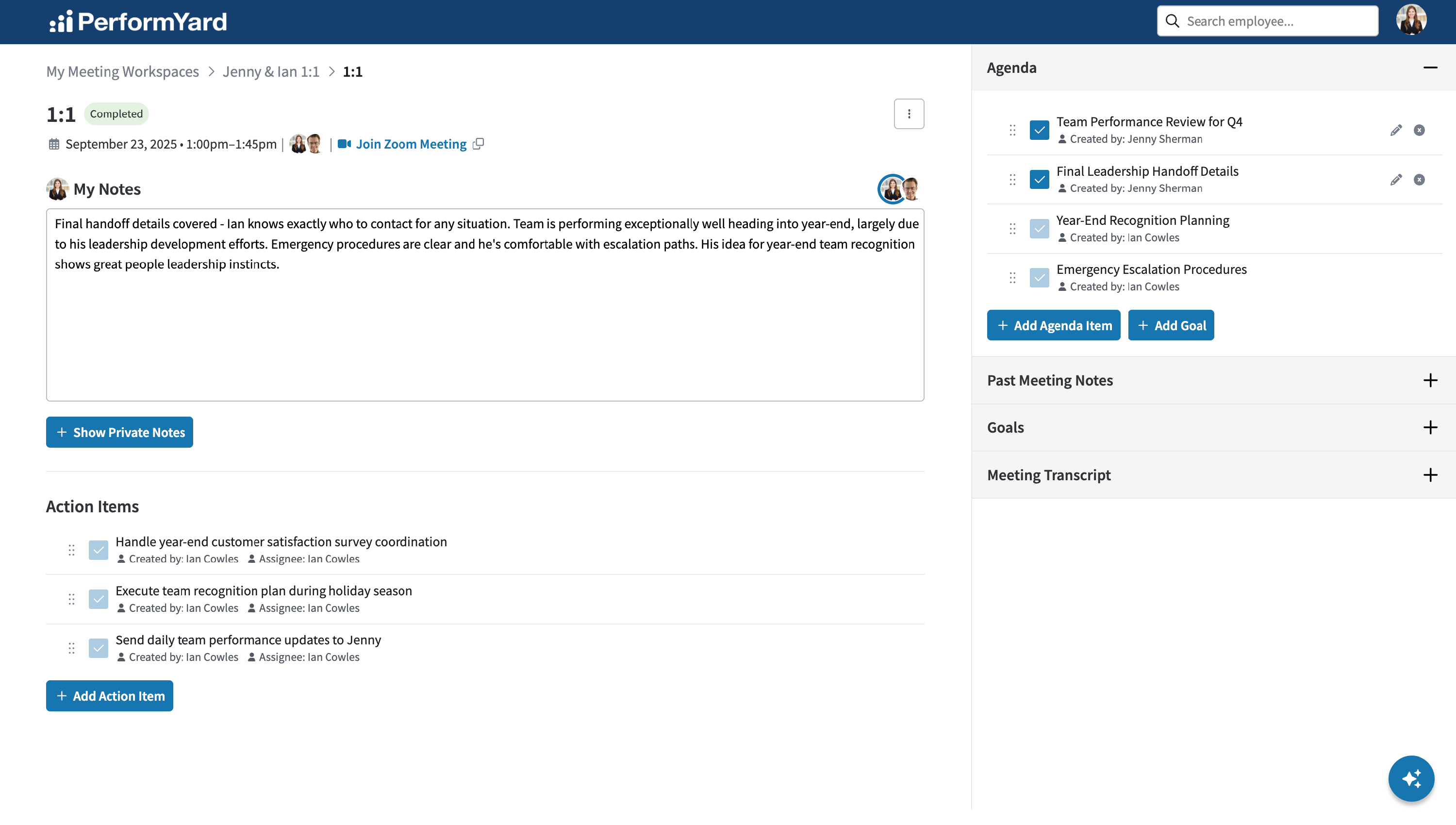
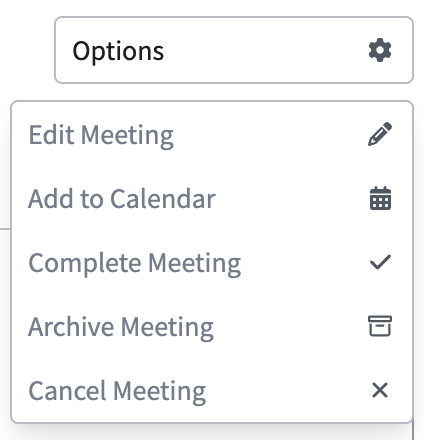
To edit a meeting directly from the meeting page, click the Options button next to Meeting Details and then click Edit Meeting.
From both pages, you should see a popup where you can update the meeting’s details.

When you're happy with your changes, click Save Changes to update a meeting’s details.
Please Note: If the meeting being updated was added to your calendar, changes to the name, start/end date and time, or description will automatically sync to your calendar event. Important: Calendar integration is one-way only. Changes made in PerformYard will update your calendar event, but changes made directly in your calendar will not update the PerformYard meeting.
Changing a Meeting's Status
- Active: The default status for new meetings.
- Completed: Indicates that the meeting was conducted.
- Canceled: Indicates the meeting was canceled. When you cancel a meeting:
- Notes, action items, and agenda items become read-only
- If the meeting is on your calendar, you'll see a confirmation popup asking if you want to remove the calendar event
- Archived: Indicates the meeting is no longer active but retained for reference, compliance, or historical purposes. When you archive a meeting, notes, action items, and agenda items become read-only.
You can change a meeting's status either from the Meeting Workspace page or directly from the meeting page.
To change a meeting's status from the Meeting Workspace page, click the ellipsis next to any meeting you'd like to update. Please note, the options seen in the menu are based on the meeting's current status.
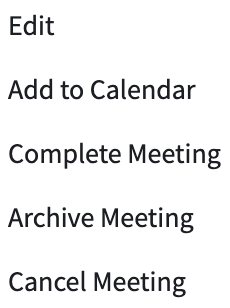
To change a meeting's status directly from the meeting page, click the Options button next to Meeting Details. Please note, the options seen in the menu are based on the meeting's current status.
Click one of the available options under Edit Meeting. Depending on what page you're on, once you select a status, a status chip will change. Note that meetings without a status chip are active.

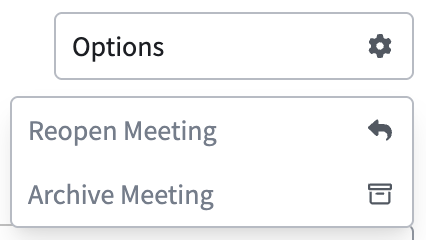
To reopen a meeting (or set the status back to Active), simply click Options on a meeting that is no longer active and select Reopen Meeting.
You can filter meetings by status using the Meeting Filters button at the top of the page.
Adding Meeting to Calendar
If you have a linked calendar, you can add meetings to your calendar anytime using the options menu, even after the meeting was initially created without your calendar being linked.
To add a meeting to your calendar, simply click Add to Calendar.
Removing Meeting from your Calendar
You can remove calendar events from your calendar at any time through the options menu.
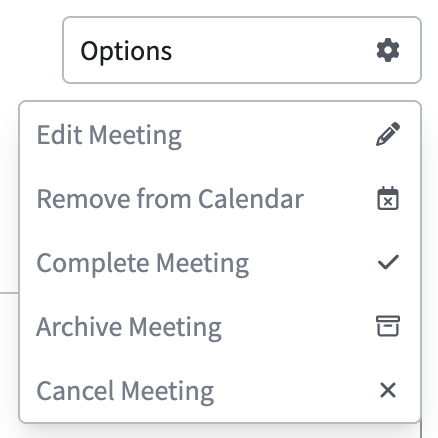
To remove a meeting from your calendar, simply click Remove from Calendar. You'll then see a confirmation pop up:

Removing a meeting from your calendar only deletes the calendar event, it doesn't affect the meeting in PerformYard. This breaks the sync connection between them, but you can re-add the meeting to your calendar at any time.
Notifications
Meeting notifications keep you in the loop on your meetings and meeting workspaces without having to check PerformYard for changes. You can be notified when you’re added to a new meeting workspace, when a meeting is created in a workspace you’re part of, and when a meeting is updated, such as a change to its name, date, time, description, or status. A weekly digest also shows how many meetings you have coming up in the next week, so you can plan ahead. You can choose how and when you receive each notification in your personal notification settings.
Daily Notifications

- Meeting Workspace Created - You will receive a notification when a meeting workspace is created with you as a participant
- Meeting Created - You will receive a notification when a meeting is created within a meeting workspace you are a participant of
- Meeting Updated - You will receive a notification when a meeting you are a part of has an update such name, time, date, description, or status
Weekly Notifications

- Meetings within the next week - Your weekly digest email will include how many meetings you have within the next week.