.png)
Managing Compensation Cycles
Introduction
A compensation cycle is a single round of pay decisions covering a set of employees over a defined window. Creating one is a five-step wizard: you name it and set its dates, choose who is included, set the budget, confirm who makes each team's decisions, and review before you launch.
To see your cycles, select Compensation in your navigation menu. Select Create New Cycle to start a new one.
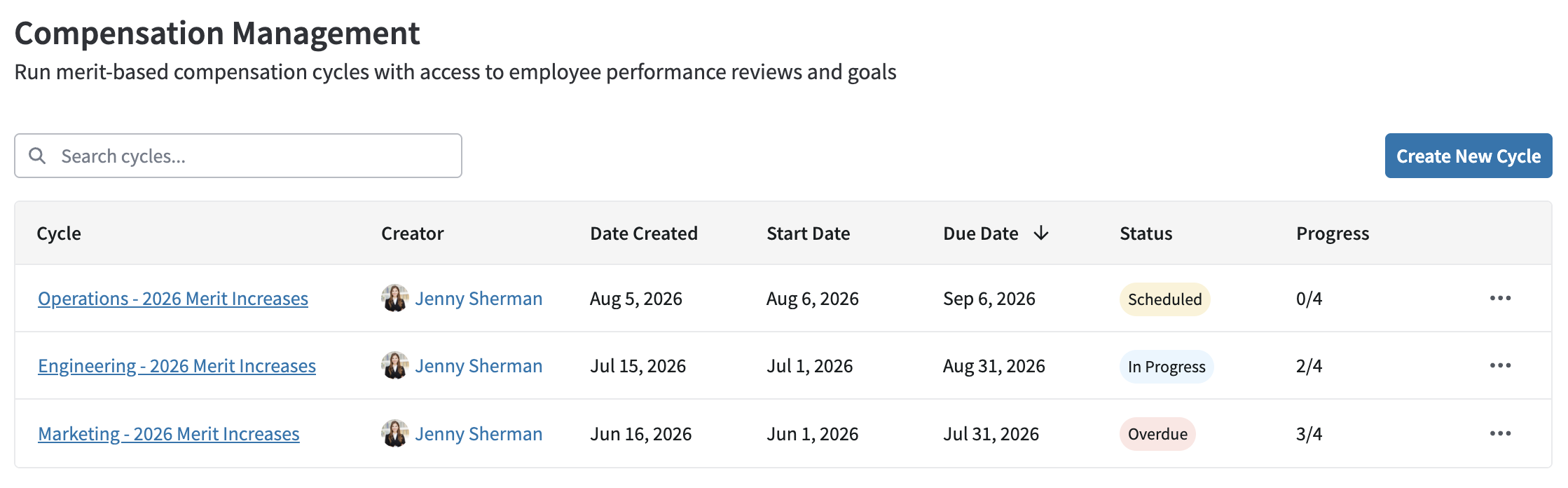
The list shows each cycle's Creator, Date Created, Start Date, Due Date, Status, and Progress. Progress tracks team budgets, not individual employees. So, for example, a cycle with four managers moves in quarters.
Step 1: Cycle details
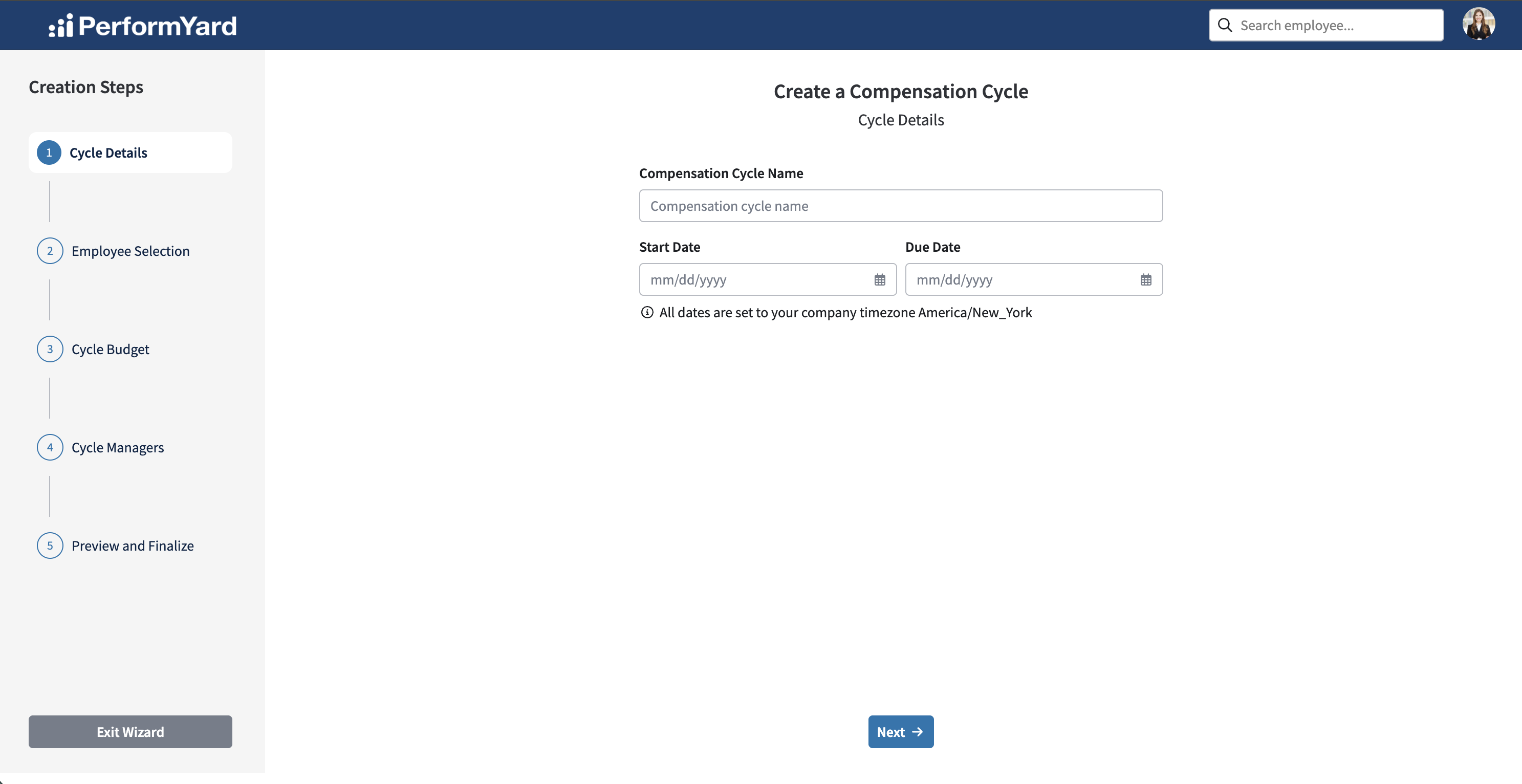
Give the cycle a name, then set a start date and a due date. Each date also takes a time: midnight, 9:00am, noon, or 5:00pm. Times follow your company timezone, which the wizard displays for you.
The due date must fall after the start date. Names can be up to 255 characters and do not have to be unique, so if you run the same cycle annually, include the year to tell them apart later.
Step 2: Employee selection
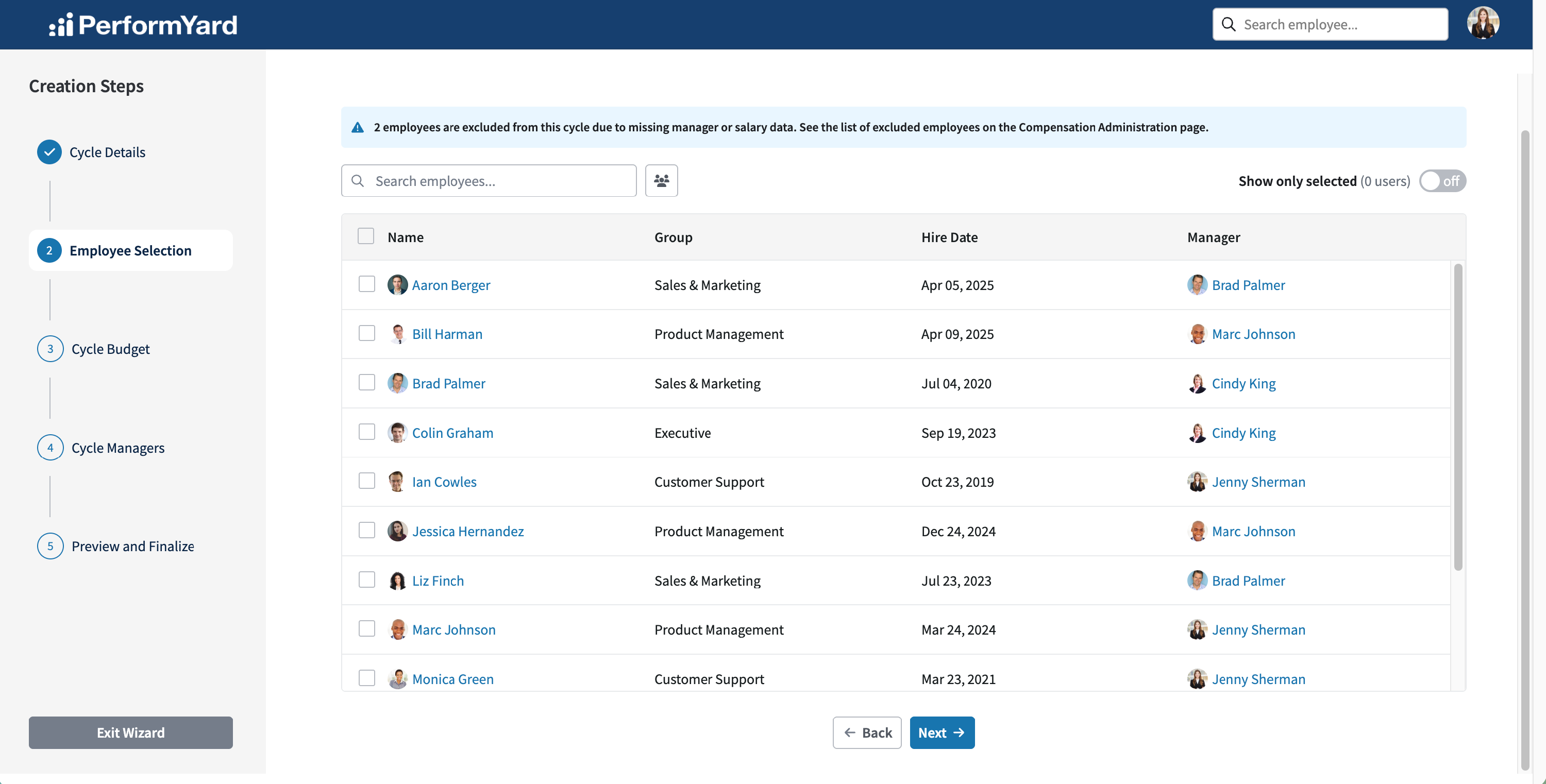
Choose the employees this cycle covers. Alongside each name you will see their Group, Hire Date, and Manager to help you decide.
If any of your employees are missing a salary or a manager, the wizard tells you how many are being left out and points you back to the Compensation Management page to resolve it. You can continue without fixing them, but those employees will not be in the cycle.
You have to select at least one employee to move on.
Step 3: Cycle budget
The wizard shows the Total Eligible Compensation for the employees you selected, which is the combined current salary of everyone in the cycle. You then define your budget as either a Percent Increase or a Fixed Increase in dollars. The two are linked, so entering one calculates the other, and New Compensation Total updates as you go.
The default is 3%.

This number does more than cap spending. The percentage you set here becomes the Suggested increase your managers see next to every employee on their worksheet. It is the same percentage for everyone, so treat it as your starting point for the cycle rather than a recommendation tailored to any individual.
A note on rounding.The percentage and the dollar amount are two views of the same increase, and most percentages do not divide evenly into a salary. When you enter a percentage, PerformYard works out the dollar amount and rounds it to the nearest cent. When you enter a dollar amount, it works out the percentage and rounds that. Because of this, switching between the two fields can leave you a fraction of a percent or a few cents off the figure you first typed. The dollar amount is what determines the new salary, so if a specific dollar figure matters, enter that one.
In addition, Budget formula results are rounded to the nearest cent using the third decimal place. For example, a result of 0.01459 rounds to 0.01 because the third decimal is 4, which rounds down.
Step 4: Cycle managers
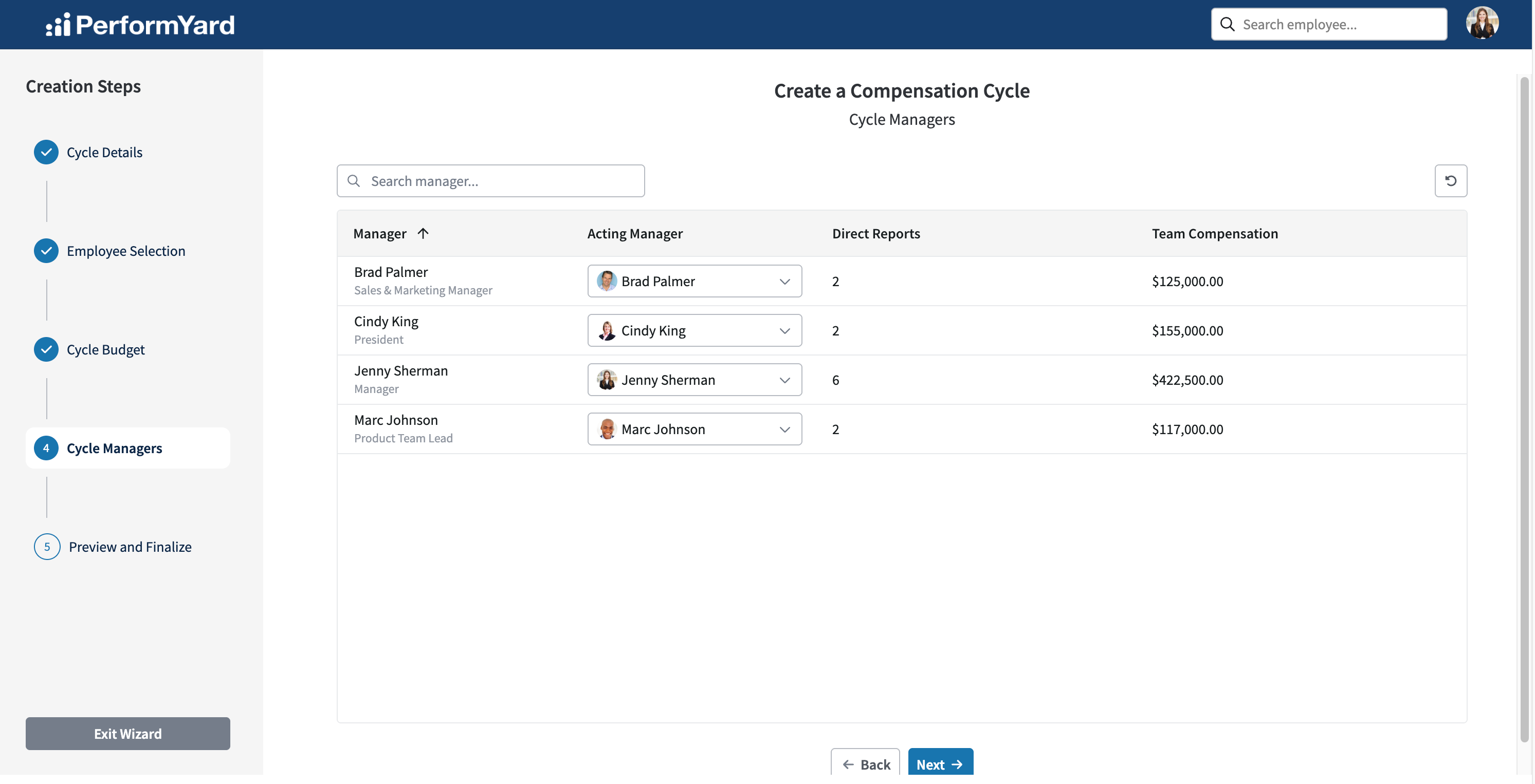
This step lists every manager who will get a team budget, with their Direct Reports count and the Team Compensation those reports represent.
By default each manager proposes increases for their own direct reports. If you want someone else responsible for a team, name an Acting Manager here. Organizations do this when a manager is too new or too inexperienced to own pay decisions, or when they would rather the responsibility sat one level higher.
The acting manager you can choose is: the team's own manager, everyone in that manager's upward chain of command (all the way to the top of the org), and all Admins or Billing Admin roles. You can also assign an acting manager later from Budget Reviews.
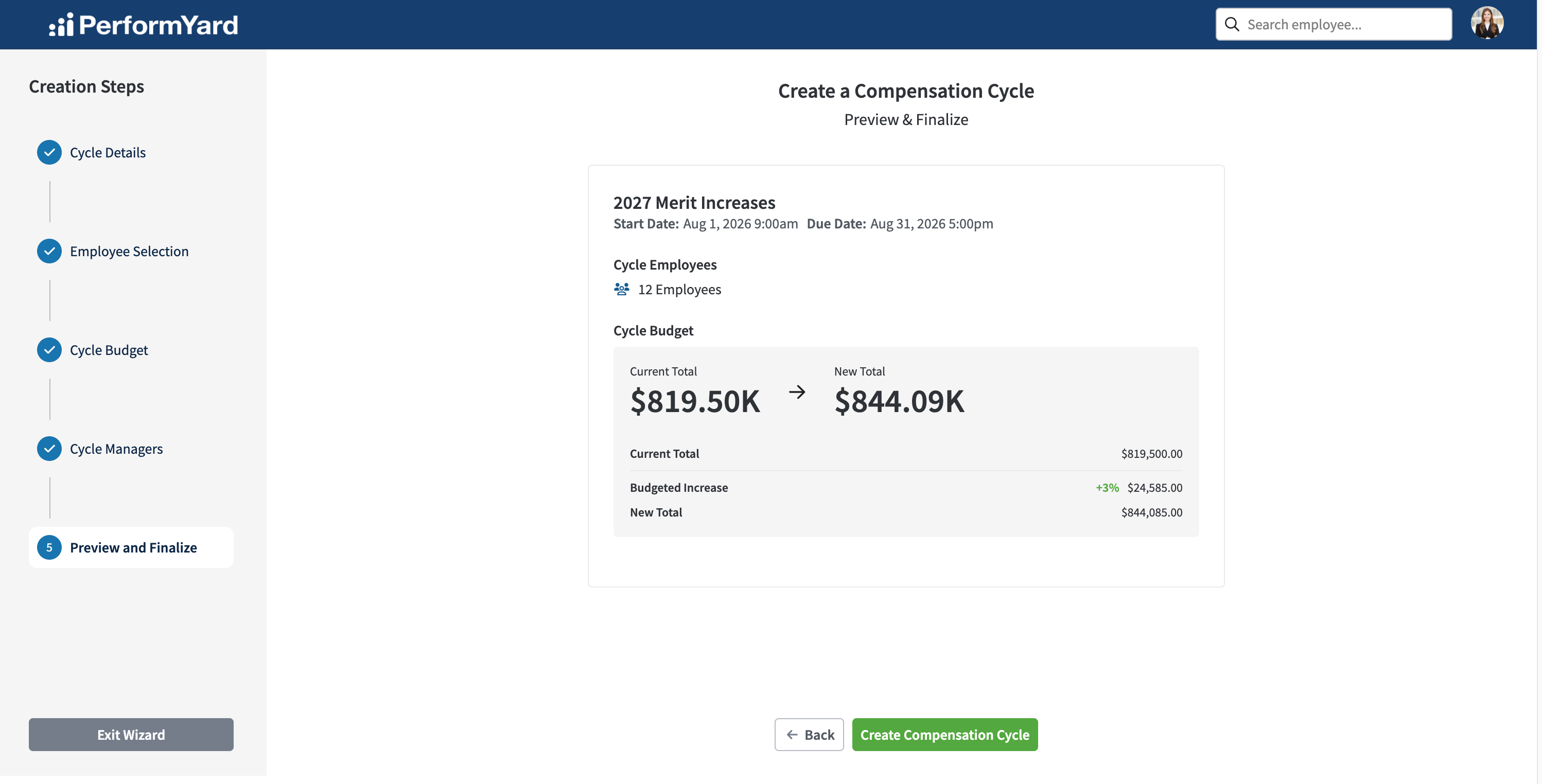
Step 5: Preview and finalize
Review the cycle before you commit: your start and due dates, how many employees are included, and your budget broken into Current Total, Budgeted Increase, and New Total.
Select Create Compensation Cycle to launch.
If you leave the wizard before finishing, your configuration is not saved.
What happens after you create the cycle
Your cycle takes one of four statuses:
- Scheduled: the start date is in the future
- In Progress: the cycle is open and managers can work
- Overdue: the due date has passed. Cycles move to Overdue automatically.
- Completed: you have closed the cycle
While a cycle is Scheduled, only Billing Admins, Admins, and cycle owners can open it. Managers cannot see it at all, and the My Decisions tab is unavailable. Once the start date arrives, managers are notified that their decisions are ready.
Open a cycle by selecting its name. Inside, you will find up to three tabs:
- Cycle Overview for progress and reporting.
- Budget Reviews for approving team budgets.
- My Decisions, which appears only if you personally have a team to make decisions for.
Managing a cycle after launch
Select Options on the Cycle Overview tab.
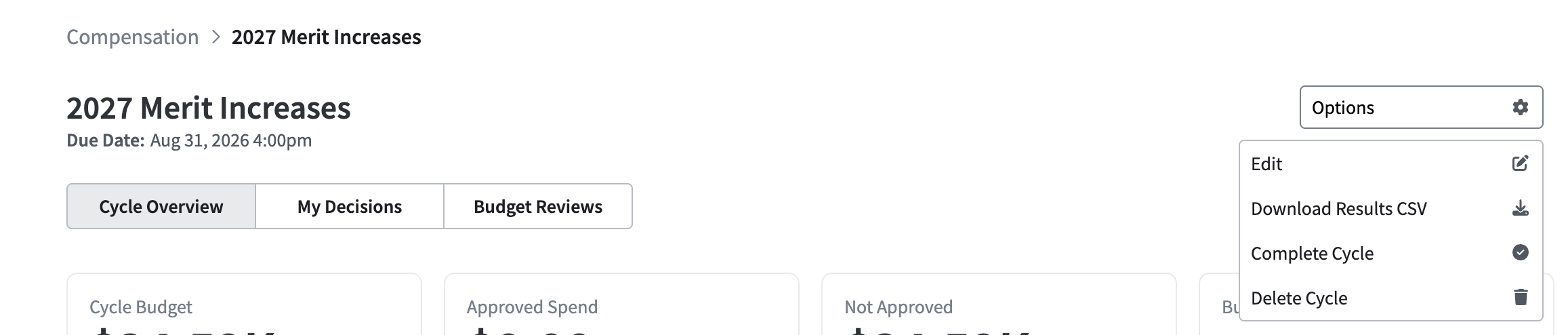
- Edit lets you change the cycle name and its dates. The start date is locked once it is in the past.
- Download Results CSV exports the cycle. Not available before a cycle starts.
- Complete Cycle closes the cycle.
- Reopen Cycle reopens a closed one.
- Delete Cycle removes it. Billing Admins and Admins only, and it cannot be undone.
What you cannot change after launch. The budget, the list of employees, and your acting manager assignments from Step 4 are fixed once the cycle is created. Name and dates are the only editable fields, so it is worth being deliberate in Steps 2 through 4.
Completing a cycle
Complete Cycle locks the cycle. Managers lose access to My Decisions, and nothing further can be edited.
If any team budgets are still outstanding, PerformYard lists them before you confirm, split into those a manager never submitted and those that were submitted but not yet approved, with links through to each.
Completing a cycle does not approve anything. Whatever was left unapproved stays unapproved. Approval is always something a cycle owner or admin does explicitly. Completing a cycle does also not change anyone's pay. PerformYard is not your payroll system. Closing the cycle produces the final decision set for you to export and hand to your HRIS or payroll process.
Reopening a cycle
Reopen Cycle makes every budget editable again, including ones that were already approved, and notifies managers that they have decisions available. Its status returns to Scheduled, In Progress, or Overdue depending on its dates.
Reopen a cycle if you closed it early or need to correct something. Because approved values become editable again, check your budgets before closing it a second time.