.png)
Preparing For Your Compensation Cycle
Introduction
Every compensation cycle is built from two pieces of employee data: each person's current salary, which their increase is calculated from, and their manager, who proposes it. When either one is missing, PerformYard leaves that employee out of the cycle rather than stopping you from launching it.
A few minutes of preparation avoids that. Here is a checklist to work through before you create your cycle.
Check your readiness
Go to Compensation Management under Administration > Company Settings.
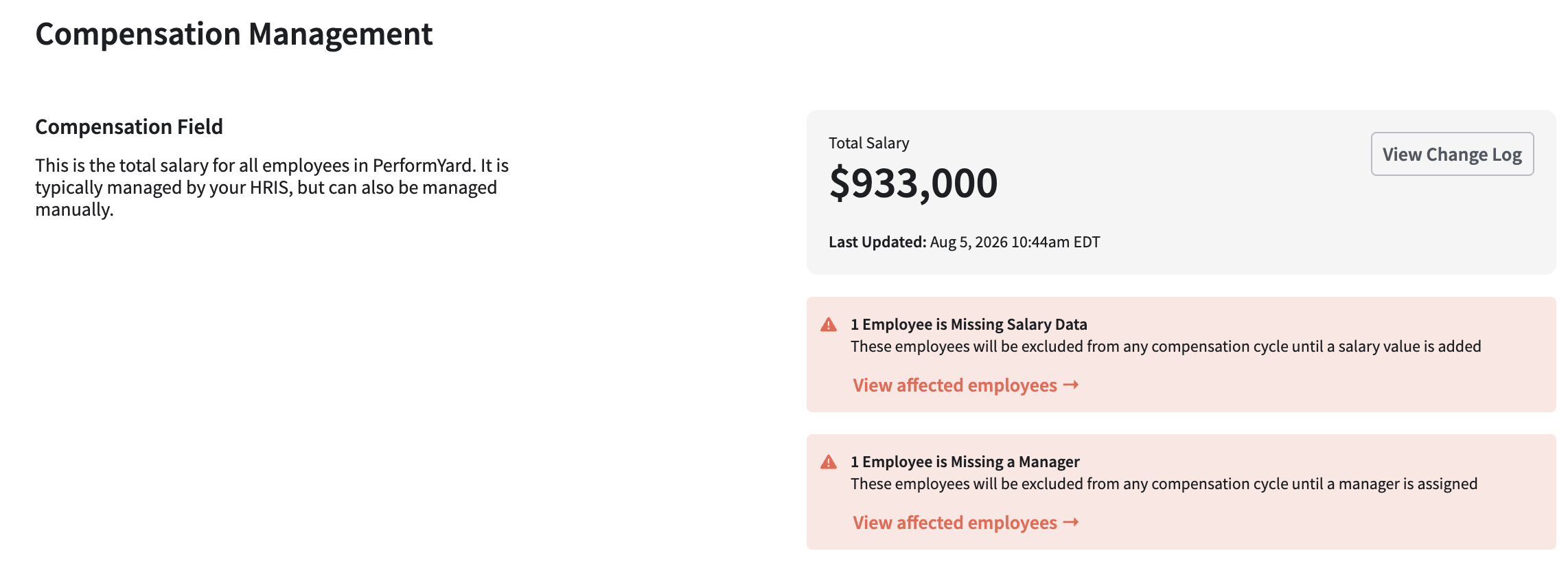
If you have employees with incomplete data, you will see one or both of these warnings:
- Employees Missing Salary Data. These employees will be excluded from any compensation cycle until a salary value is added.
- Employees Missing a Manager. These employees will be excluded from any compensation cycle until a manager is assigned.
Select View affected employees on either warning to see the full list of who is affected. Some employees may naturally have no manager since they could be the terminal end of a chain of command, while others may not have a Salary if they are not paid using a traditional yearly salary model. In either case, those employees will not be present when defining the scope of your compensation cycle and can be ignored during your evaluation of the affected employees list.
This page also shows your Total Salary, the total across all employees in PerformYard, with the date an update to any employee was last received. Use it as a sanity check against what you expect your payroll to be. View Change Log takes you to your sync log to see a more detailed view of how your data changes may have influenced the Total Salary field.
Make sure every included employee has a salary
A compensation cycle calculates each proposed increase against the employee's current salary, so an employee with no salary has nothing to calculate from.
Add the missing salary values
You have three options, and most organizations use a combination:
- From your HRIS. If you have an HRIS integration, map your salary field once and let it populate and maintain the values. Prefer this, because it keeps PerformYard current without anyone remembering to update it.
- By CSV. Upload salary values for many employees at once. Download the employee list CSV first so you have the format.
- By hand. Enter a salary directly on an individual employee's record. Practical for a handful of people, not for a full roster.
Know that PerformYard keeps a salary history
PerformYard keeps a record of changes to employee data fields, so you can look back at the Salary field to see an employee's salary history in this cycle and in future ones. Managers reach it from the Salary History icon in the Employee Info column while they are making decisions.
If you have not been tracking salary in PerformYard and want to bring in a history, you can import one. Learn more in [Importing salary history link].
Make sure every included employee has a manager
Every employee needs an assigned manager. Manager assignment is what builds each team budget and determines who proposes the increase, so an employee with no manager is excluded from the cycle entirely.
Use the Org Chart to see the reporting relationships you have in PerformYard and update them where they are wrong or missing. You can also upload a CSV with all your current reporting relationships. Download the employee list CSV first so you can copy the format.
This is worth doing carefully rather than quickly. A wrong manager assignment does not produce an error. It routes someone's pay decision to the wrong person.
Check your salary field visibility
If your Salary field is not visible to managers, PerformYard shows an informational notice on this page titled Salary field visibility setting conflict.
The point of the notice is that compensation cycles will show salary data to the managers you include in a cycle, whatever your field visibility setting says. If your Salary field is currently restricted to admins only, or to the employee and admins only, decide whether that is acceptable before you launch. You can dismiss the notice once you have.
Field visibility also affects what managers can open. A manager cannot view an employee's salary history if the Salary field is not visible to managers.
Confirm your cycle owners
Cycle owners see every team budget across your organization and approve them. If a CFO or Head of HR needs to sign off on your compensation decisions, assign them before the cycle starts.
Add and remove cycle owners in the Compensation Cycle Owners section of this page. Cycle owners have full access and editing capabilities for all information within compensation cycles.
A cycle owner must already be a Billing Admin, Admin, or Basic Admin. Compensation gives cycle owners a broad view of the organization, and requiring one of these roles first ensures they are not shown employee data your field security settings would otherwise keep from them.