.png)
Accessing Reviews
Forms I've Completed
After you have authored or signed a review, you will be able to access those forms by clicking Reviews in the navigation and then selecting Forms I Did. Here you'll see a listing of every form in which you participated, also filterable by subject or status, and sortable by completion date.
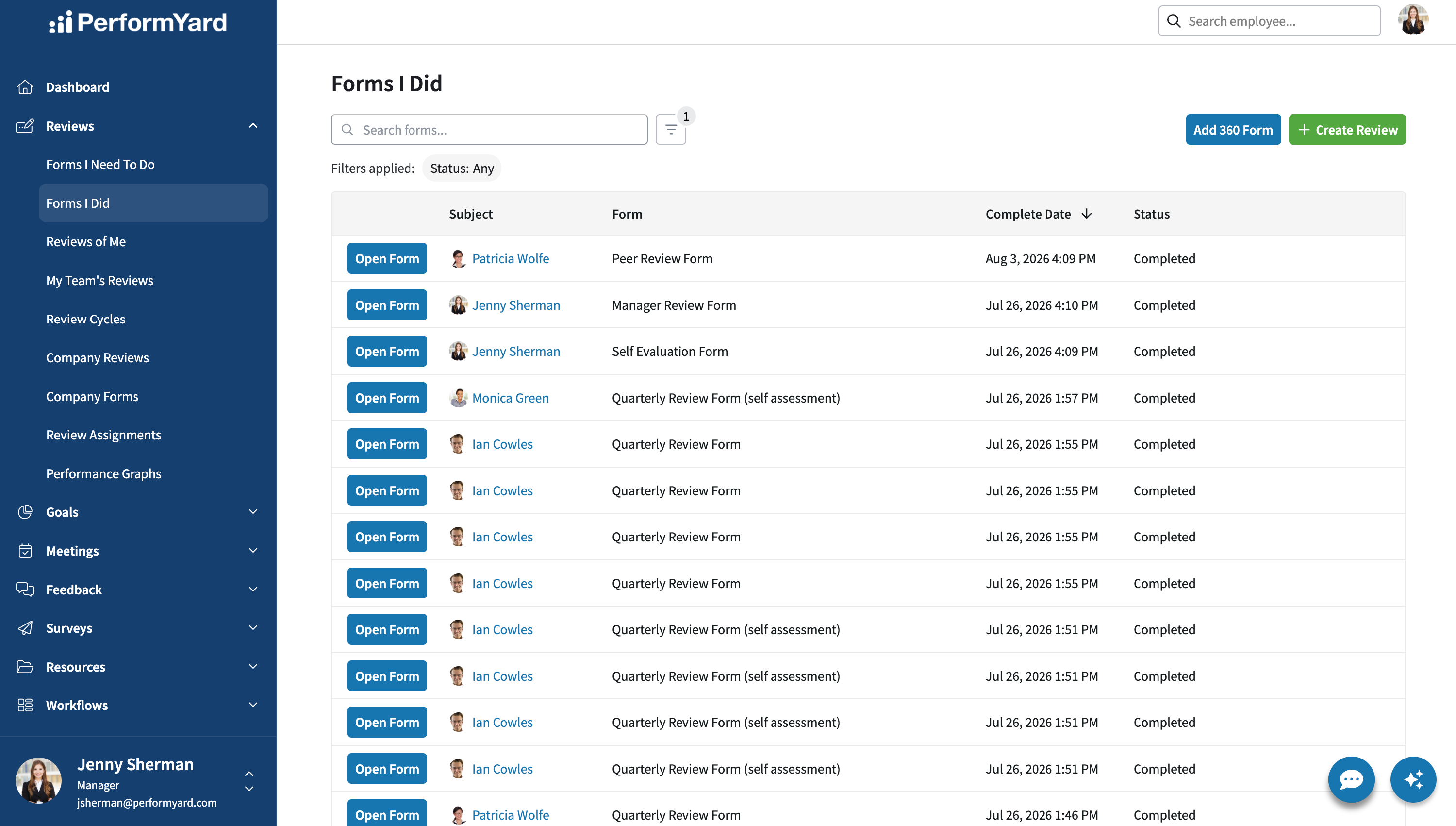
You can even reopen a form you have worked on, but only if the next person in line for action has not completed the next step. For example, if you submitted a form you authored and the next person in the list is assigned to sign the review, you can re-open this if it is unsigned. To do so, click onto a form that you submitted but hasn't been signed, and click the Reopen button on the right hand side. This opens the form for you to make changes, and then you can either Save for Later or Submit depending on your preference.
Reviews of Me
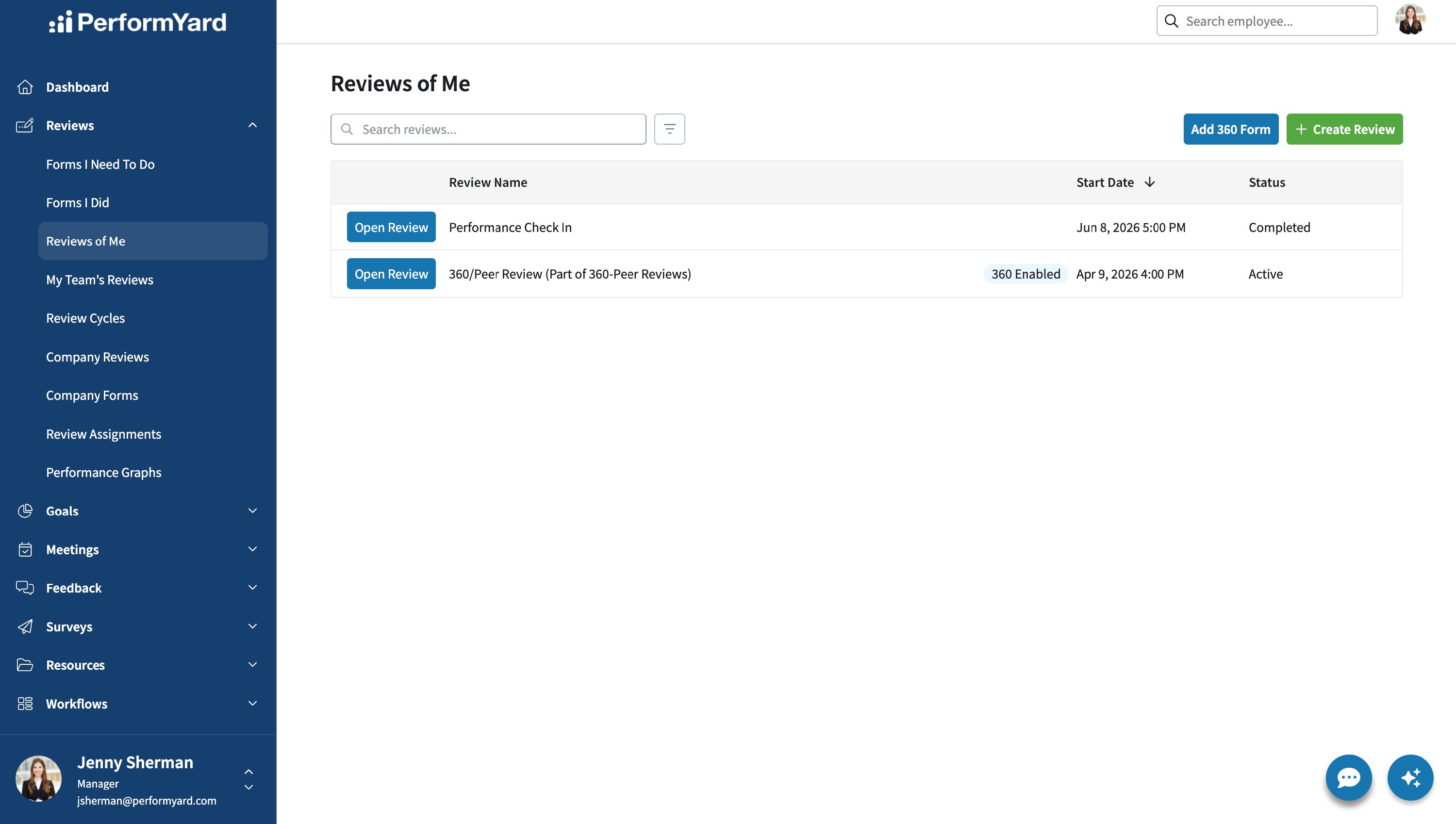
Every review that has been done (or is going on) about you in PerformYard is accessible in the same place, under Reviews in the navigation, click Reviews of Me. This list will display the Review Name, Start Date and Status of any review, along with an option to Open Review.
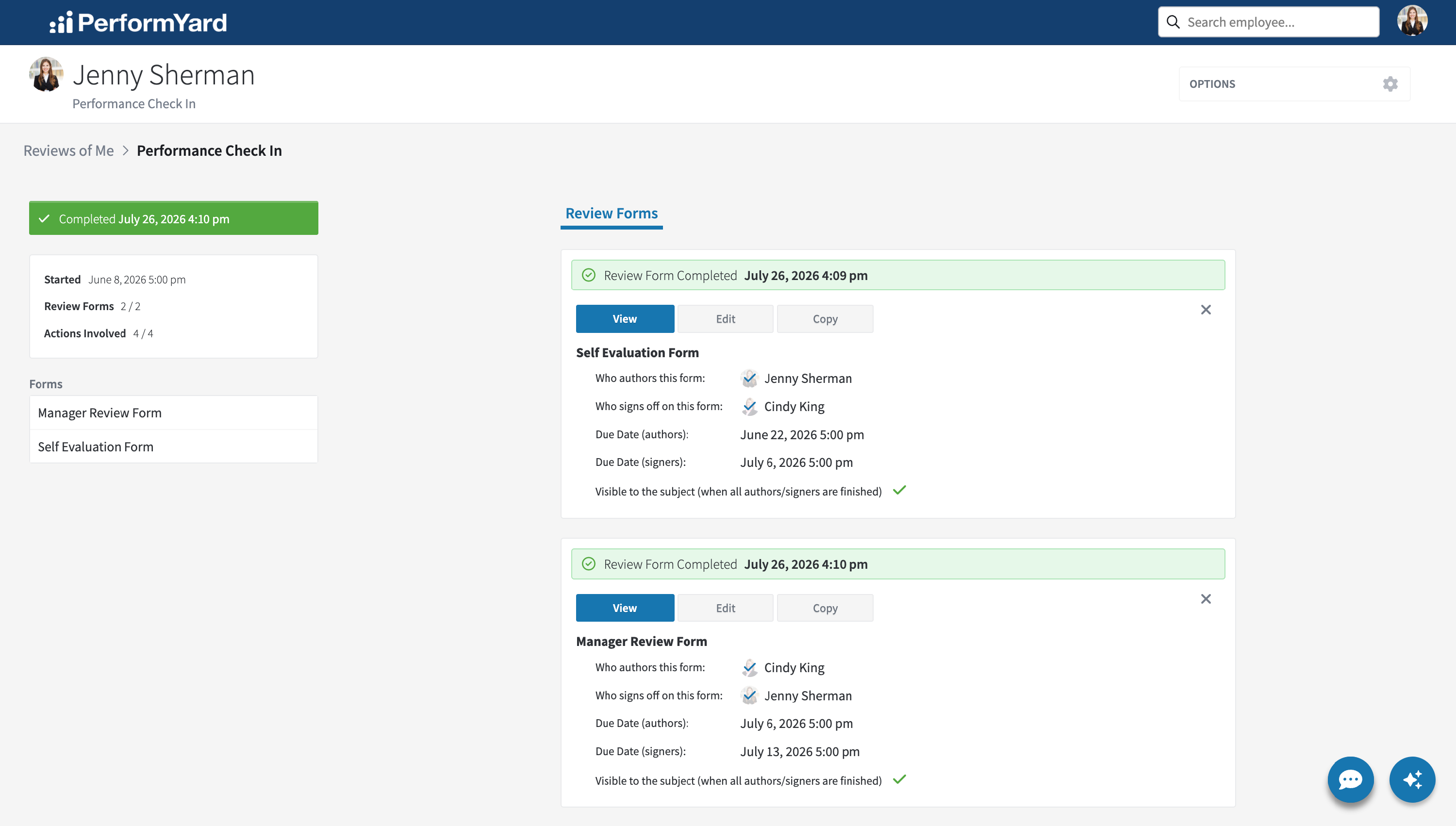
Opening any review will bring up all forms in the review that you have permission to see, showing various details for each form. Each form includes the author(s) and signer(s), due dates, visibility of the form and the redact author(s) setting if applicable. Click View to complete a form (if you are the current author or signer) or to see the contents of the form when available to you.
My Team's Reviews (Manager)
If you have direct reports assigned in PerformYard, you can view all reviews about your team members by selecting My Team's Reviews within the Reviews dropdown. This will show every review, whether it is currently active, was completed in the past or is scheduled to occur in the future. You can even access those reviews that may have been completed by others before you were assigned as another employee’s manager.
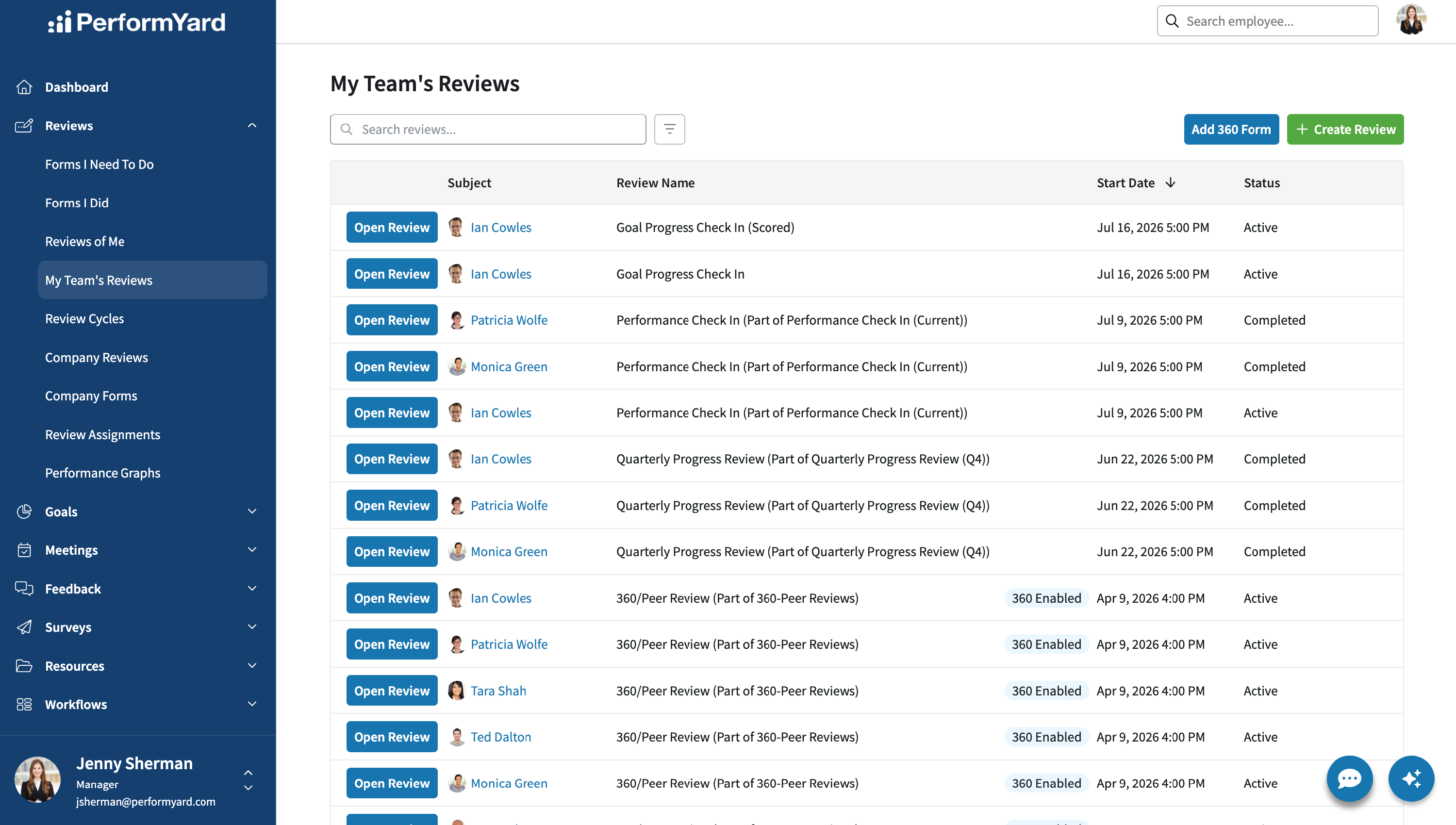
You can filter this list by the review subject or the status, as well as change the start date sort from ascending to descending. Click Open Review next to the subject’s name for the review you want to see.
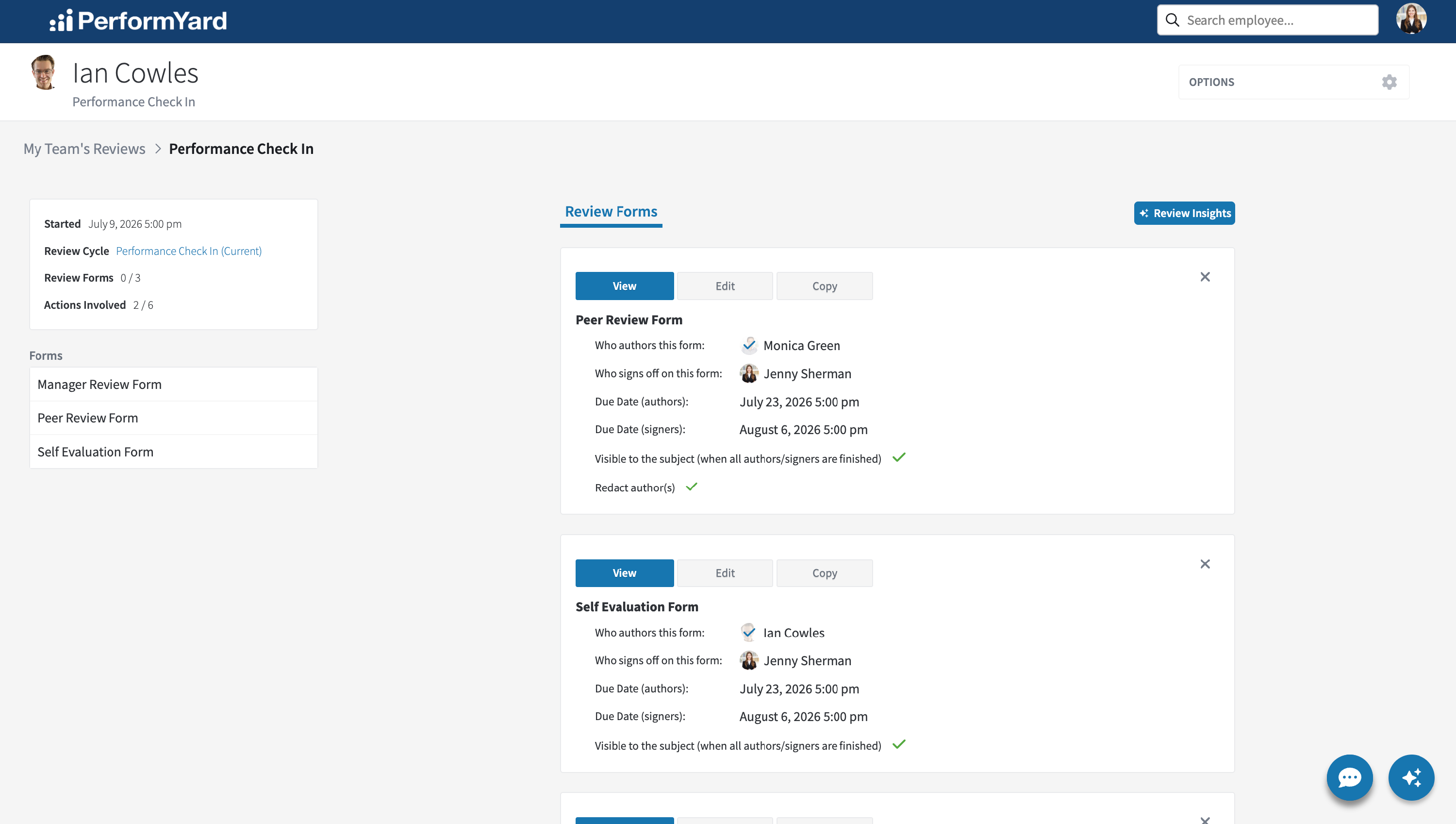
You can view any form by clicking View to see the contents of the form (assuming they are completed or it was one that you worked on).
You may also click Edit to change the parameters of a form if given permission by Administrators. For example, some reviews may have unassigned forms. These are forms that are scheduled as part of a review template, but for which you have to determine who will fill out the form. You can then modify authors or signers, as well as due dates, for the form you are editing.

Depending on your permissions for any given review, the Options menu in the upper right may include additional actions you may take including:
- View All Answers to see a consolidated view of answers by form
- Edit Review to change the name of the review as displayed
- Add Form to include assign another form as part of this review
- Add External Form to assign another form as part of this review to someone outside of PerformYard
- Download As CSV to export review answers in CSV format
- Download As PDF to export a single PDF that includes all forms in the review
- Close Review to end the review in its current state
- Re-open Review to restart a review previously closed
- Delete Review to permanently delete the review from PerformYard (not recoverable, depends on permission)
