.png)
Using Competencies to Measure Employee Performance
Introduction
Once competencies and roles have been set up, organizations can begin measuring employee performance against role expectations. While every employee can view their assigned competencies and understand how they're performing relative to the performance expected from their role, managers and administrators are the only users who can view someone else's competency data and update the employee's current level.
Evaluating Employees and Updating Current Levels
There are two different paths for viewing another employee's competency assignments and updating current levels:
- My Team's Competencies
- Company Competencies
My Team's Competencies
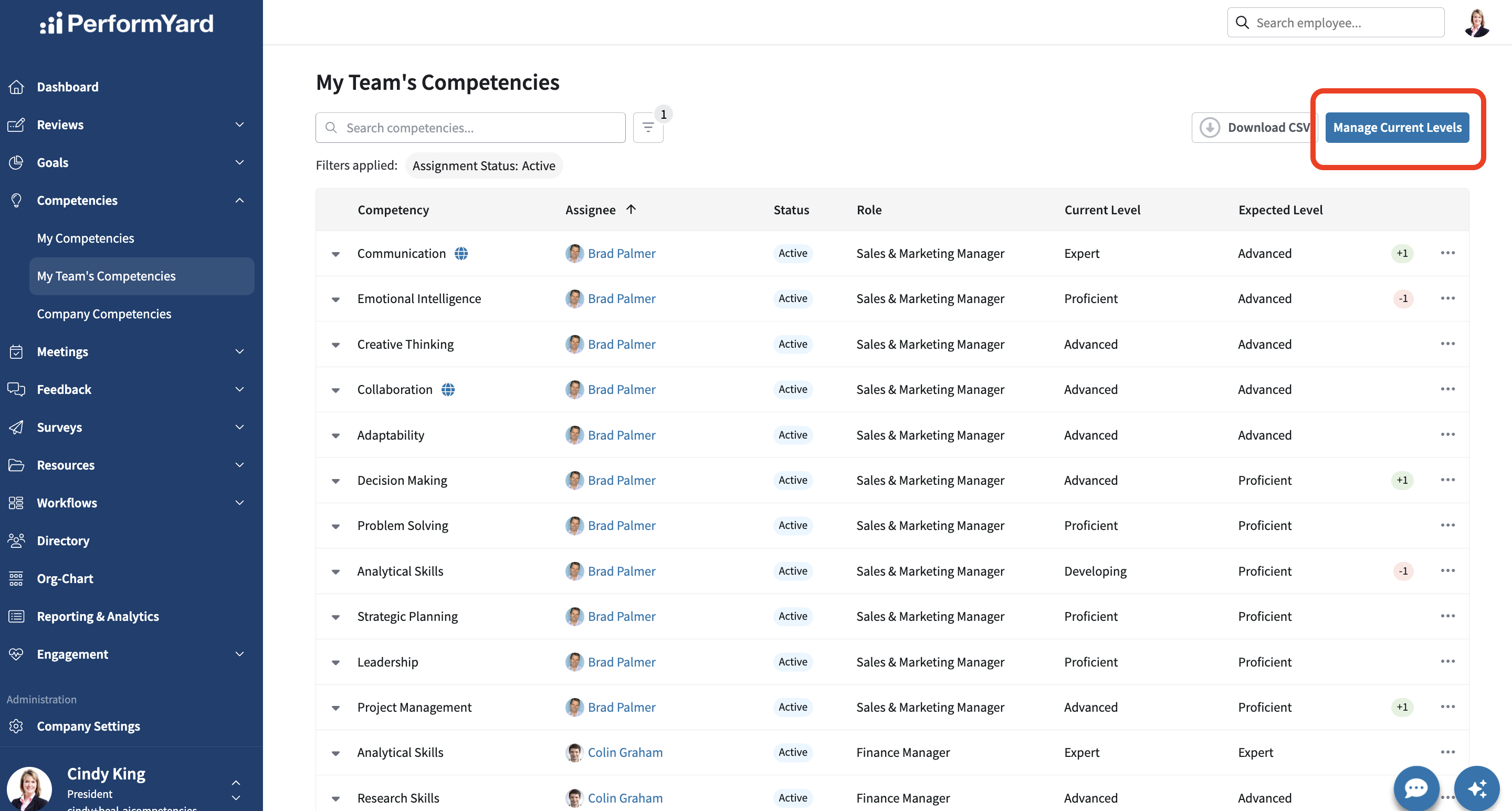
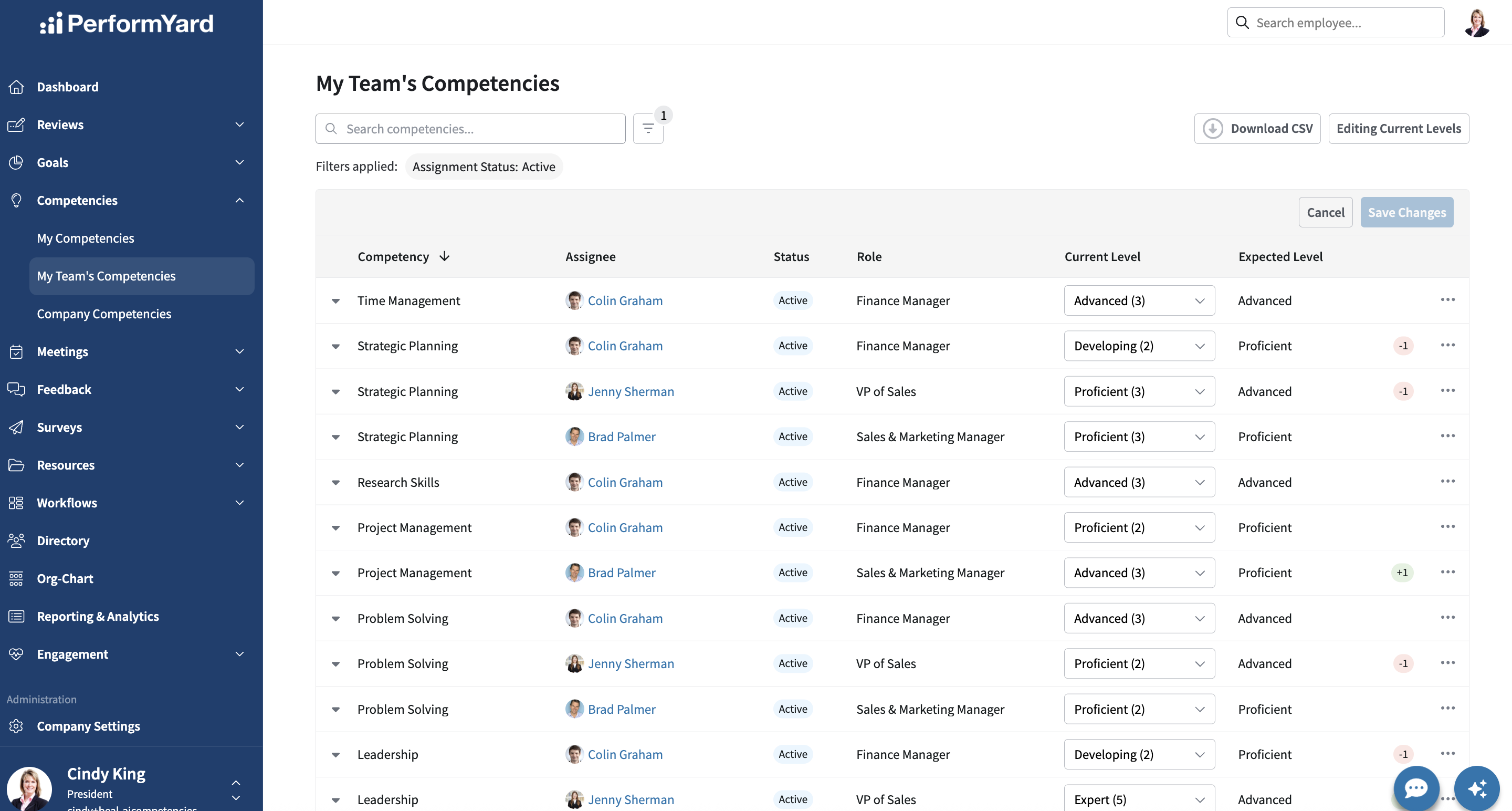
If you are a manager, you can update current competency levels through the My Team's Competencies page. Here, you can make bulk updates across your direct reports by clicking the Manage Current Levels button in the top right corner. Once you click this button, a dropdown selector will display under the Current Level column for every row in the table. Work your way down the default list or choose to modify the table sort in a manner that meets your needs. You can also apply filters to narrow page results. For example, you can filter by assignee to evaluate one direct report at a time, updating the current level for each of their assigned competencies. Or, you can filter by specific competency to focus on one skillset at a time, updating the current level for all direct reports assigned to the competency.
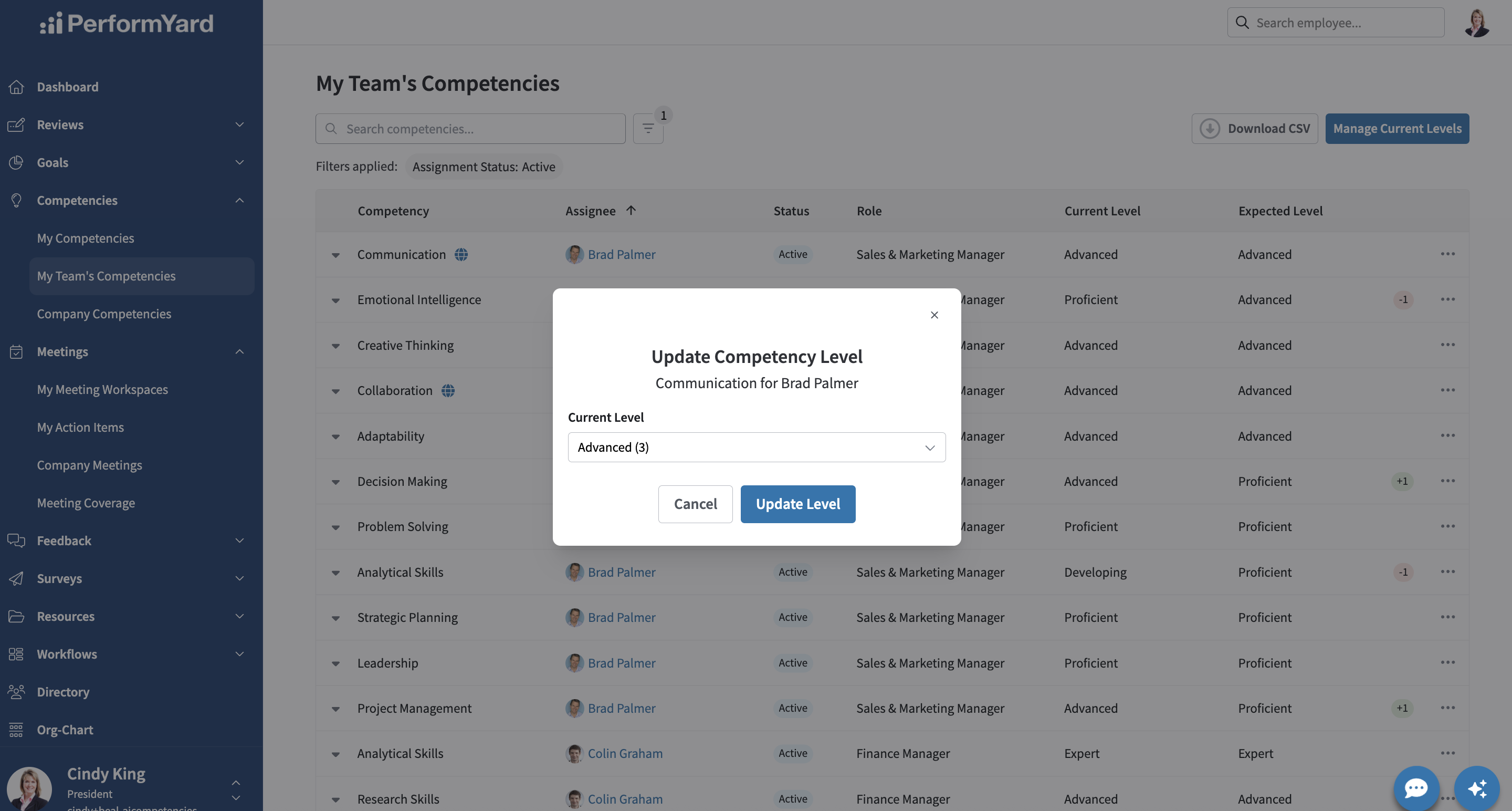
To update the current level assignment for an individual row in the table, managers can also click the ellipsis icon located on the far right of the desired row and select Update Current Level. A modal will then display on screen to update the assignee's current competency level. Once you have updated the current level, click the Update Level button.
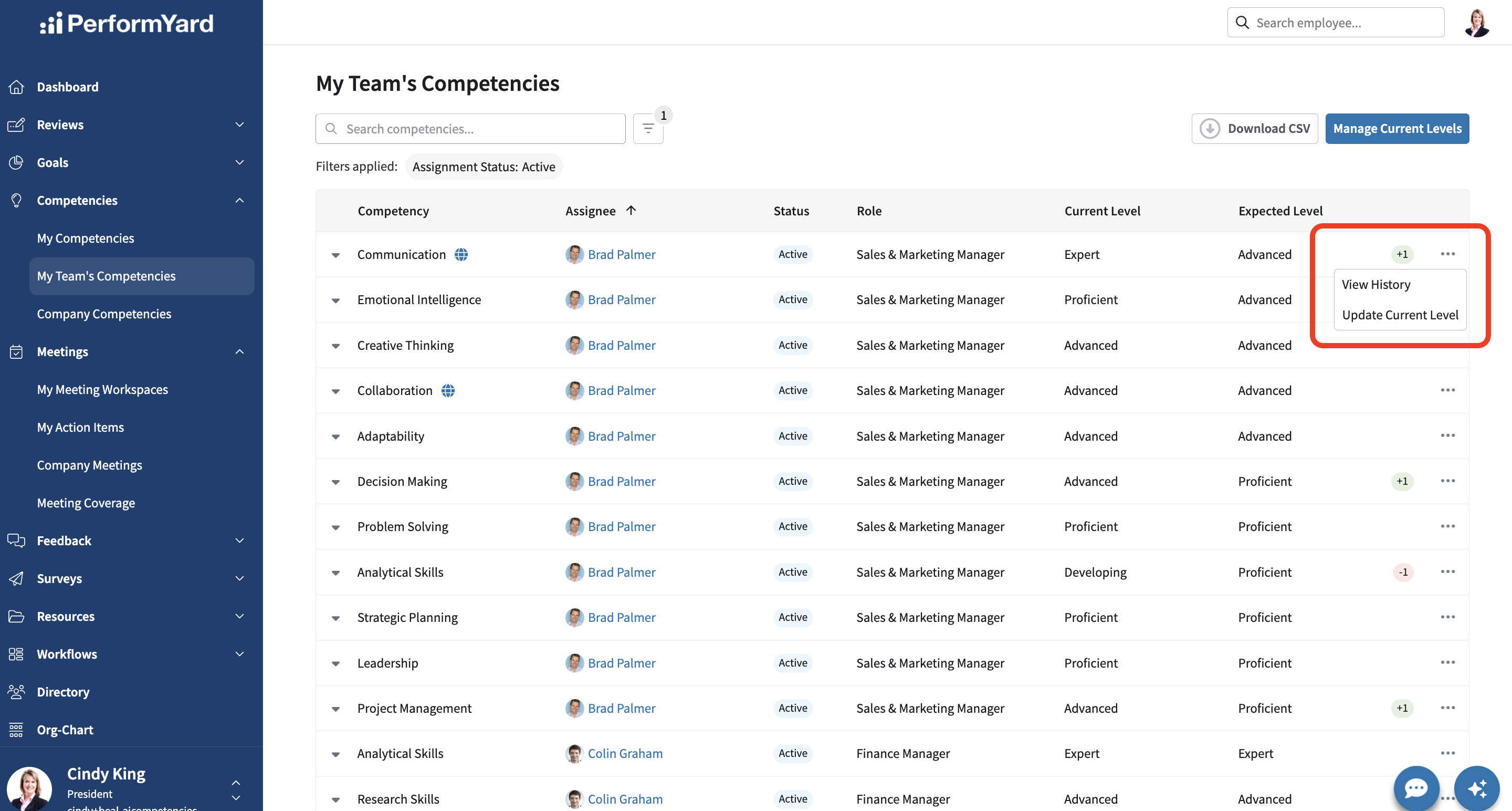
Changes to an assignee's current competency level are tracked and reported in the View History panel. The history panel also captures other historical activity such as when and why the competency or expected level was assigned or updated, what caused the update, and who did it. To view the competency history, click the ellipsis icon located on the far right of the desired row and select View History.
Company Competencies
If you are an administrator, you can update current competency levels through the Company Competencies page. Here, you can make bulk updates to current levels just like managers can for their team, but this page extends that capability to make bulk updates across the entire organization. You can work your way down the default list or modify the table results to better meet your needs. For example, to view and update current levels for a specific manager's team of direct reports, you can filter by manager.
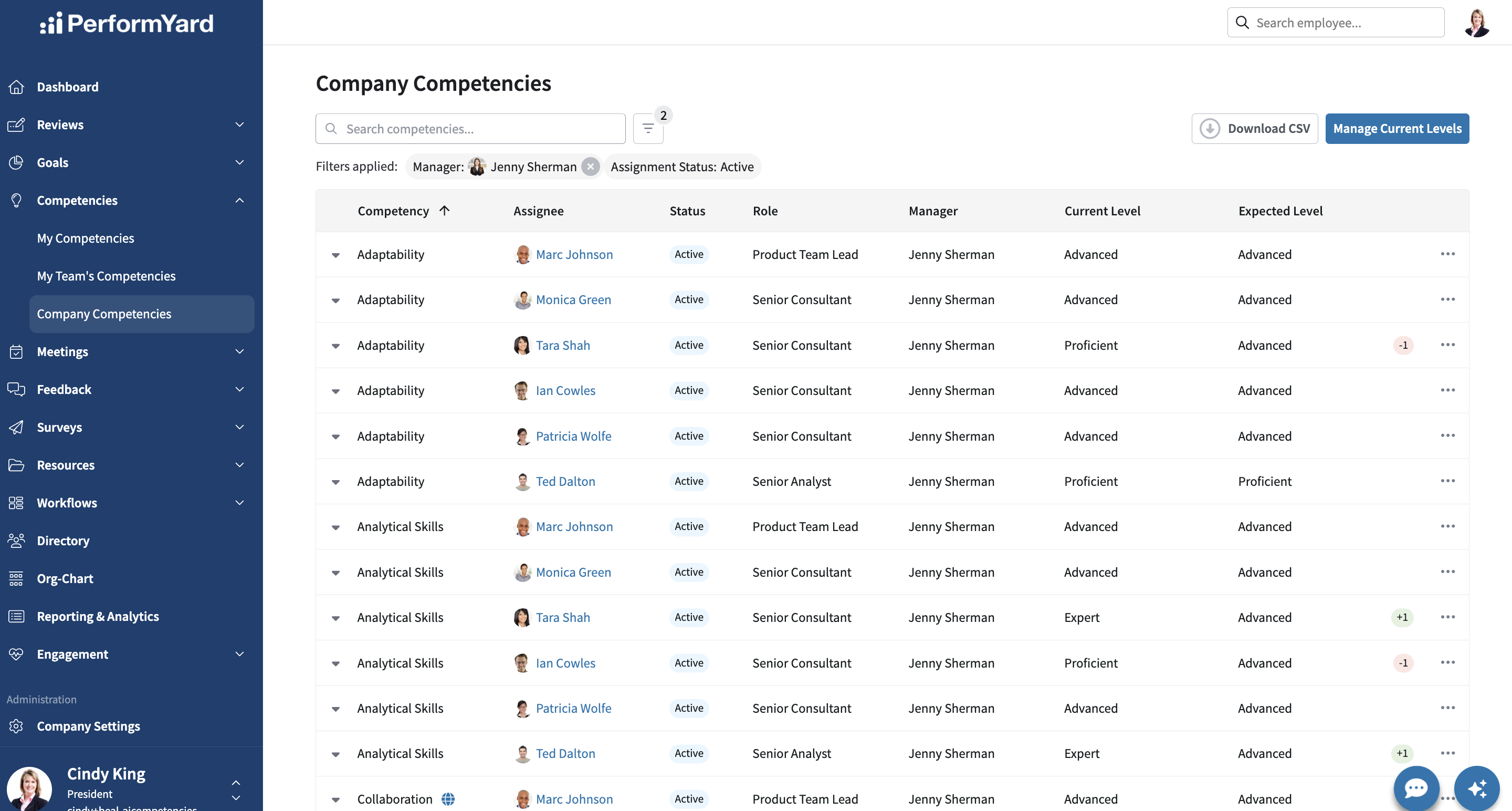
Just like the My Team's Competencies page, this table also allows administrators to update the current level for an individual row in the table and view its historical activity.