.png)
Approving Compensation Decisions
Once your managers have proposed increases for their teams, sign-off must occur for those proposals. That process happens on the Budget Reviews tab of a compensation cycle, where you review each team's proposals against its budget and approve them.
You can approve one team budget at a time, not one employee at a time. A manager submits their whole team together, and you approve it the same way.
Who can approve
Only the following roles have the ability to approve a manager's decisions:
- Billing Admins
- Admins
- Cycle owners.
Cycle owners are the role for someone who needs to sign off on compensation without running the cycle, typically an executive or senior role wiht
The three statuses
Every team budget sits in one of three states:
- Not Submitted: the manager has not sent their decisions yet. These rows show a dash instead of figures, because there is nothing to show.
- Submitted: the manager is finished and the budget is waiting on you.
- Approved: you have signed it off.
Finding the budgets that need you
Open the cycle and select Budget Reviews.
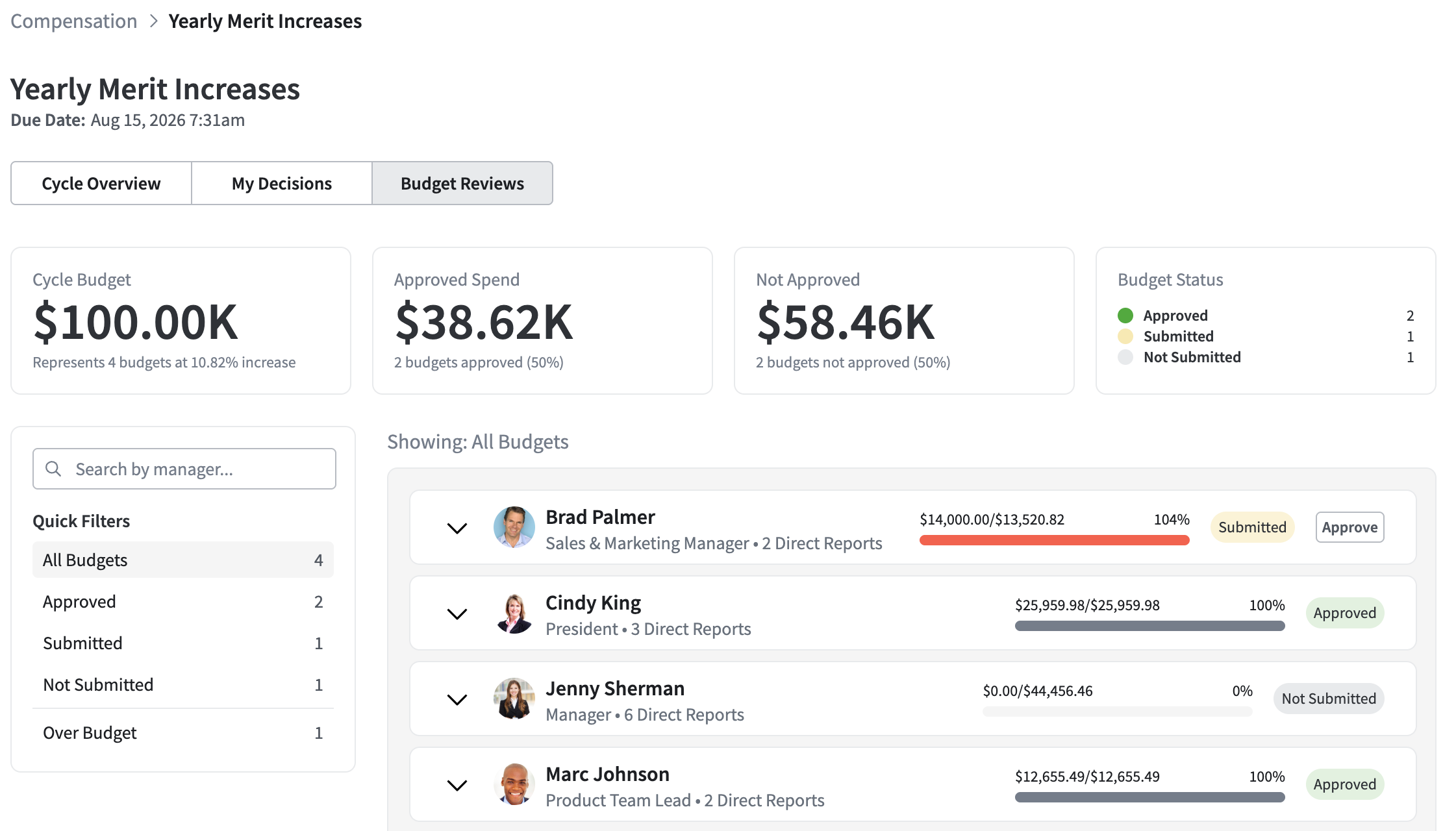
The widgets across the top give you the shape of the cycle: your total Cycle Budget, Approved Spend, Not Approved, and a Budget Status breakdown counting how many budgets sit in each state.
Use Quick Filters on the left to narrow the list to All Budgets, Approved, Submitted, or Not Submitted. An Over Budget filter appears when any team has allocated more than its budget. You can also search by manager name.
To work through what is waiting on you, filter to Submitted.
Reviewing a team budget
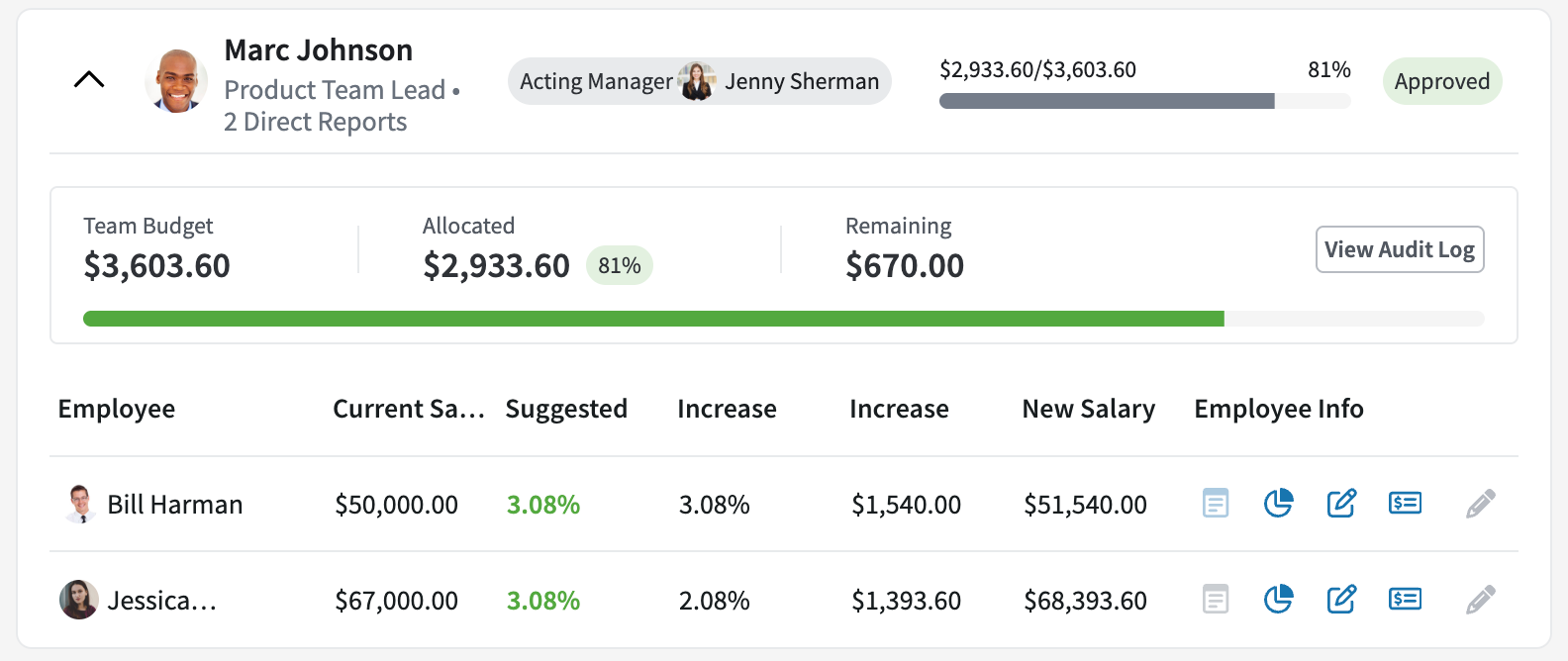
Each row shows the manager, their job title and direct report count, how much of their budget they have allocated, a progress bar, and their current status. If someone else made the decisions for that team, an Acting Manager label names them.
Expand a row to see the individual employees: their current salary, the suggested increase, what the manager proposed as a percentage and a dollar figure, and the resulting new salary. Expand an employee to read the manager's notes explaining their reasoning.
A red allocated figure means that team is over its budget. PerformYard allows this rather than blocking the manager, so treat it as something for you to decide on rather than an error.
In the Employee Info column, cycle owners can open an employee's Salary History but not their Goals or Reviews. Billing Admins and Admins can open all three.
Approving a budget
Select Approve on any budget in Submitted status.
Approving cannot be undone. There is no way to move a budget back from Approved.
That said, approving does not freeze the numbers. You can still adjust an individual employee's increase on an approved budget, which is covered below.
Approving several at once
With the Submitted filter selected, an Approve All Budgets button appears. It approves every budget in Submitted status.
Two things to know. The button only appears under the Submitted filter, so if you are looking at all budgets you will not see it. And it only approves budgets that managers have actually submitted. Anything still in Not Submitted stays that way, because there are no decisions in it to approve.
Changing an individual decision
Once a team has submitted, a pen icon appears on each employee's row in the expanded budget. Select it to change that employee's Increase % or Increase $, then confirm. This works on submitted budgets and on budgets you have already approved.
Every edit is recorded, including who made it and what the value changed to, so there is a trail explaining any difference between what a manager proposed and what was approved.
The manager can see your changes in the audit log on their My Decisions page, but they cannot respond to them or change them back. If a proposal needs rethinking rather than correcting, talk to the manager.
When a manager has not submitted
Budgets in Not Submitted are waiting on a manager, not on you. Reminder notifications go out automatically as the due date approaches and after it passes.
If a manager is unavailable or should not be the one deciding, you can hand the team to someone else. Learn how below.
You cannot submit a budget on a manager's behalf.
Assigning an acting manager
An acting manager proposes increases for a team instead of that team's regular manager. Organizations use this when a manager is too new or too inexperienced to own pay decisions, or when they would rather the responsibility sat one level higher in the reporting chain.
Open the menu on a team's budget summary and select Assign an Acting Manager. This delegates that budget's decisions to the person you choose.
A few constraints:
- The person you can assign is that manager's own manager.
- You can only do this while the budget is still Not Submitted.
- Selecting the original manager again removes the acting manager.
- An employee listed as their own manager, or with no manager at all, cannot have decisions delegated. Fix the reporting relationship first.
The acting manager is notified that they have decisions to make, and the original manager is notified if a budget is taken off them.

The audit log
View Audit Log on any team budget shows what happened and when: who submitted, who approved, and any individual increases that were changed after submission.
This is what you point at when someone asks how a number was arrived at. Managers can see the same log for their own team, so any change you make after they submit is visible to them.
What approval does and does not do
Approving records your organization's decision. It does not change anyone's pay.
Completing the cycle does not approve anything. If you close a cycle with budgets still in Submitted, they stay in Submitted. PerformYard will list what is outstanding before you confirm, but it will not approve on your behalf. Approval is always an explicit action.
Approving does not update salaries. PerformYard is not your payroll system. Once your decisions are approved, export the cycle and hand it to your HRIS or payroll process, which implements the increases and sends the updated salaries back to PerformYard.