.png)
Completing Compensation Decisions
Video Walkthrough:
When your organization runs a compensation cycle, you are asked to propose a pay increase for each of your direct reports out of a budget set for your team. You will get an email when your decisions are ready, and reminders as the due date approaches.
Your proposals are not final. Once you submit them, a cycle owner or an administrator reviews and approves your team's budget and can adjust decisions from their own page.
Finding your team's cycle
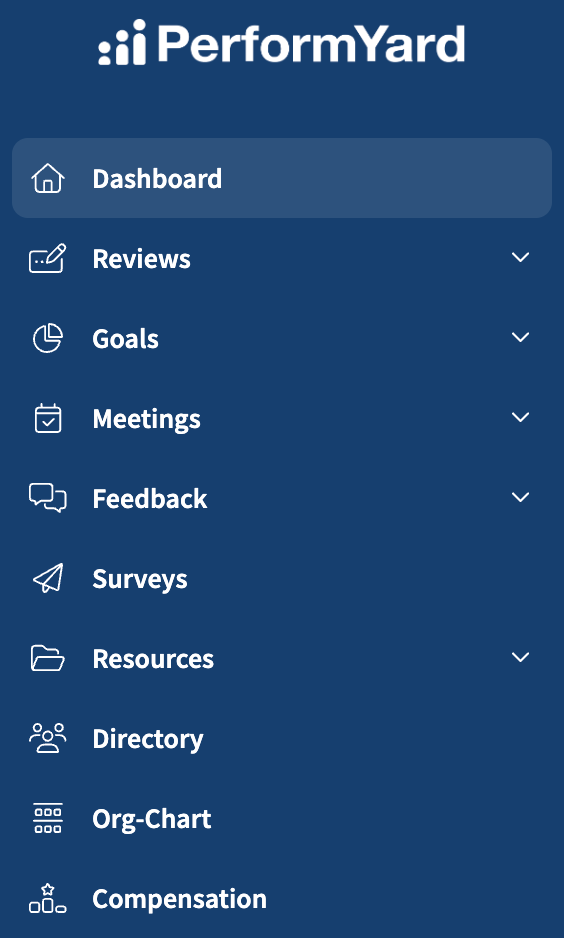
Select Compensation in your navigation menu. You will see the cycles you have decisions for, listed with their due dates.
You will only see cycles that are open. A cycle your administrator has set up but not yet started does not appear until its start date.
Your decisions worksheet
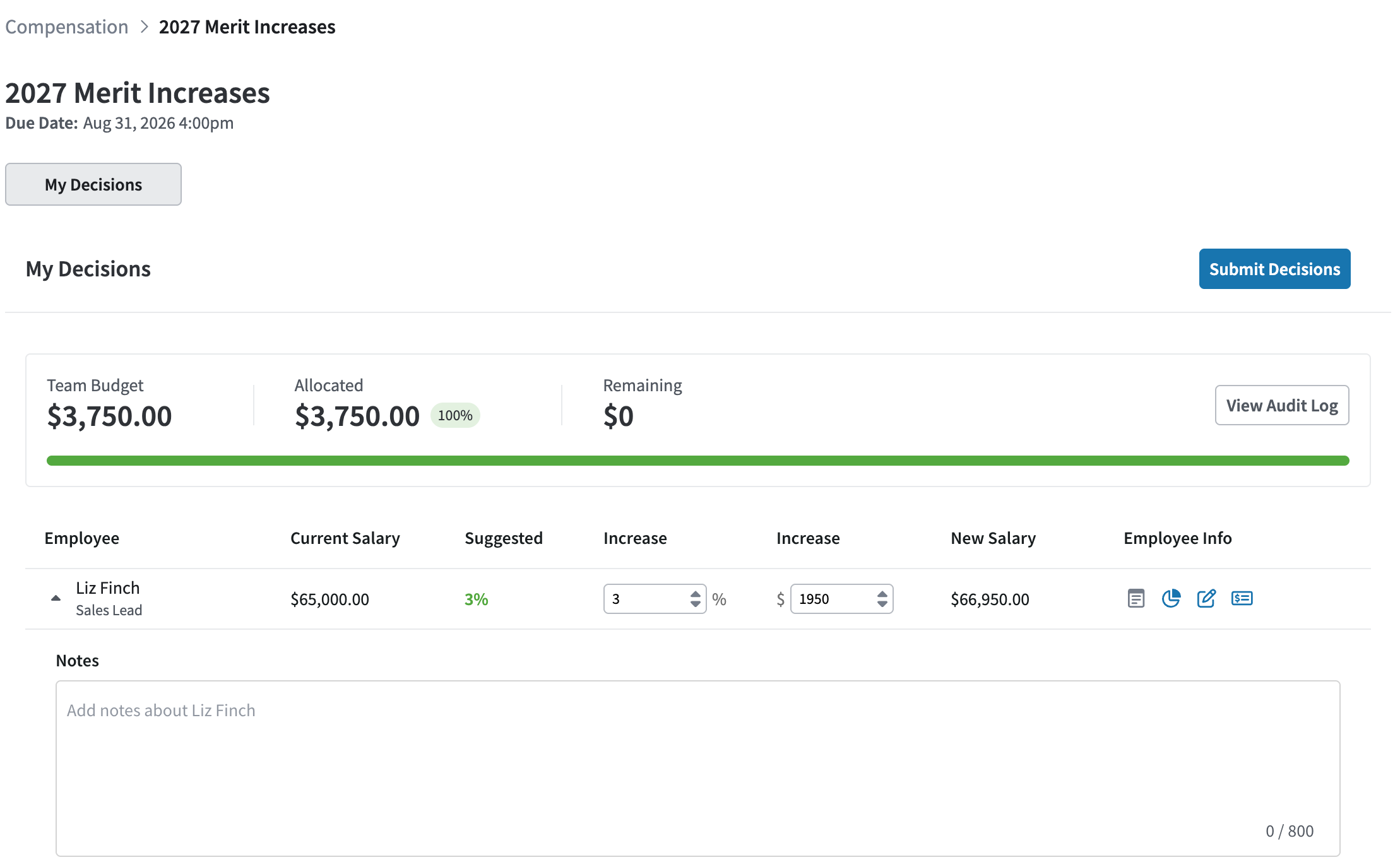
Open the cycle and select the My Decisions tab. Each of your direct reports gets a row:
- Current Salary: what they are paid today
- Suggested: a starting point, described below
- Increase: the percentage you are proposing
- Increase: the dollar amount you are proposing
- New Salary: their current salary plus your proposed increase
- Employee Info: links to notes, goals, reviews, and salary history
Entering an increase
Enter either a percentage or a dollar amount. The two are linked, so filling in one calculates the other, and New Salary updates as you type.
The Suggested column shows the increase percentage your administrator set for the whole cycle. It is the same figure for every employee, so treat it as the cycle's starting point rather than a recommendation about a particular person. Selecting an empty Increase field fills in the suggested percentage for you, and you can then change it.
Every employee needs a number before you can submit, including anyone who is not receiving an increase. Enter 0 for them.
A note on rounding. The percentage and the dollar amount are two views of the same increase, and most percentages do not divide evenly into a salary. When you enter a percentage, PerformYard works out the dollar amount and rounds it to the nearest cent. When you enter a dollar amount, it works out the percentage and rounds that. Because of this, switching between the two fields can leave you a fraction of a percent or a few cents off the figure you first typed. The dollar amount is what determines the new salary, so if a specific dollar figure matters, enter that one.
Tracking your budget
Above your team you will see your Team Budget, how much you have Allocated so far, and how much is Remaining.
View Audit Log shows the history of changes to your team's budget, including any adjustments a cycle owner or administrator makes to your proposals after you submit them.
PerformYard does not stop you from going over budget. If you do, the allocated figure turns red so you and your reviewer can see it. Whether that is acceptable is a conversation for your organization.
Adding notes
Expand any employee's row to add notes about your decision. Notes save automatically as you type.
This is where you explain your reasoning, which matters most when your proposal differs from the suggested increase. Whoever reviews your budget can see what you wrote. Once you submit, your notes become read-only.
Looking at performance and salary history
The Employee Info column links out to the context behind the decision:
- Goals opens that employee's goals
- Reviews opens their reviews
- Salary History shows how their salary has changed over time
These open the employee's existing records, so nothing you do here affects your compensation decision. If Salary History is unavailable to you, your organization has restricted who can see salary data.
Submitting your decisions
When you are finished, select Submit Decisions.
Submitting is final for you. You cannot change your proposals afterward. The button changes to Submitted, and your team's budget moves to your reviewer for approval.
Your reviewer can adjust an individual increase after you submit. If that happens, you will see the change in View Audit Log.
If you are an acting manager
Your organization can ask you to make decisions for a team other than your own, usually a team reporting to one of your own managers. If so, you will see that team alongside yours, labeled You are Acting Manager, and you complete and submit it the same way.
If you are removed from a team's budget, PerformYard notifies you and no action is needed.
After the cycle closes
Once your administrator closes the cycle, My Decisions is no longer available and your worksheet becomes read-only.
Closing the cycle does not change anyone's pay. PerformYard records the decision. Your organization's payroll or HR process implements the increase separately, on its own timeline.
If something looks wrong
- Someone is missing from your worksheet. Employees without a salary on record or without an assigned manager are left out of a cycle, and the employee list is set when the cycle is created.
- You cannot find the cycle. Cycles do not appear before their start date, and they disappear from your view once closed.
- The team shown is not yours. You may have been assigned as an acting manager. Check for the You are Acting Manager label.