.png)
Compensation Cycle Data and Dashboards
The Cycle Overview tab shows you where a compensation cycle stands: how much of your budget is committed, how far along your managers are, and what the increases look like across the organization. When the cycle is finished, it is also where you export the results to hand to payroll.
Open a cycle from the Compensation page and select Cycle Overview. It is available at every stage, from before the cycle opens through after you close it. On a cycle that has not started, everything below appears as normal but shows nothing yet, because no decisions have been made.
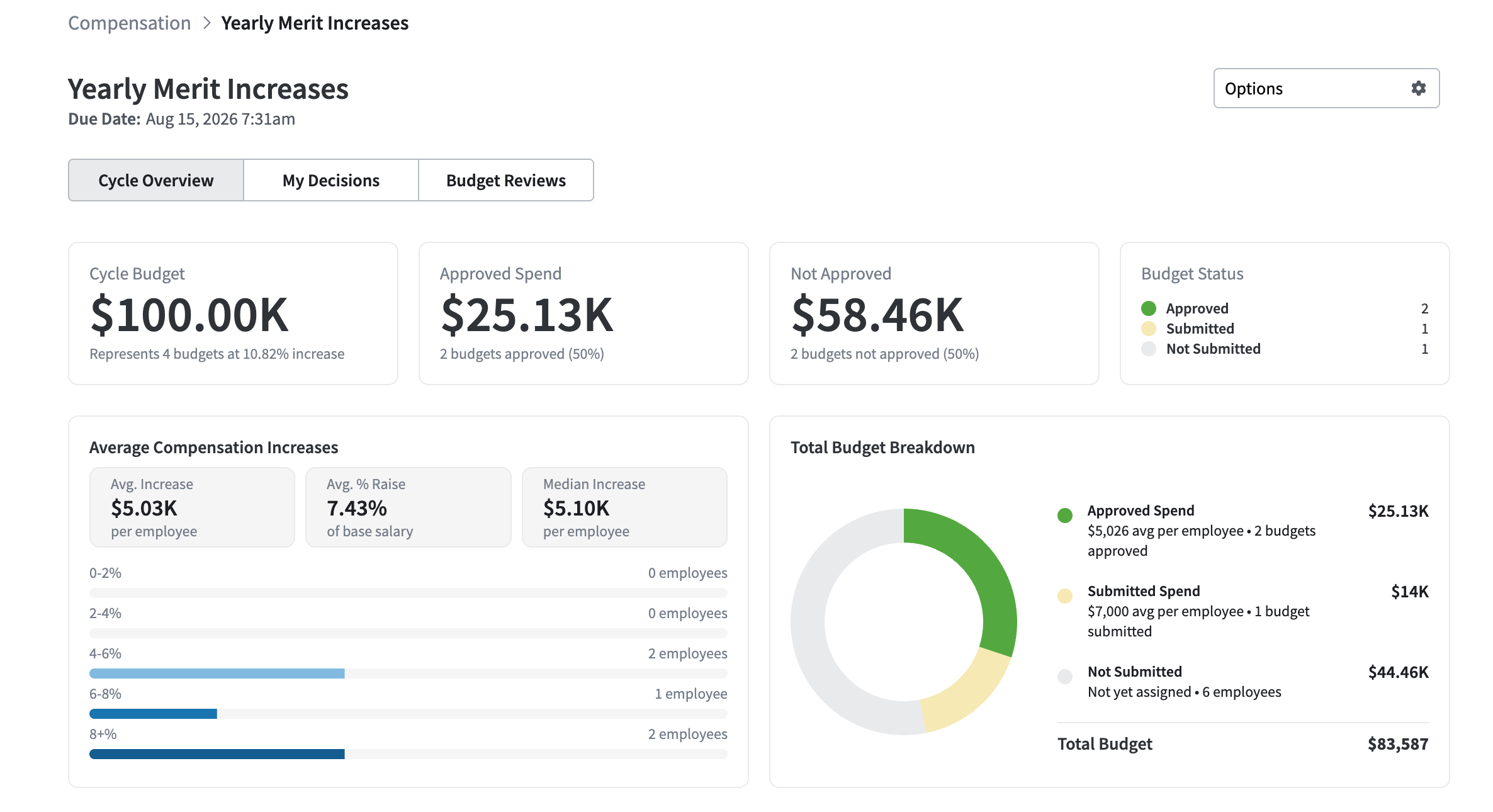
The budget widgets
Four widgets across the top summarize the money:
- Cycle Budget: the total you allocated when you created the cycle, with how many team budgets it covers and at what increase percentage
- Approved Spend: the total from team budgets you have approved, and how many that is
- Not Approved: everything not yet approved, and how many budgets that is
- Budget Status: a count of team budgets sitting in Approved, Submitted, and Not Submitted
Not Approved means not yet approved, not rejected. It combines budgets your managers have submitted and are waiting on you, and budgets they have not submitted at all. Use the Budget Status widget to see the split.
Average compensation increases
This panel shows what the cycle is producing at the level of an individual employee:
- Avg. Increase per employee, in dollars
- Avg. % Raise as a share of base salary
- Median Increase per employee
Below the three figures, a chart groups employees by the size of their increase, so you can see the distribution rather than just the average.
These figures count approved decisions only. Early in a cycle, before you have approved anything, this panel will look empty or unrepresentative. That is expected. It fills in as you approve team budgets.
Total budget breakdown
A doughnut chart splits your total budget three ways:
- Approved Spend, with the average per employee and how many budgets are approved
- Submitted Spend, the same for budgets waiting on your approval
- Not Submitted, shown as not yet assigned, with a count of employees rather than budgets
This is the fastest way to see how much of your budget is genuinely committed versus still moving.
The cycle budgets table
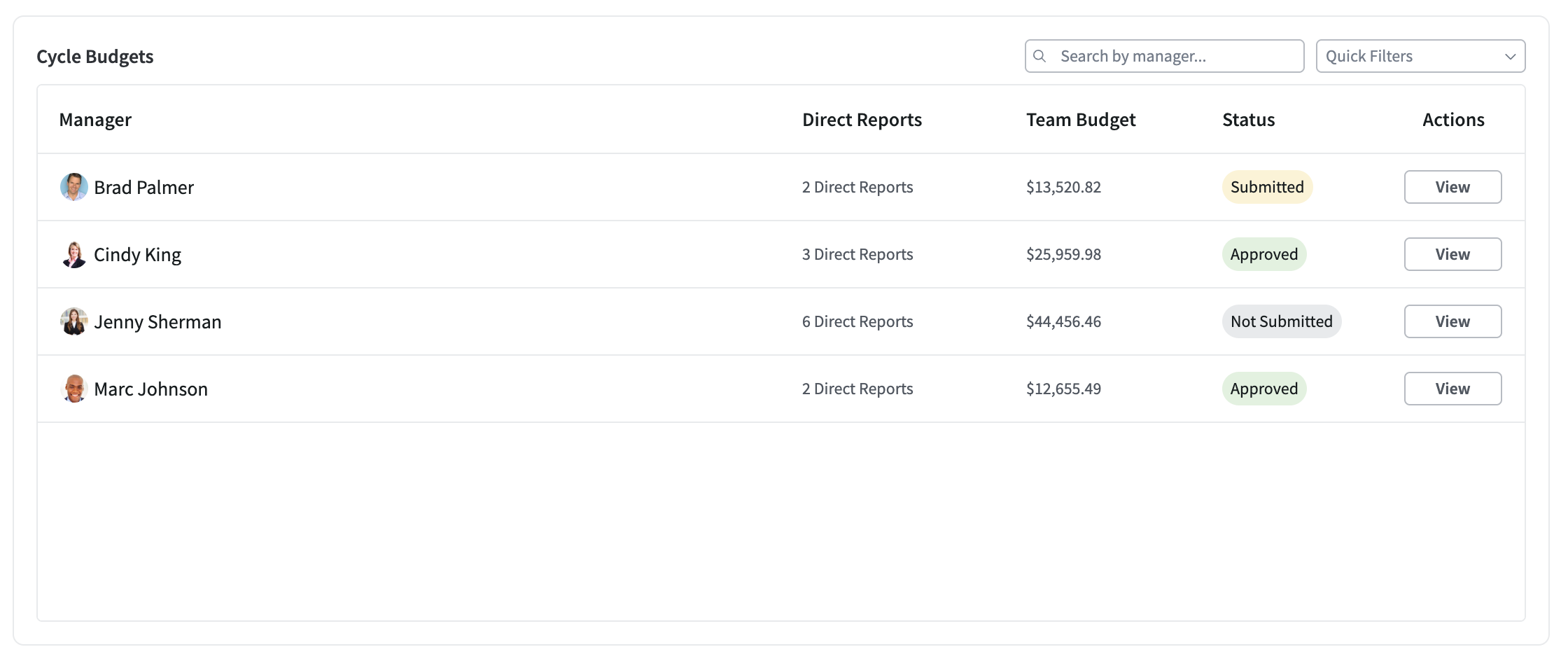
Below the charts, every manager in the cycle gets a row showing their Direct Reports, their Team Budget, and their current Status. If someone else is making that team's decisions, the acting manager is named alongside the manager.
Search by manager name, or use the quick filters to show only Not Submitted, Submitted, or Approved budgets.
Select View on any row to jump straight to that team on the Budget Reviews tab.
Downloading your results
Select Options on the Cycle Overview tab, then Download Results CSV. PerformYard builds the file, and your browser downloads it when it is ready.
You can export at any point once a cycle has started. The export is not available for a cycle that has not begun, since there are no decisions in it yet.
Billing Admins, Admins, and cycle owners can export.
The file reflects the cycle at the moment you export it, so a cycle still in progress will produce a partial picture. For the final numbers, export after you have closed the cycle.
What the export contains
One row per employee, sorted by employee name, with these columns:
- Employee Name and Employee Email
- Manager Name and Manager Email
- Job Title
- Current Salary
- Increase % and Increase $
- New Salary
- Notes, the manager's written justification
- Acting Manager Name and Acting Manager Email, where one was assigned
- Budget Status
After those, the file includes a column for every custom employee data field you have configured, in the order they appear in your employee data field settings. This is what lets you hand payroll a file that already carries your own identifiers, cost centers, or location codes rather than making them match records by name.
Because those custom columns come from your employee data, anything out of date in PerformYard will be out of date in the export.
Handing the file to payroll
The export is the handoff point. PerformYard has recorded and approved the decisions, and your payroll or HRIS process implements them.
Once your HRIS holds the new salaries, it sends them back to PerformYard through your existing salary field connection, and each employee's Salary field updates. That means the next cycle starts from the correct figures without anyone re-entering them.
Note that Budget Status is included on every row. If you export before every budget is approved, check that column before passing the file on, so nothing unapproved gets implemented.