[New] Your Dashboard
Introduction
When you log into PerformYard, you'll land on your Dashboard by default. The Dashboard is designed to give you a clear overview of what’s happening and what actions you need to take. Some features may be disabled based on your organization’s setup, so certain sections might not appear on your Dashboard.
Employee Details
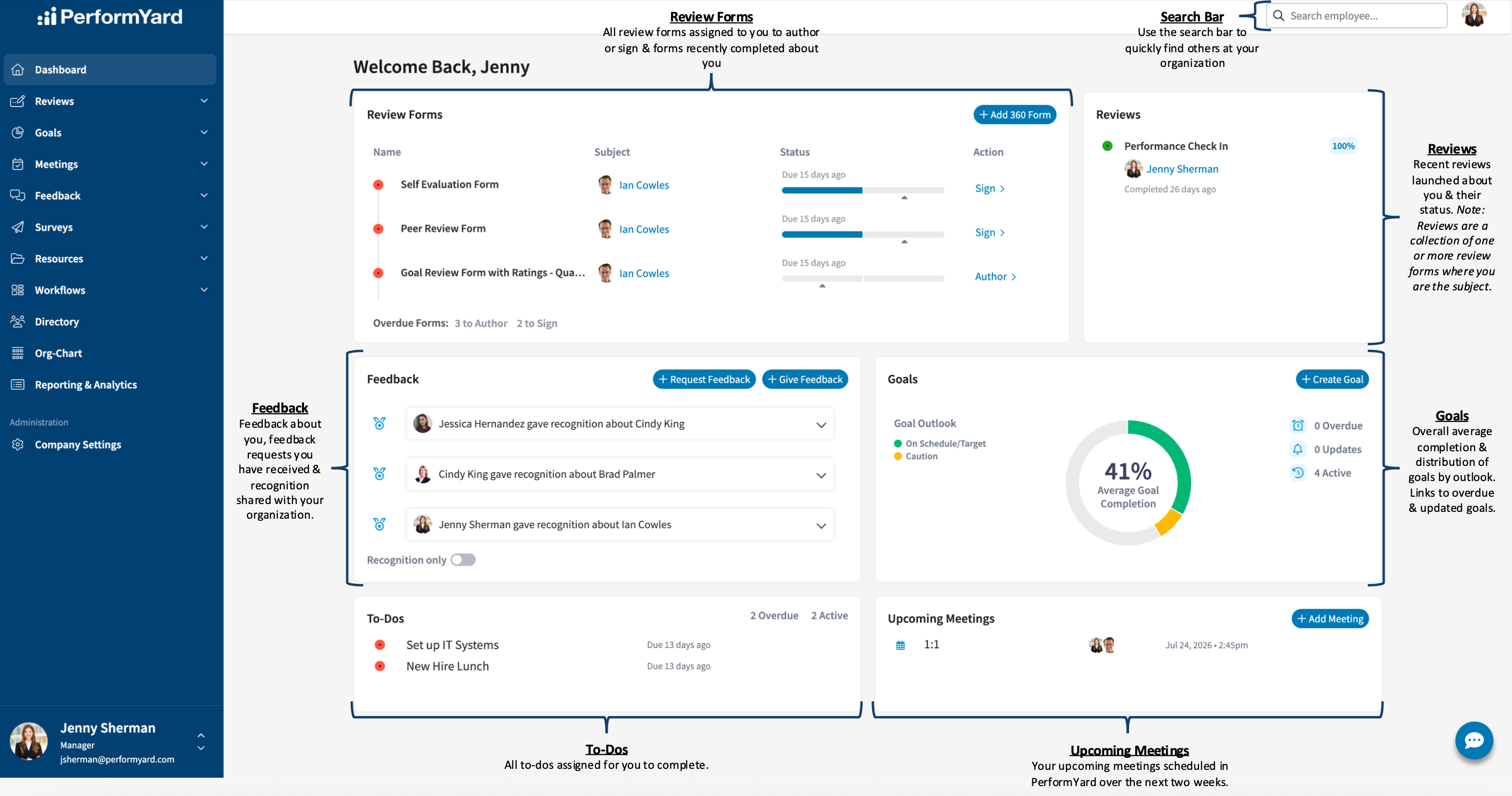
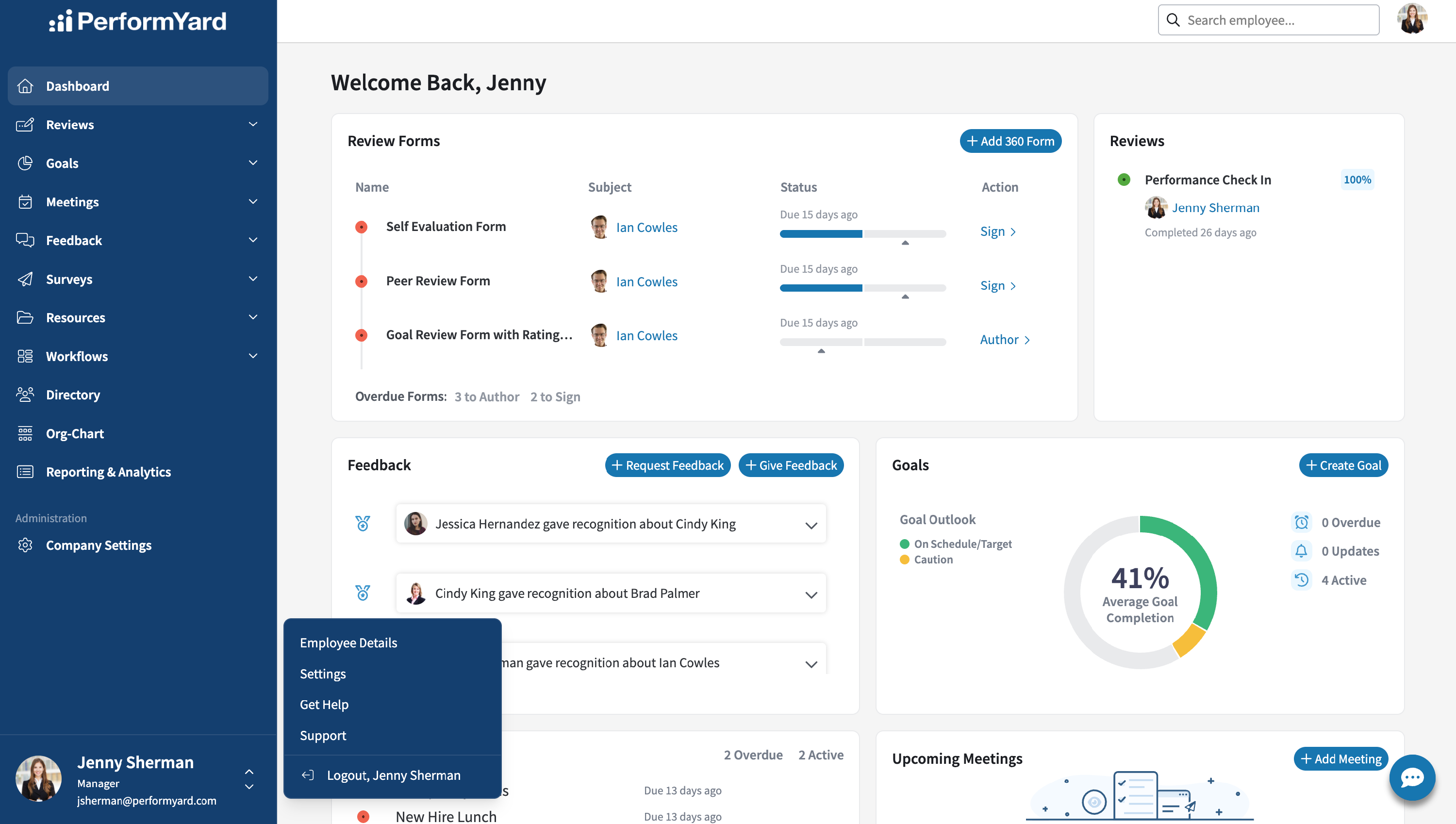
In the bottom left-hand corner of the Dashboard, you'll find your photo, name, job title, and email, along with a button for additional options like Employee Details and Account Settings. The Employee Details page in PerformYard offers a complete view of your personal and professional information: your core details, name, title, manager, and direct reports, appear on the left beneath your profile image, while additional account information is displayed on the right. Please note that your system administrators control the visibility and management of these data fields.
Review Forms
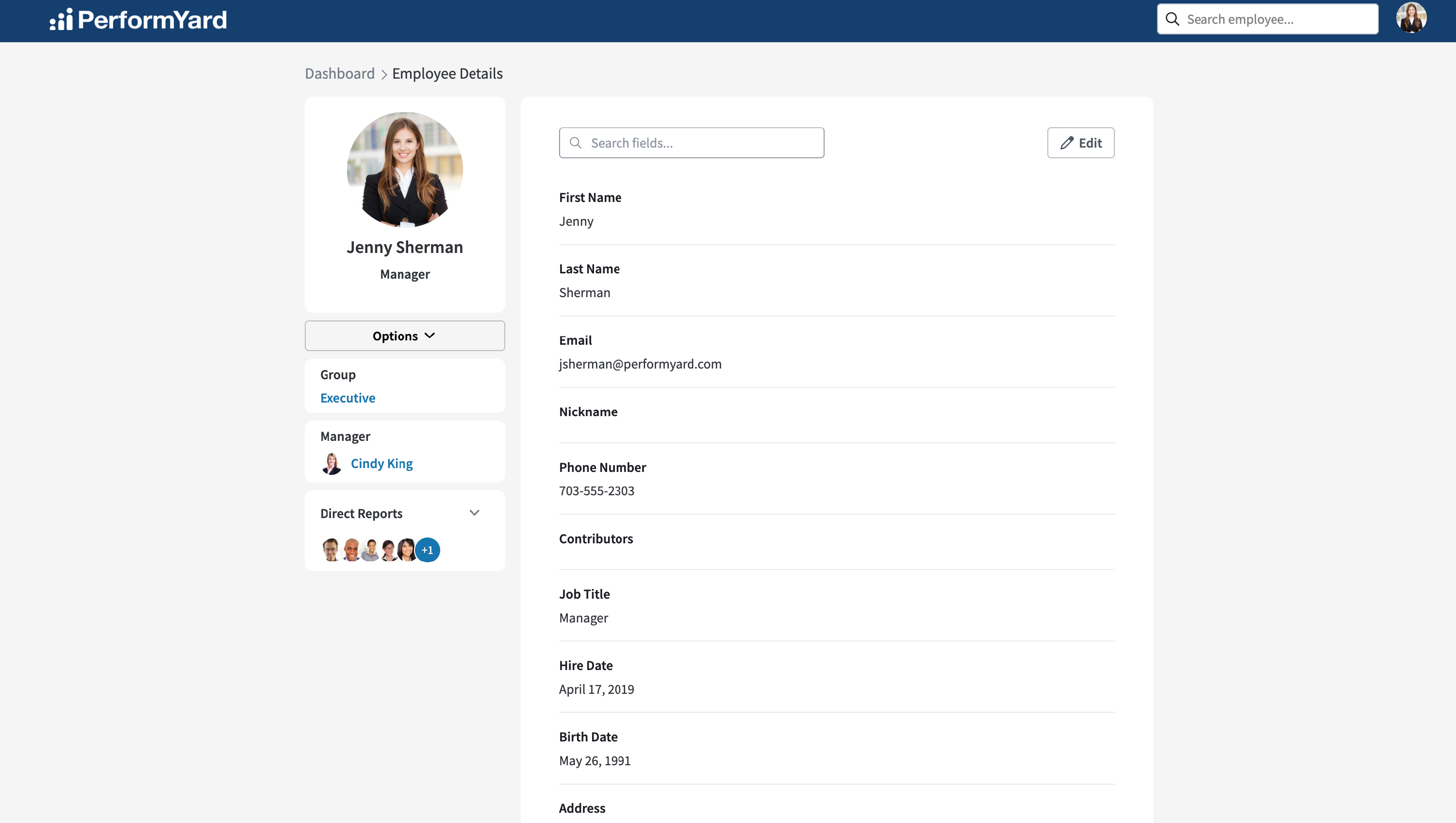
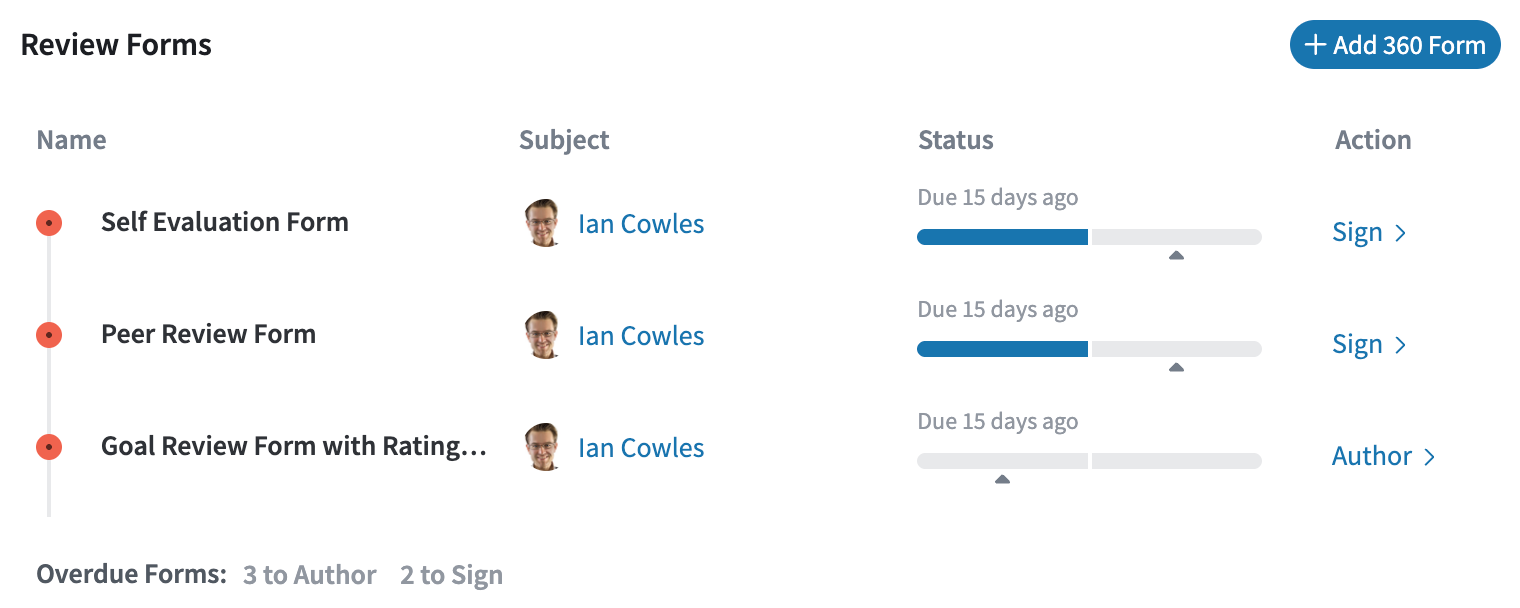
At the top of your Dashboard, you’ll see the Review Forms section. This area displays any review forms you’re responsible for authoring or signing, as well as recently submitted forms where you are the subject. A form is considered "recently submitted" if it was submitted by either an author or signer within the past 60 days.
When viewing someone else’s dashboard, such as a direct report, you’ll only see their review forms if you are listed as an author or signer, or if the form has been submitted in the last 60 days. Forms still in progress without recent activity will not appear.
You’ll also see counts of open and overdue forms. Click on any form name to open it directly.
Reviews
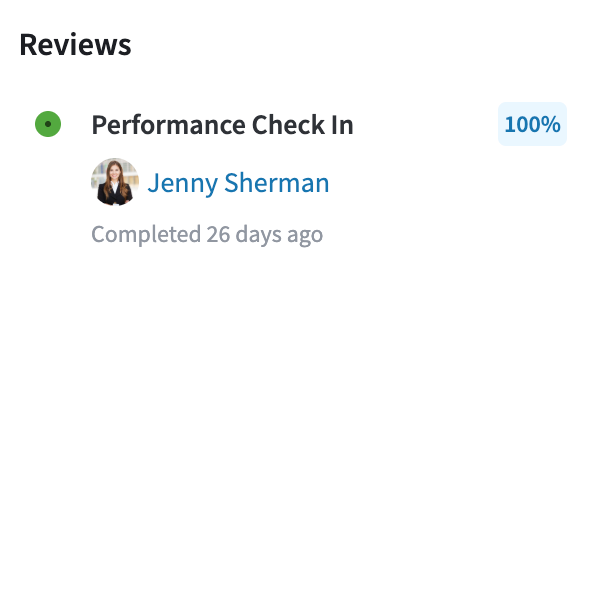
To the right of the Review Forms section, you’ll find the Reviews box. This displays any reviews where you are the subject. (Note: A review is a collection of review forms that may be completed or signed by you, your manager, or others.) Click on a review name to open and view its details.
Feedback
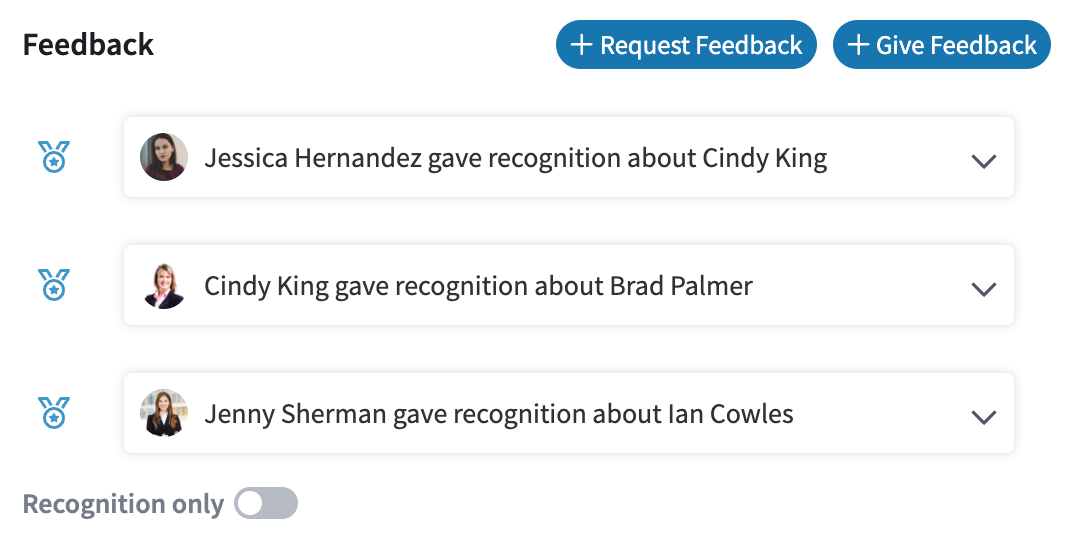
Below the Review Forms section is Feedback. Here, you’ll see all recognition shared across your organization (if available), along with any feedback you’ve received or been asked to provide. You can expand any item to view more details. Use the toggle option to display only organization-wide recognition, filtering out feedback directed specifically to you.
Goals
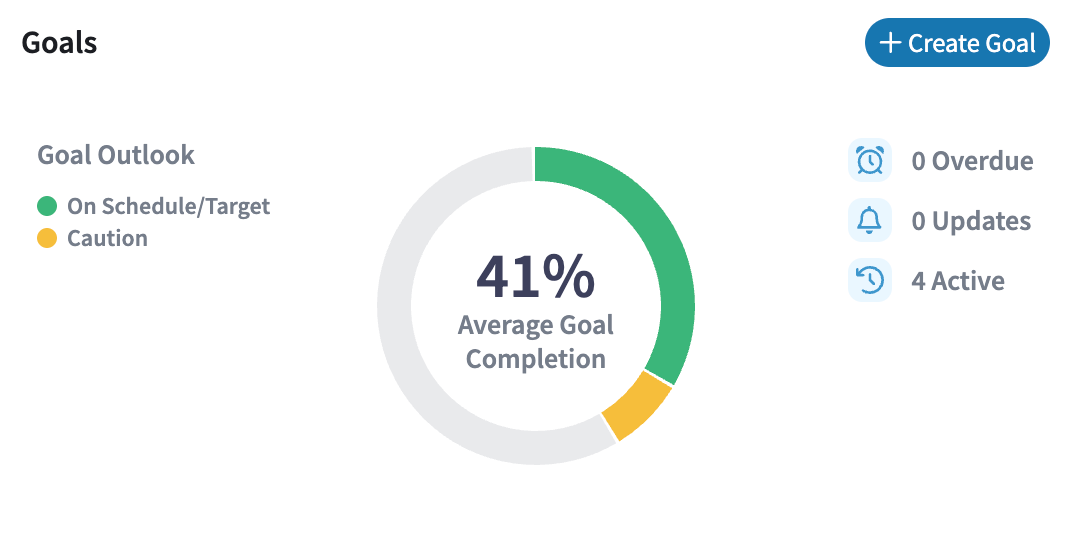
Next to the Feedback section is Goals, where you’ll find a progress indicator for your goals, along with a breakdown of goal outlooks. You’ll also see the number of active goals, any that are overdue, and how many have unread updates.
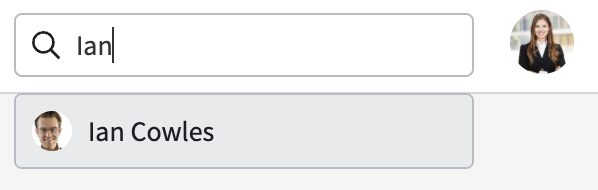
Search Employees
If you need to quickly find colleagues or search for other employees in your organization, use the search bar located at the top of the screen to the left of your avatar.