
Meeting Coverage (Admin)
Introduction
Meeting Coverage gives admins a company-wide view of how Meetings are being used across the organization. From a single table, you can see how many meetings each employee is involved in, spot managers who haven't scheduled 1:1s with their direct reports, and identify employees with no meeting activity at all. This makes it easy to monitor adoption and follow up with managers or employees who aren't yet using Meetings.
To access this page, go to Company Info > Meetings > Meeting Coverage.
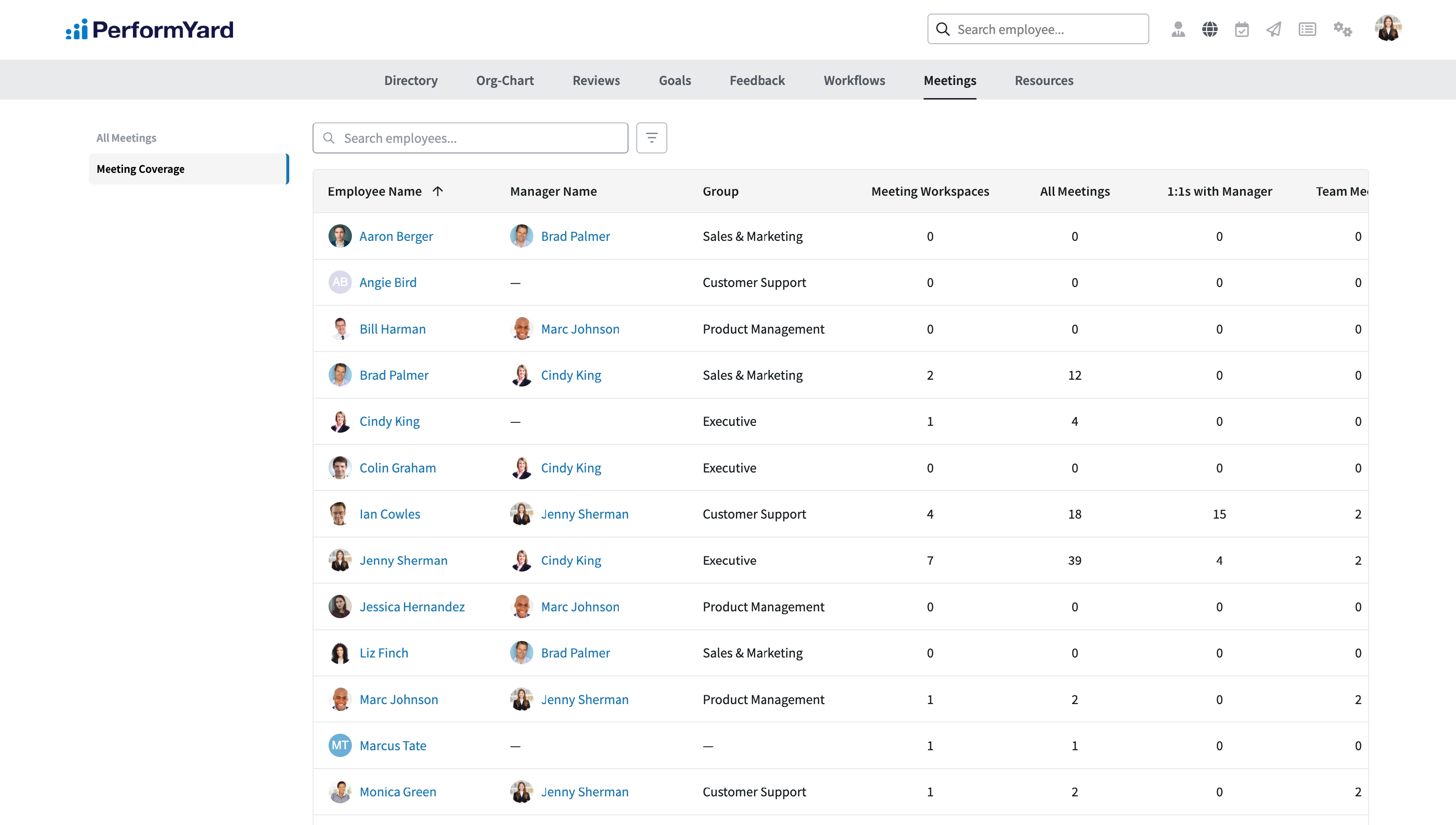 Meeting Coverage
 Meeting Coverage
The Meeting Coverage table lists every active employee in your organization along with their meeting activity. For each employee, you'll see:
- Employee Name: The employee's name.
- Manager Name: The employee's assigned manager.
- Group: The group (e.g. department or division) the employee belongs to.
- Meeting Workspaces: The total number of meeting workspaces the employee has created or is a participant in.
- All Meetings: The number of meetings the employee is a participant in.
- 1:1s with Manager: The number of meetings the employee is a participant in within a 1:1 workspace with their manager.
- Team Meetings: The number of team meetings the employee is a participant in.
By default, the table is sorted alphabetically by employee first name and displays 25 employees per page. You can use the Search employees field above the table to quickly find a specific employee by name.
Filtering
To narrow down the data shown in the table, click the filter icon next to the search bar to open the Apply Filters panel. From here you can filter by:
- Employee: Select a specific employee to view their meeting statistics.
- Manager: Select a manager to view meeting statistics for all of that manager's direct reports.
- Group: Select a group to view meeting statistics for all employees within that group.
- Date Range: Limit the meeting data shown to a specific time frame (see below for details).
- Only Show Employees without Meetings: Displays only employees who have no meeting activity within the selected date range (see below for details).
Once you've selected your filters, click Apply Filters to update the table. If your filters don't match any employees, the table will display a blank state with a message letting you know no results were found.
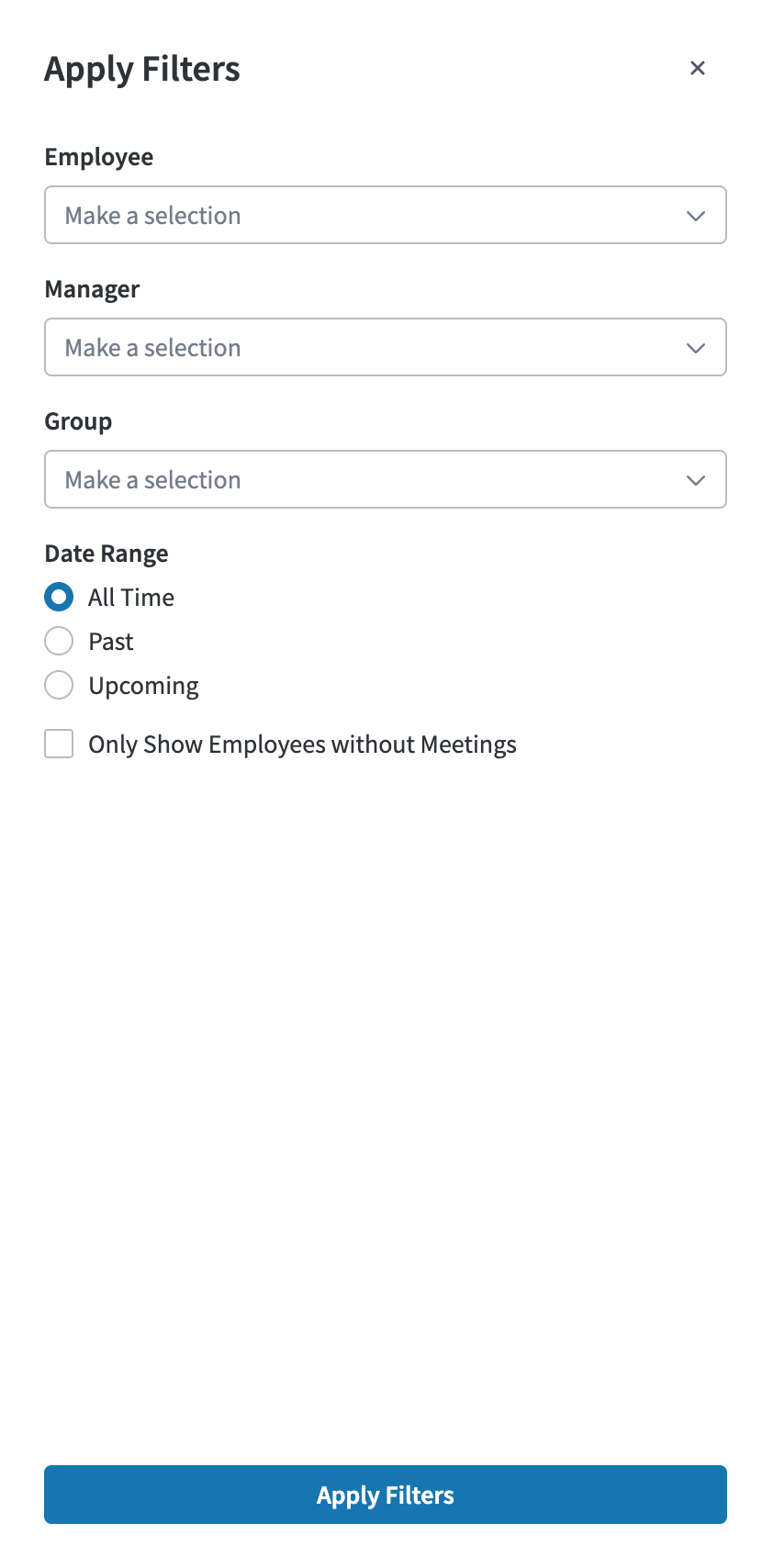 Date Range Filters
 Date Range Filters
The Date Range filter determines which meetings are counted in the table, based on each meeting's start and end date:
- All Time (default): Includes all meetings, regardless of date.
- Past: Includes only meetings whose end date is before today's date and time.
- Upcoming: Includes only meetings whose start date is after today's date and time.
Date Range works together with the other filters, so you can, for example, view a manager's direct reports who have no upcoming meetings scheduled.
Employees Without Meetings
Enabling Only Show Employees without Meetings filters the table to employees who have no qualifying meetings as either a creator or a participant, based on the selected Date Range:
- All Time: Shows employees who have never been added to or created any meeting.
- Past: Shows employees who have no meetings that have already taken place.
- Upcoming: Shows employees who have no meetings scheduled to take place in the future.
For example, an employee with 0 past meetings and 3 upcoming meetings will not appear when this filter is applied with Date Range set to Past, since they have no past meetings but do have meetings overall. An employee with 0 past and 0 upcoming meetings will appear regardless of which Date Range is selected, since they have no meeting activity at all.
This filter is a quick way to identify employees who haven't yet engaged with Meetings, so you can follow up and encourage adoption.