.png)
Building Review Templates
Introduction
Review Templates define the forms and form process for assigned reviews. A template may include just one review form or may include multiple forms that are to be filled out and signed by different people in an organization.
Managing Review Templates
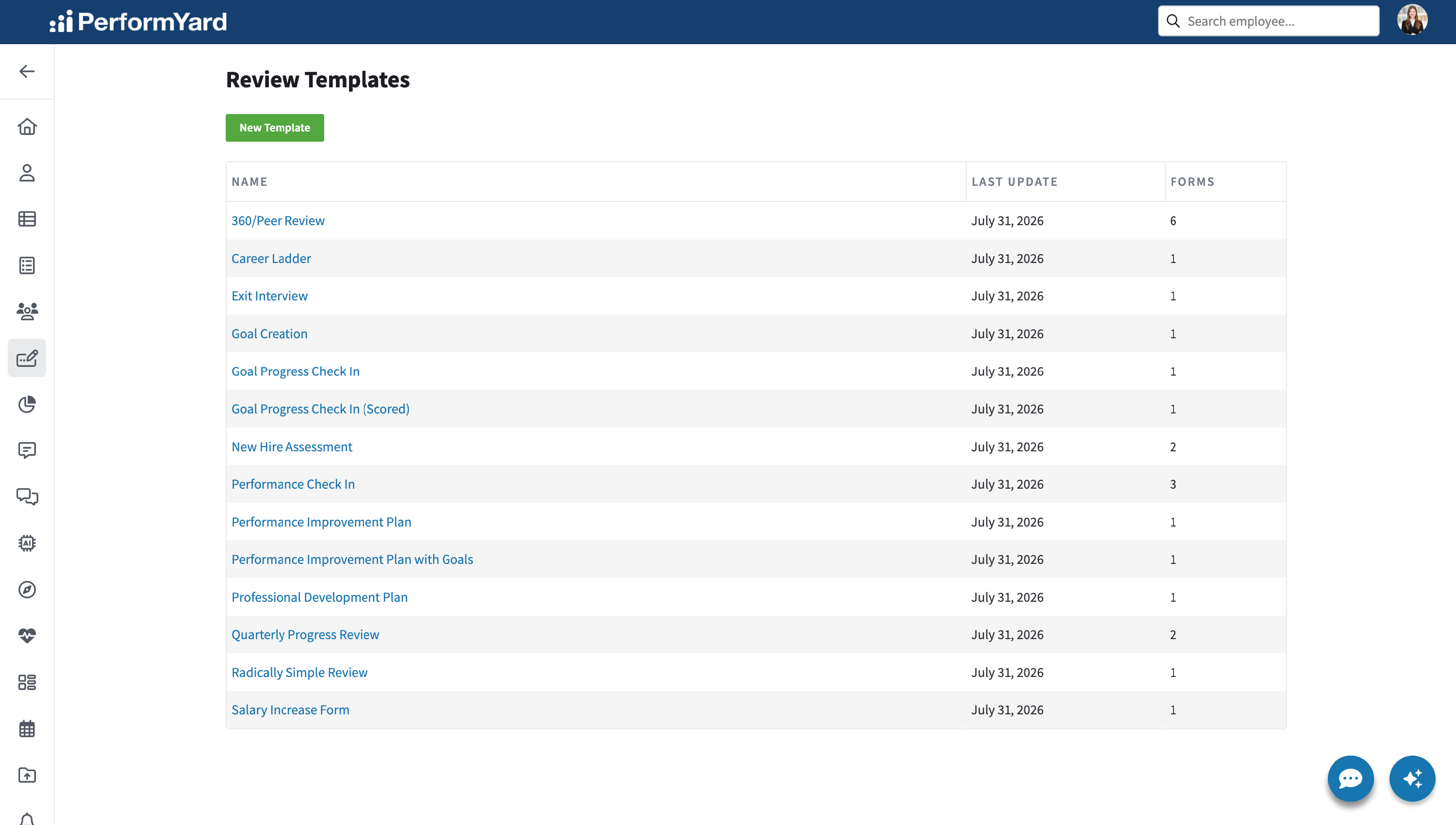
To create and manage templates, navigate to the Reviews page in your Company Settings, select Reviews and then Templates. In the Templates list, you will see every review template for your organization, along with when that template was last updated and the number of forms used in the template.
Creating a New Template
To create a new template, click New Template.
Opening an Existing Template
To open an existing template, click on the name of that template from the list.
Editing a Template
When creating a new template or opening an existing template, you'll be taken to a screen to edit the template. From this page, you'll be able to name or rename the template, add new forms and update existing forms from the template and save your changes. The template can be defined to contain a combination of Forms, 360 Forms, and External Forms. The example below shows a template with a couple of forms already added.
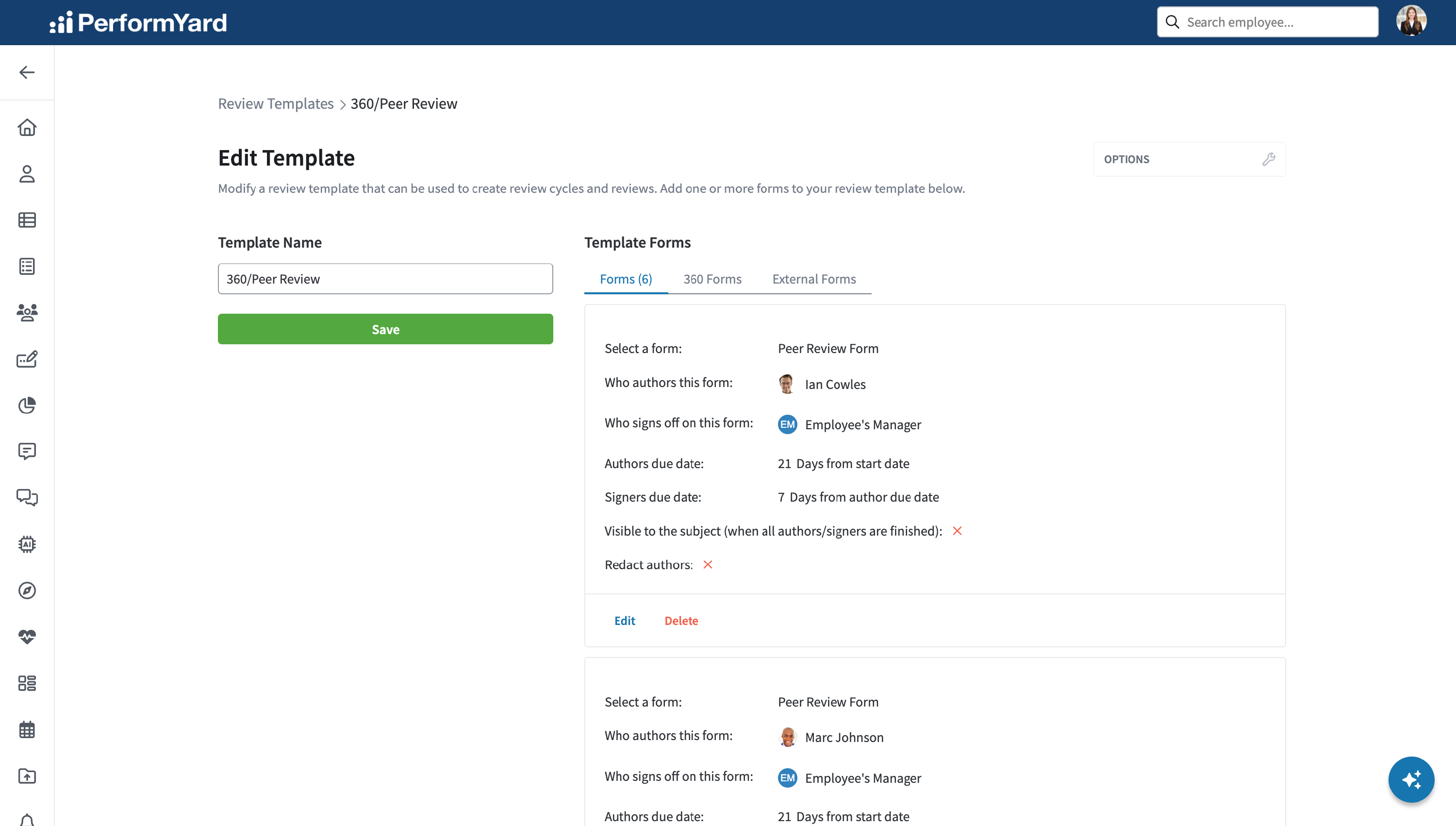
You will see an Options menu in the upper right allowing you to:
- Save your template
- Add a Form to the template
- Add a 360 Form to the template
- Add an External Form to the template
- Delete the template

Adding Forms
To add a form to the template, click Add Form under the Options menu or the Add New Form button. This will create a placeholder for specifying the form and its settings.
- Select the form to be included in the template. Start typing the form name to find it.
- Add who will author or complete the form
There are available options for Employee being reviewed, Employee’s Manager, Other Employee, Manager’s Manager, Contributors,or Direct Reports, plus any specific employee.
You’ll typically use a placeholder role rather than a specific person in a template unless that same employee has the same role in every review assigned with this template. You can add multiple users or placeholders here.
- Select who will sign the form using the same options as who completes the form; here, you can also have multiple signers.
- Specify how many days the author(s) will have to complete authoring the form before it is due.
- Specify how many additional days the signer(s) will have to complete signing the form before it is due.
Note that signer days are added to the author days when the template is assigned, creating a cumulative total for the final form due date.
- Select if the form should be visible to the subject employee after the form is completed (authored and signed).
Ensure the box is not checked if you want to hide the form from the employee. However, if the employee is an author or signer, they can access it.
- Select if the form’s author should be redacted, meaning it will not be made visible to the subject of the review.
Please keep in mind that signers can be assigned multiple times to the same form, including when they qualify as a signer due to their designation as a manager, contributor, or other placeholder. Duplicate signer tasks are only merged when an employee is assigned to multiple sequential signer tasks.

Adding 360 Forms
You can add a 360 Form from either the options menu or using the Add New Form button.
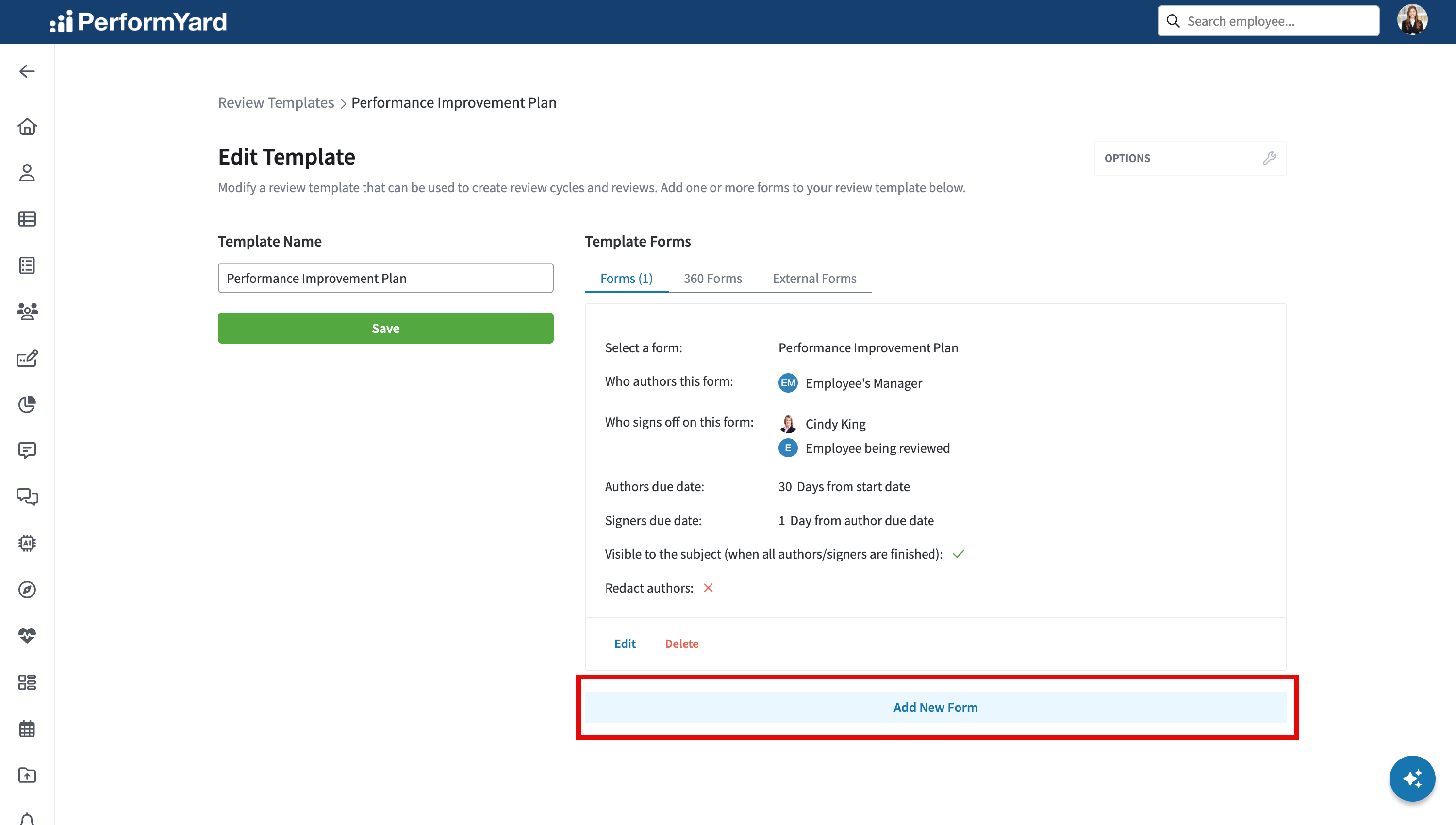
Note 360 Forms defined in the template are only applicable when the template is used to create a Review Cycle.
For more information about how to set up a 360 form and how the form would operate in your reviews, please see Setting Up 360 Reviews.
Adding External Forms
Click Add External Form under the options menu to add an external form. An external form in a template is a placeholder where you can have someone without a PerformYard account weigh in on a review. When adding to a template, you must select the form but can leave the other options (who, email address, and message) blank and fill those in when the review is assigned.

Saving the Template
Once you have finished the template, click Save. You can also change the name of the template before saving the template.

Returning to List of Templates
To return to the list of templates, click Review Templates from the breadcrumb at the top of the page.

Direct Reports is a placeholder that can be added to the author list in reviews within PerformYard to assign review forms to individuals that report directly to the subject of a review. Using the employee-manager relationship, where an employee has immediate Direct Reports, this function will create a separate review form for each one of those Direct Reports as an author when assigning a template. Likewise, it can also be used when adding a form to an existing review – where you select this option, a form will get created for each direct as an author.
How to use it?
In a template, you can add a form and select the Direct Reports placeholder, the same way you may have chosen the “Employee being reviewed” or “Employee’s Manager” placeholders. You only need one form in the template with Direct Report selected, and the result will be a form for each Direct Report when assigned.

In an existing review, you can also add Direct Reports as an author to a new form, and you will assign a form for each direct report. You do not have to check the “separate form for each author” box unless you also add other, non-Direct Report employees to the author list. You can also add Direct Reports to the author list on a form being copied.
Things to know:
You can only select Direct Reports as an author placeholder, not as a signer.
Direct Reports will assign one or more forms based on the subject of the review having immediate Direct Reports only. If a review subject has multiple layers of the organizational chart reporting to them, only those that report immediately to the subject will have forms assigned.
If the subject of the review does not have any immediate Direct Reports, then no forms will be created, either when assigning a template or adding a form with that option.
If you put Direct Report into two separate forms in the template, each Direct Report will get two forms assigned.
If you put Direct Reports onto a form in a template and then add another employee (or more than one employee after), the resulting assignment will be one form for each Direct Report and then the other employee(s) will be listed after each Direct Report on the Direct Report’s form. You are not going to create separate forms for each Direct Report and the other individuals listed.
- The benefit here is that you can set up forms where each Direct Report is the first author, and then someone else (like an HR resource) can be the second author for all of the Direct Report forms.
- Your template may include Direct Reports + second author + Direct Reports, and the result will be one form for each direct report where that direct report is the first and third author, separated by the same second author on all forms.
You can put Direct Reports into “Add Form” as an author on an existing review, and it’s going to work like the template assignment unless you check the “new form for each author” box.
- If you have Direct Reports and then another person and don’t check the "create new form for each author" box, you get one form for each Direct Report with the other person as a second author on each form. Example: Subject has 3 Direct Reports. You add Direct Reports + other in the author list. You get three forms with the following authors:
- Direct Report 1 + other
- Direct Report 2 + other
- Direct Report 3 + other
- If you have Direct Reports and another employee and do check the "create new form for each author" box, you get a form for each Direct Report and another form for the other person. Example: Subject has 3 Direct Reports. You add Direct Reports + other in the author list and check the box to “create a new form for each author.” You get four forms with the following authors:
- Direct Report 1
- Direct Report 2
- Direct Report 3
- Other
A manager cannot assign a form with Direct Reports when the template has the direct report form as Redact Author. This is the same behavior that is true when a manager assigns any template with the Redact Author option since that is limited to Administrators only.