.png)
One-Time Reviews (Admins & Managers)
Introduction
Administrators, managers, and contributors can assign individual reviews to employees. Administrators are able to assign for any user, managers are limited in assigning new reviews to those employees that report to them or are further down in their chain of command, and contributors are limited to assigning new reviews to employees that they are listed as a contributor to.
Video Overview
Creating a One-Time Review
There are two primary ways to create a one-time review for an employee from within PerformYard:
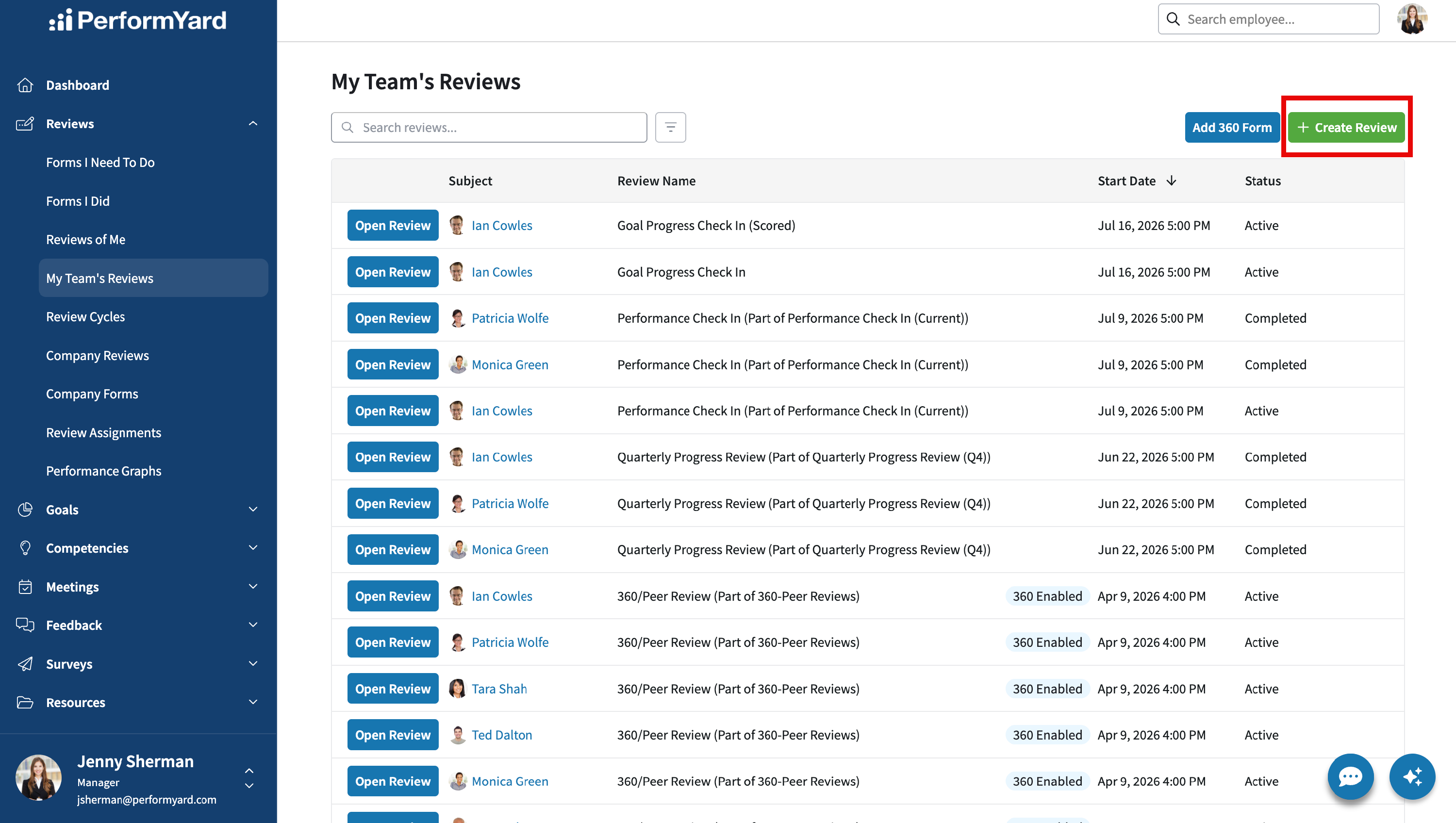
- From My Team's Reviews (Manager) or Company Reviews, click "Create Review". If you are a manager or contributor and do not see the option to create a review, your organization's administrator may have disabled this permission at the company level. Contact your administrator to confirm whether ad hoc review creation is enabled for your role.
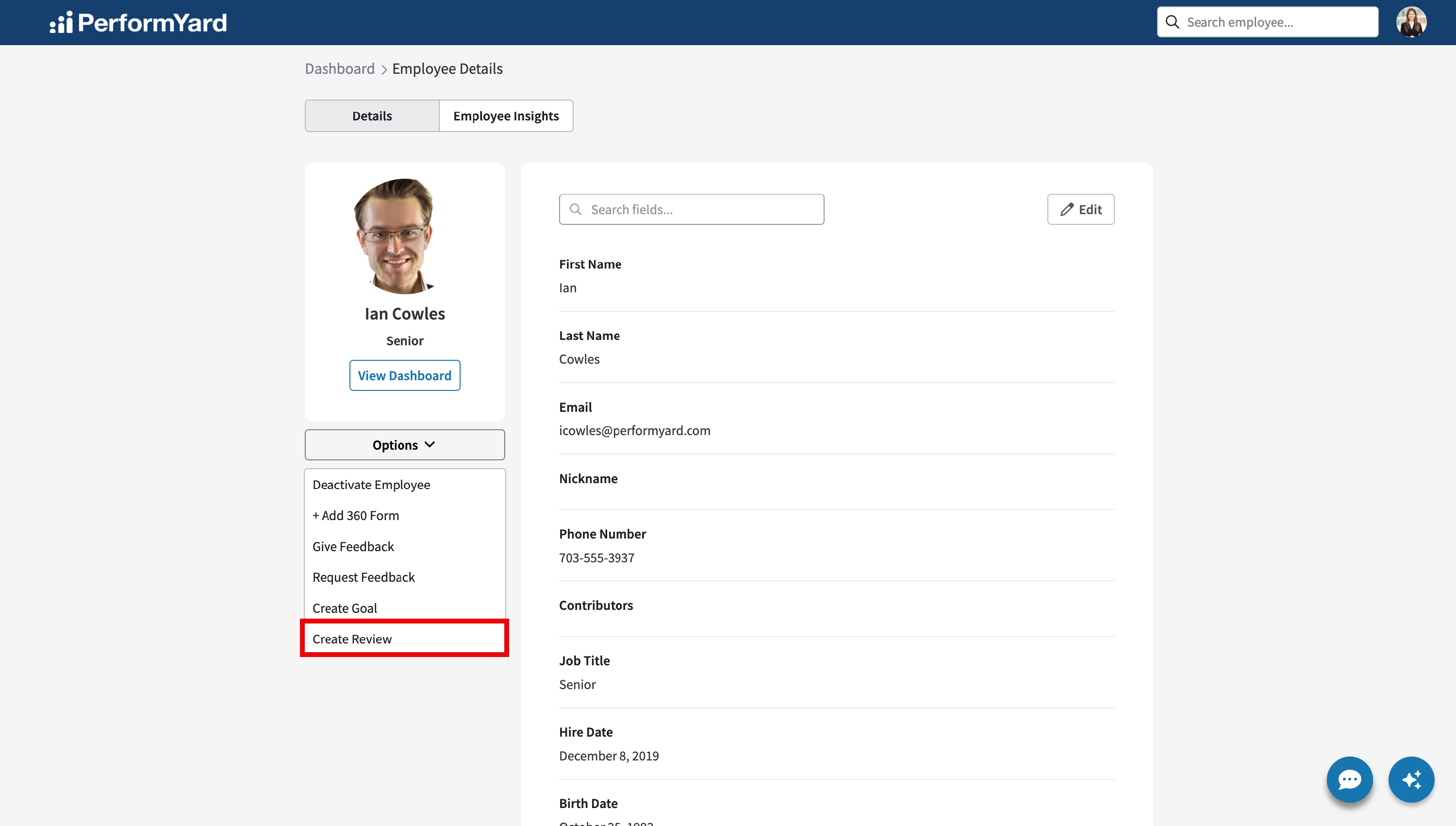
- From anywhere in PerformYard, you can access an employee’s details by searching for them in the top navigation, clicking their name from pages such as Reviews or the Directory, or locating them on the Employees page under Company Settings. From the employee details page, click the Options dropdown and select Create Review.
You will be prompted to select which review template you want to use. Locate that template in the list and click Create Review.

Select the date and time when you want the review to begin. Use the calendar function to select a date. You may also click the clock icon below the calendar to set a specific time. Time options include 12:00 AM, 9:00 AM, noon and 5:00 PM. Based on that time and the number of days in the template, due dates will be calculated accordingly. After selecting the date & time, click Next.

Next you can validate the assignments for forms in the template; these will pre-populate with the defaults defined in the template, but they can be changed on an individual basis. You can edit any individual form’s assignments, changing who completes or defining individuals for placeholder roles that may be undefined. You may also add more forms or delete forms that were part of the template.
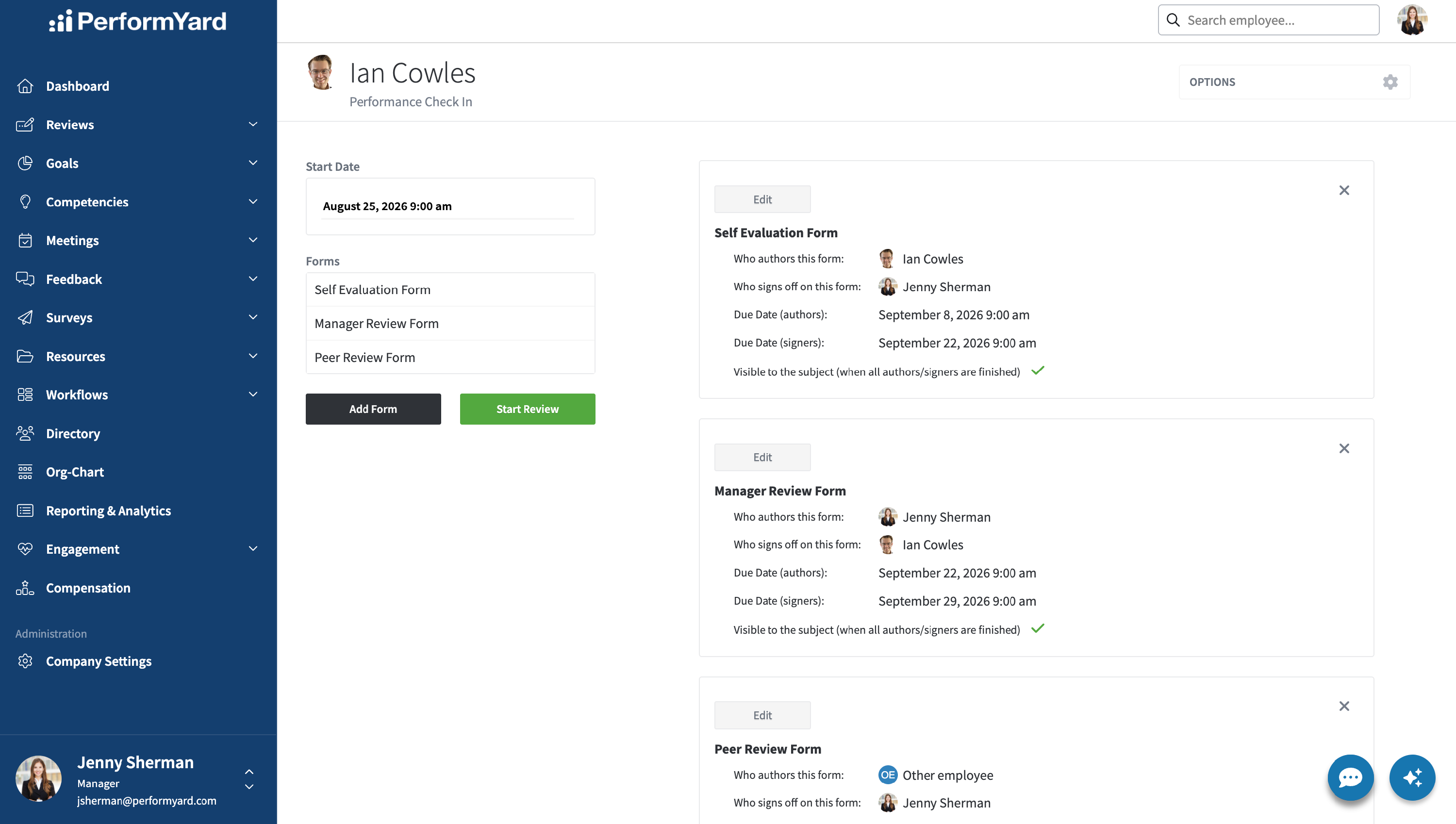
Click Start Review to complete the process and establish the review. The screen will refresh to display the details of the assigned review that may be changed further based on your permissions. Any placeholders that were not assigned will appear as Unassigned. Once the review is assigned, you can start managing the review using the Options menu. If the start date for the review has passed, then you can start working on any form where you are the initial author.