.png)
Using Ask PerformYard
Introduction
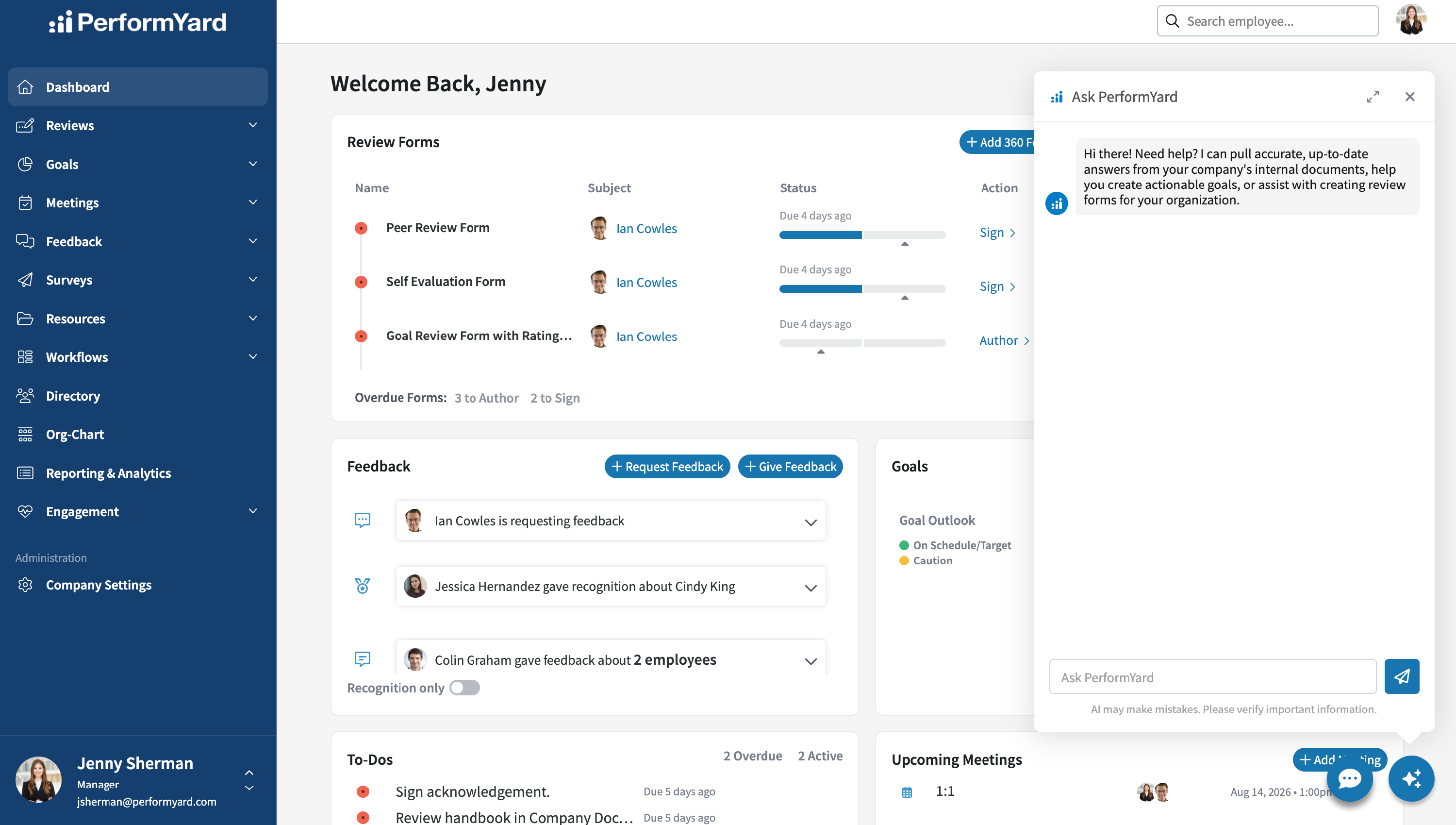
Ask PerformYard is your AI assistant for performance management. Available for PerformYard Premium (formerly Enterprise) accounts, Ask PerformYard helps answer questions and guide users through tasks by leveraging your organization’s internal resources through Ask HR, while also supporting goal setting with AI-assisted recommendations. The Ask HR feature enables administrators to create a custom knowledge base from company documents, allowing employees to quickly access accurate answers to common questions about policies, procedures, and benefits. The Goals feature empowers employees, managers, and administrators to generate clear, actionable, and relevant goals with the help of AI, making the goal-setting process faster and more effective. The Forms feature enables admins to quickly generate relevant review forms and receive question suggestions with the help of AI. Access Ask PerformYard anytime via the blue AI button in the bottom right corner of most pages.
Disclaimer: Ask PerformYard uses artificial intelligence to generate answers to employee questions. While it aims to provide concise and accurate responses, they may not always capture all nuances or context from the original company resources. Please consult company resources alongside any generated responses to ensure proper interpretation and decision-making. AI-generated outputs are intended to support, not replace, human judgment and should not be the sole basis for any employment decision, such as hiring, promotion, compensation, or termination.
Ask HR
Ask HR is a feature within Ask PerformYard that enables your organization to provide instant, accurate answers to common employee questions using your company's own resources. HR admins can build a custom knowledge base by uploading company documents, such as policies, procedures, handbooks, and guidelines. When employees ask Ask PerformYard a question, the assistant searches this knowledge base to provide relevant, context-aware answers drawn directly from your organization's materials. This feature aims to help reduce the volume of repetitive HR inquiries while ensuring employees get fast, reliable information when they need it. Ask HR intelligently parses uploaded PDF documents and retrieves the most relevant information to answer each question accurately.

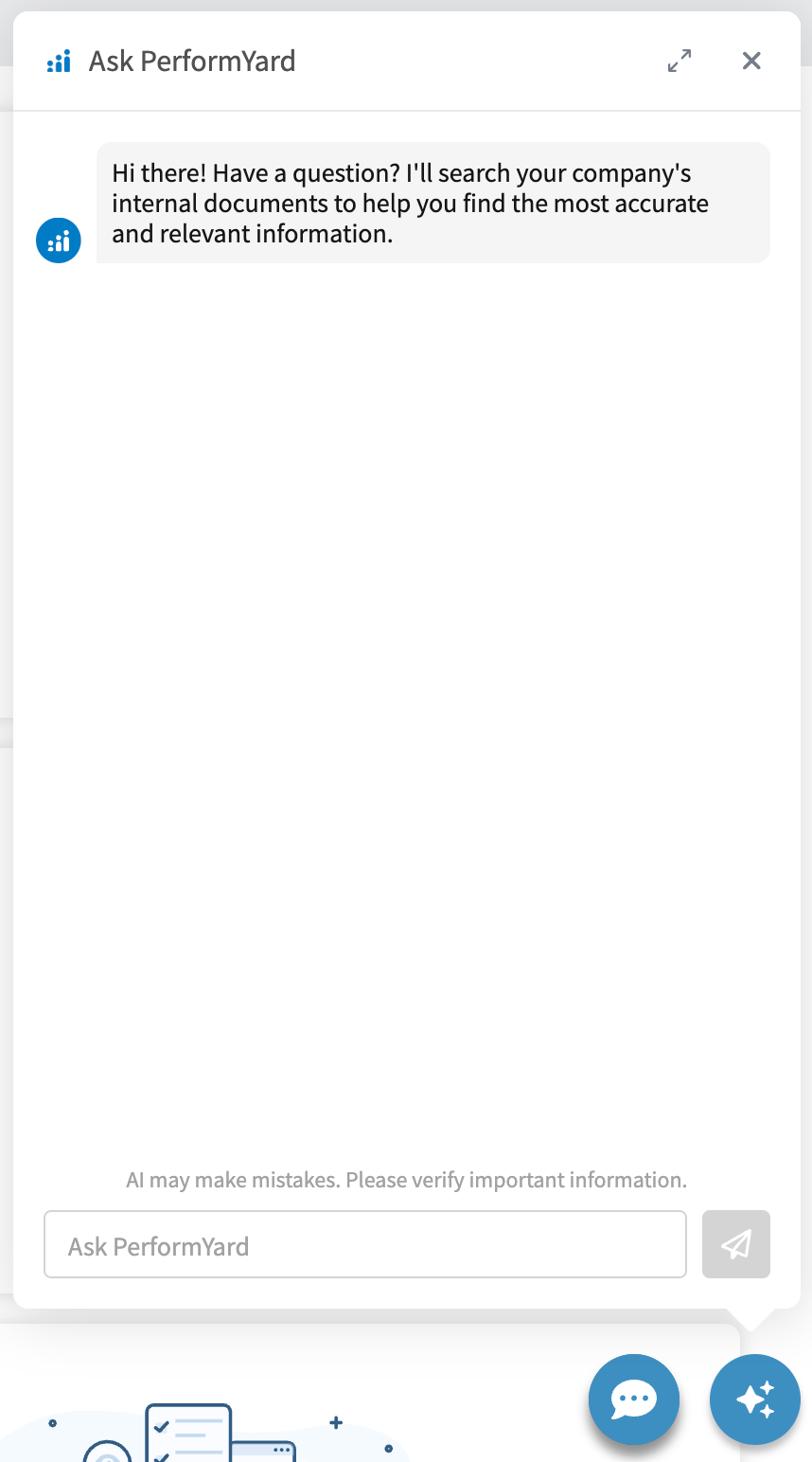
Ask PerformYard is accessible from the blue AI button in the bottom right corner of most pages. Click the button to open the chat interface, where you can ask questions and receive answers based on your organization's Ask HR knowledge base.

Goals
AI-Assisted Goal Creation is a feature within Ask PerformYard that enables employees and managers to quickly generate actionable, relevant goals with the help of AI. When enabled, Ask PerformYard guides users through a short series of questions, such as goal type, focus area, and timeframe, and uses that context alongside existing employee and team data to suggest up to five tailored goals at a time. Employees can create goals for themselves, while managers and skip-level managers can generate goals for their direct and indirect reports, and admins can create goals for anyone in the organization. Suggested goals can be reviewed, edited, and created directly from the chat window, helping reduce the time spent on goal formation while ensuring employees and teams start with clear, well-structured performance expectations.
Goal Suggestions
To access Ask PerformYard, click the blue AI button in the bottom right corner of most pages. This will open the chat interface, where you can ask questions, get answers from your organization's knowledge base, and create AI-assisted goals.
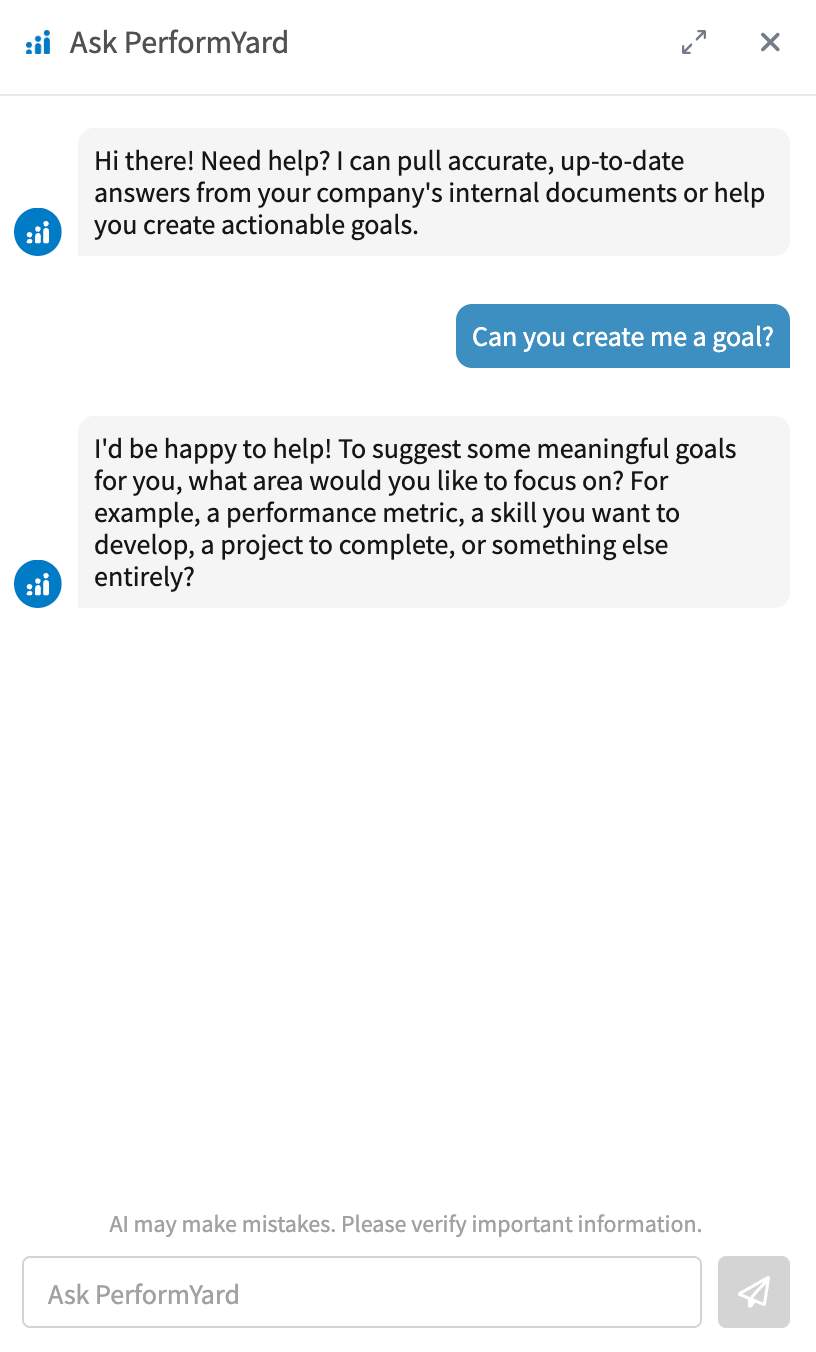
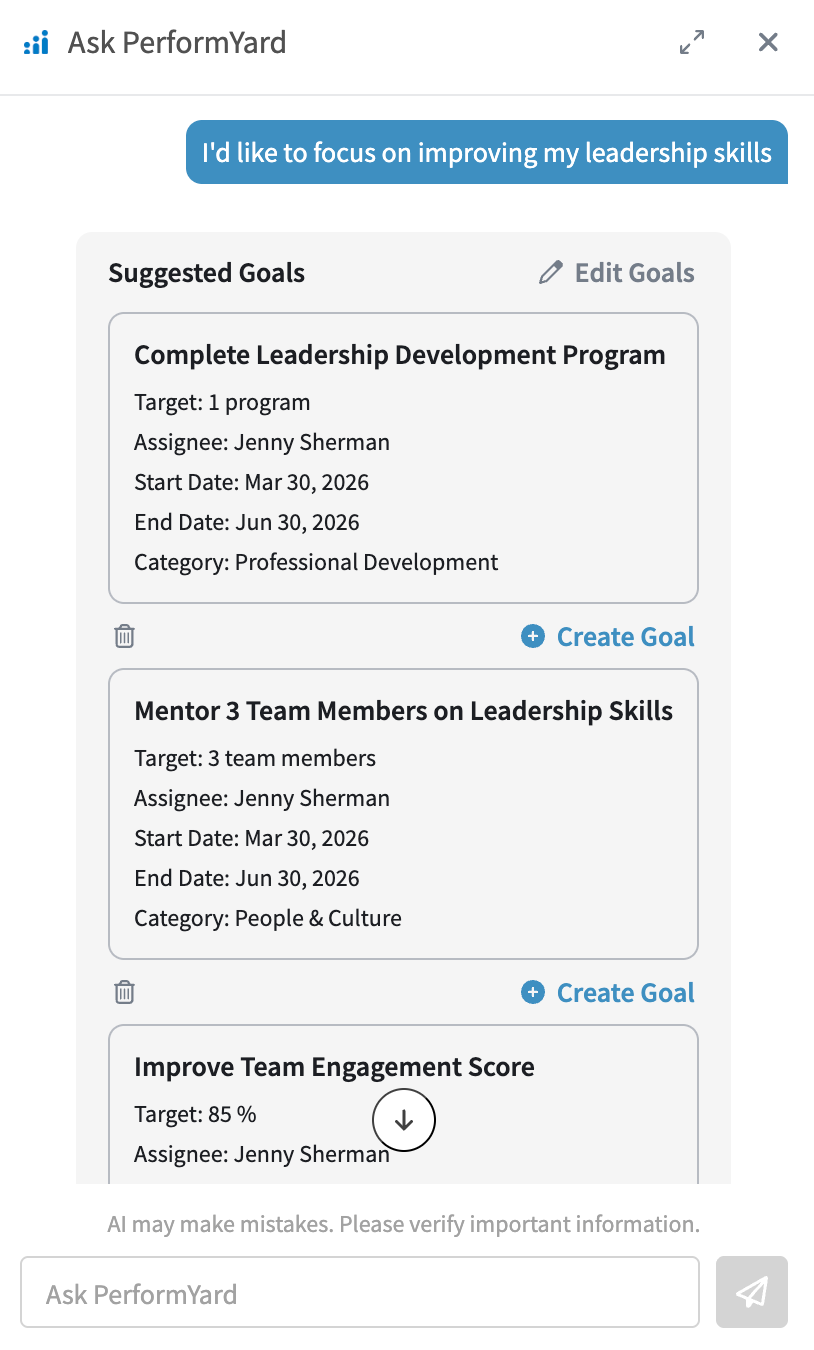
Once the chat interface is open, you can ask Ask PerformYard to help you create goals by typing a request such as "Can you create me a goal?" or "Create a goal for [employee name]." To generate the best suggestions, Ask PerformYard uses a few key pieces of context: the goal type, the focus area, who the goal is for, and the desired timeframe. If you include all of this in your initial message, Ask PerformYard will get straight to work and suggest up to three tailored goals. If some or all of that context is missing, Ask PerformYard will ask a few short questions to gather what it needs before generating your suggestions.
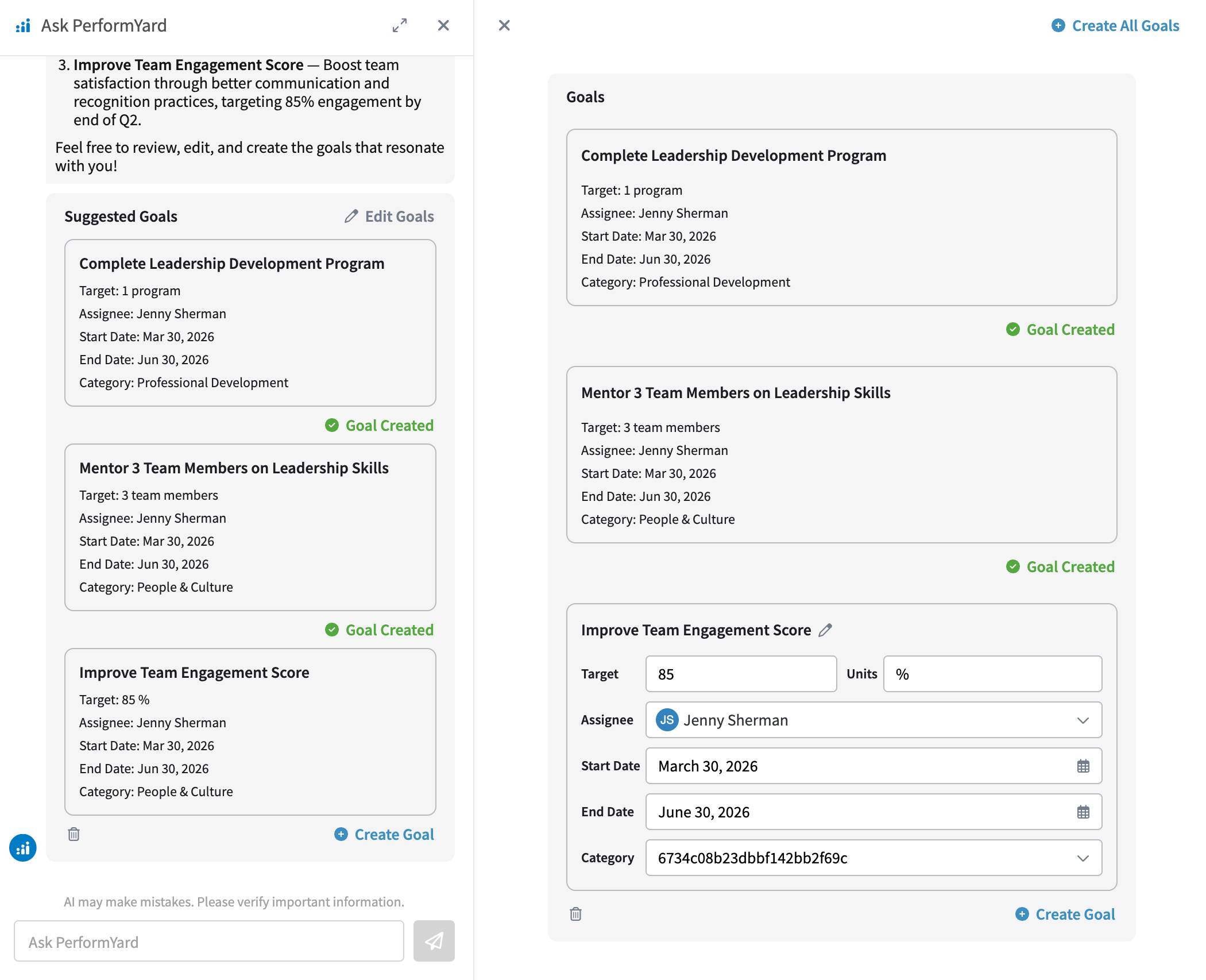
Once Ask PerformYard has the context it needs, it combines that information with relevant data from your organization, such as the assignee's job title and existing goals, to suggest up to five tailored goals. Each suggested goal includes a name, target, assignee, and start and end date. From there, you can create a goal as-is directly from the chat window, remove any suggestions you don't need, or click "Edit Goals" to fine-tune the details before creating them.
Editing Suggested Goals
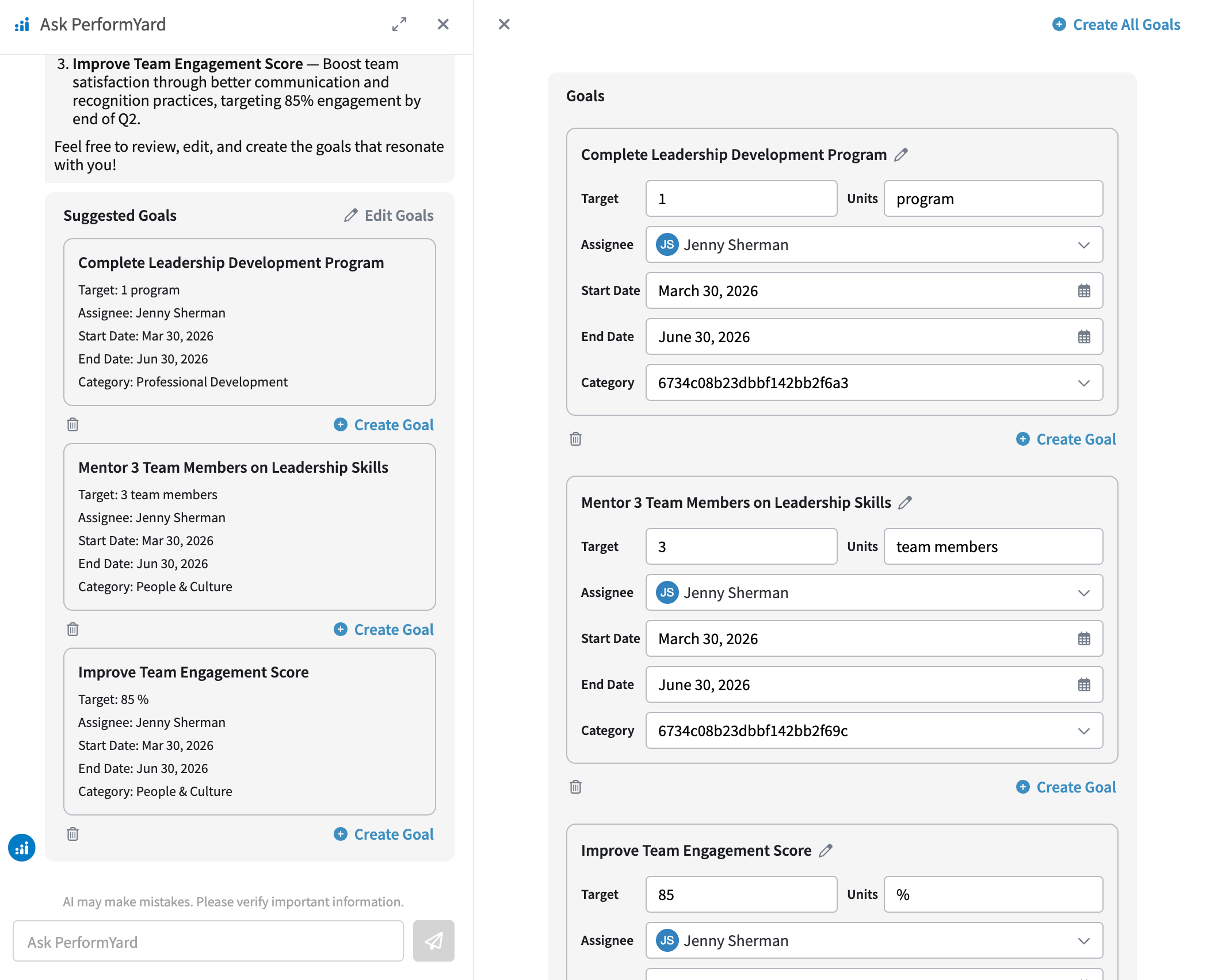
If you'd like to make changes before creating a goal, click "Edit Goals" to open an editing panel where all uncreated suggested goals are displayed. Here, you can update any of the goal's details, including the name, target, start and end date, and category, before finalizing.
Creating Suggested Goals
Once you're happy with a goal, whether you edited it or not, click "Create Goal" to create it individually, or use the "Create Goals" button at the top of the panel to bulk create all remaining goals at once. Created goals will display a "Goal Created" indicator in both the edit panel and the main chat window, giving you a clear view of what's been completed.