
Zoom Integration
Introduction
PerformYard's Zoom integration makes it easy to bring video conferencing directly into your Meetings workflow. By connecting your Zoom account, you can automatically generate meeting links when scheduling meetings in PerformYard and have transcripts captured and saved for you once the meeting ends, no manual uploading or note-taking required. This article covers how to enable the Zoom integration in your administration settings and how individual users can connect their Zoom account.
Please note: Zoom integration is only utilized in PerformYard Meetings at this time.
Enabling Zoom Integration (Admin)
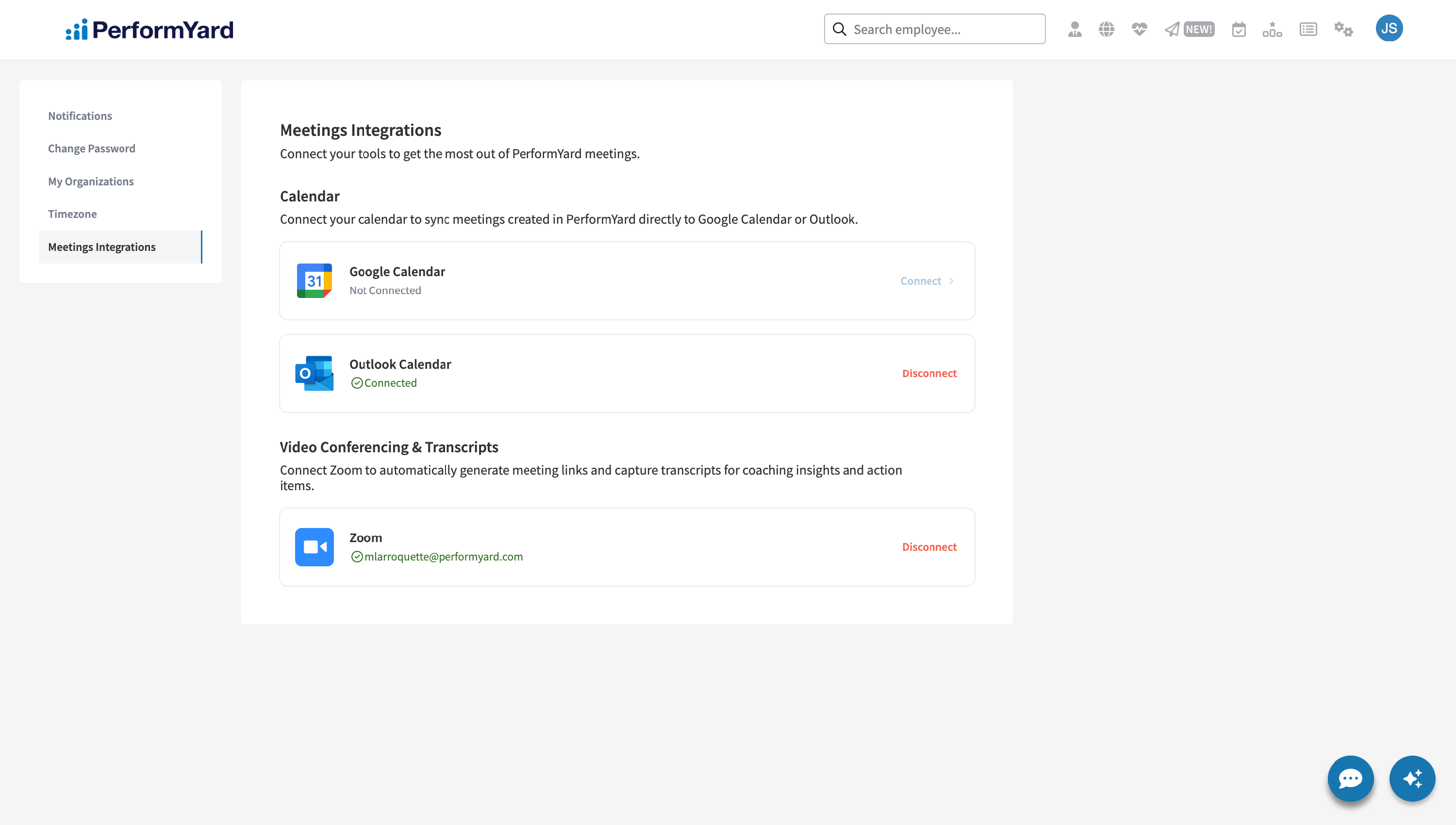
As an administrator with a PerformYard Meetings license, you can enable or disable the Video Conferencing & Transcripts feature for your entire organization based on your team's needs or company policies. Simply toggle the feature off to disable it for all meetings. Once disabled, users won't be able to generate Zoom meeting links for new meetings, and existing meetings will no longer automatically retrieve transcripts.
Linking your Zoom Account (User Settings)
Once video conferencing is enabled company-wide, all users can link their Zoom account with PerformYard. This allows them to:
- Connect or disconnect their Zoom account from PerformYard settings
- Add Zoom video conferencing when scheduling a meeting
- Automatically generate and view a Zoom meeting link within PerformYard
- Sync the Zoom link to their calendar event (if calendar is also connected)
- Add or remove video conferencing on an existing active meeting
- Automatically receive their meeting transcript in PerformYard once the meeting ends
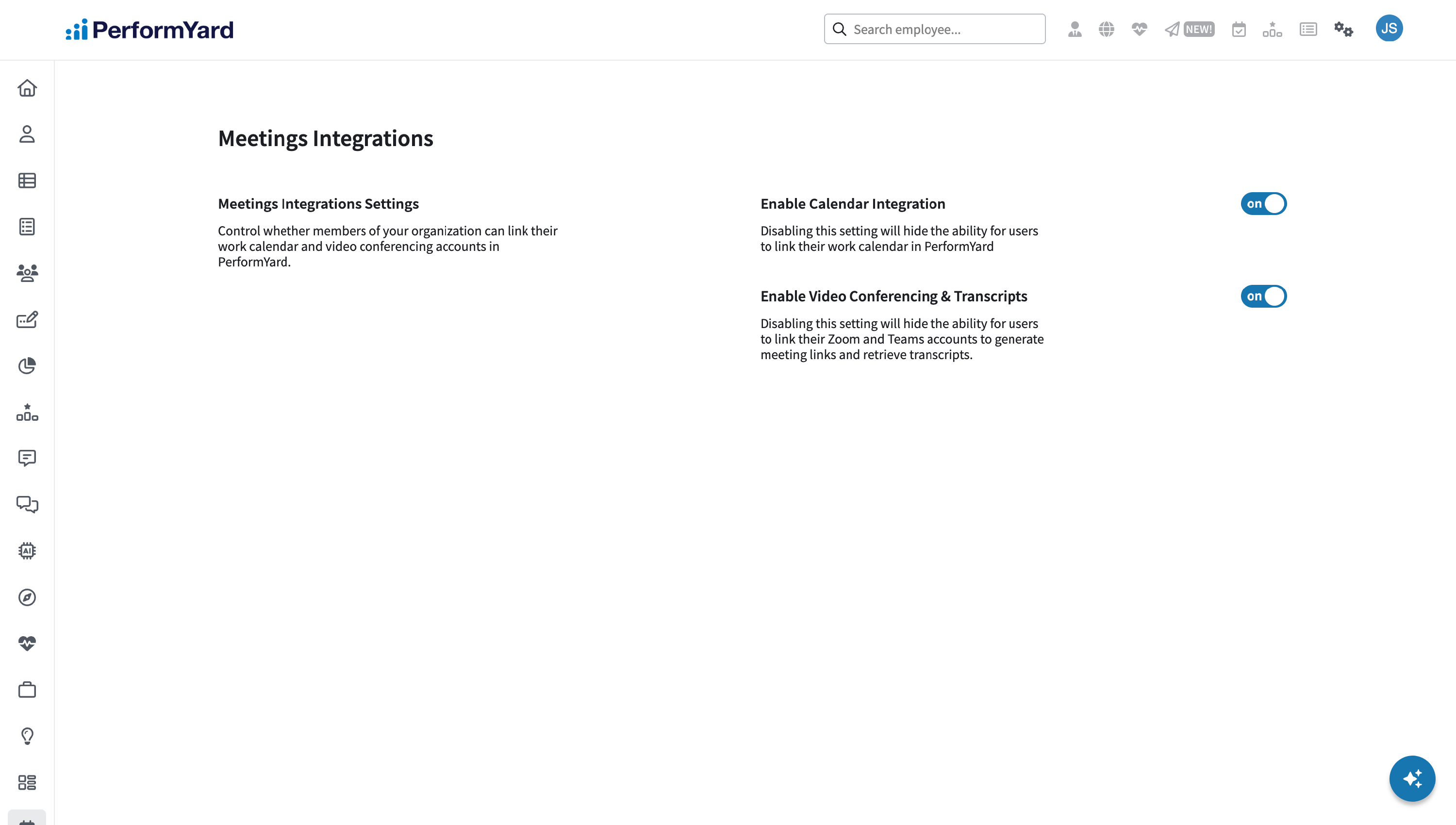
To link your Zoom account to PerformYard:
- Hover over your avatar in the top right corner and click Settings
- Select Meeting Integrations
- Under the Video Conferencing & Transcripts header, click Connect in the Zoom section
- Complete Zoom's authentication process to grant PerformYard permission to create meetings and retrieve transcripts
- We ask for the following permissions:
- user:read:user
What it's used for: Confirms your Zoom account identity (name and email) so we can securely link it to your PerformYard account, and checks your Zoom plan type so we can let you know if your license supports automatic transcripts. - user:read:settings
What it's used for: Checks your Zoom recording settings (cloud recording and audio transcripts) so PerformYard can show you whether an automatic transcript will be available for your meetings. - meeting:write:meeting
What it's used for: Creates a Zoom meeting on your behalf when you schedule a meeting with video conferencing in PerformYard. - meeting:update:meeting
What it's used for: Keeps your Zoom meeting details (topic, agenda, date/time, duration, and timezone) in sync whenever you make changes to the meeting in PerformYard. - meeting:delete:meeting
What it's used for: Deletes the associated Zoom meeting if you remove video conferencing from, or delete, the meeting in PerformYard. - meeting:read:meeting
What it's used for: Lets us know when your Zoom meeting has ended so we can update the meeting's status in PerformYard and start looking for the transcript. - cloud_recording:read:recording
What it's used for: Lets us know when your meeting transcript is ready and allows us to download the transcript file. We only access the text transcript, never audio or video recordings.
- user:read:user
- We ask for the following permissions:
- You'll be returned to PerformYard with your primary calendar successfully linked

Disconnecting your Video Conferencing Account
You can disconnect your linked video conferencing account at any time. This allows you to switch to a different video conferencing provider if needed.
When you disconnect your video conferencing account:
- Existing PerformYard meetings with video conferencing remain unaffected and will keep their generated Zoom link.
- Existing meetings with video conferencing will no longer have their transcripts automatically retrieved upon completion.
- You won't be able to add video conferencing to new meetings until you reconnect
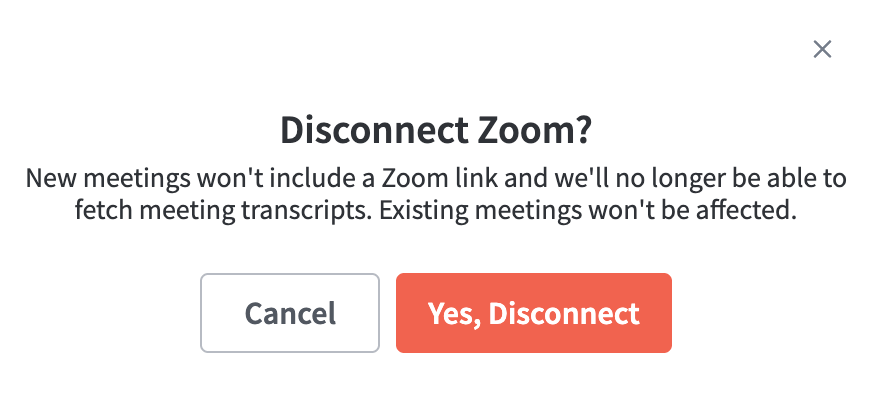
To disconnect your video conferencing account, click Disconnect next to your linked account and confirm your choice.