.png)
Customizing your Review Report: Fields, Filters, & Question Groups
Available Data Fields for Review Reports
The report builder for Reviews reports offers the ability to supplement the base review form data with additional employee data, review data, and review cycle data. The tables below list the available fields and their descriptions as a reference.
Employee Fields
| Field
|
Description |
| First Name | Employee (Subject) First or Given Name |
| Last Name | Employee (Subject) Last Name |
| Nickname | Employee (Subject) Nickname or Preferred Name |
| Group | Employee Group |
| Manager | Employee's (Subject) Manager |
| Contributors | Employee's (Subject) Contributors or Secondary Managers |
| Hire Date | Employee's (Subject) Hire Date |
| Termination | Employee's (Subject) Termination Date, blank if currently active |
| Other Custom Fields |
In addition to standard employee fields, any custom data fields are also available for use in the Reviews report. |
Review Cycle Fields
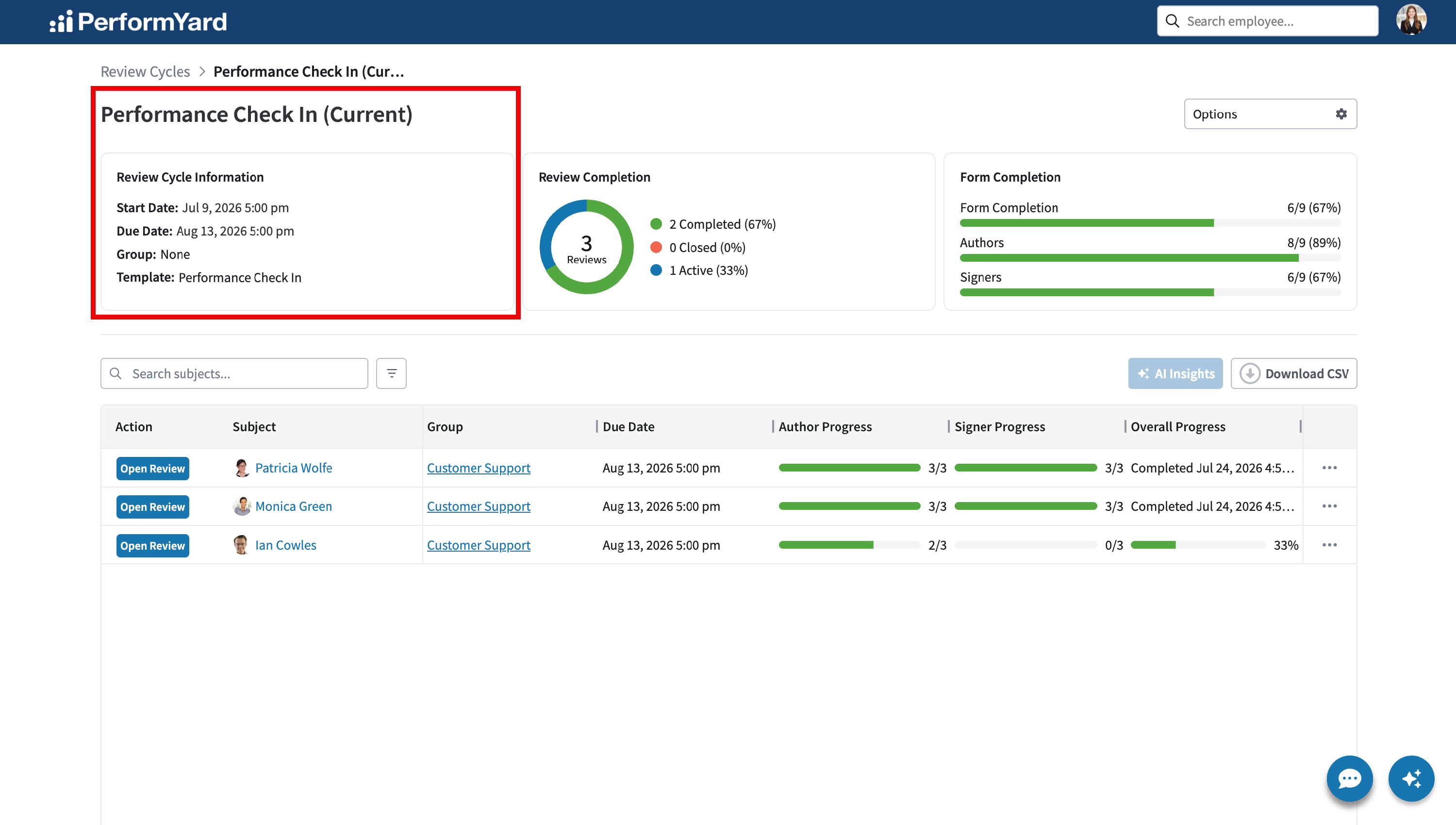
| Field | Description |
| Cycle Name | Name of the Review Cycle. Blank for Reviews outside of a review cycle (ad-hoc reviews) |
| Cycle Start Date | Start date of the Review Cycle. Blank for Reviews outside of a review cycle (ad-hoc reviews) |
| Cycle Group Name | Name of the Group for this Review Cycle if a Group Review Cycle |
| Template Name | Name of the Review Template for this review cycle |
| Cycle Status
|
Current status of the review cycle (Completed, In Progress) |
Review Fields
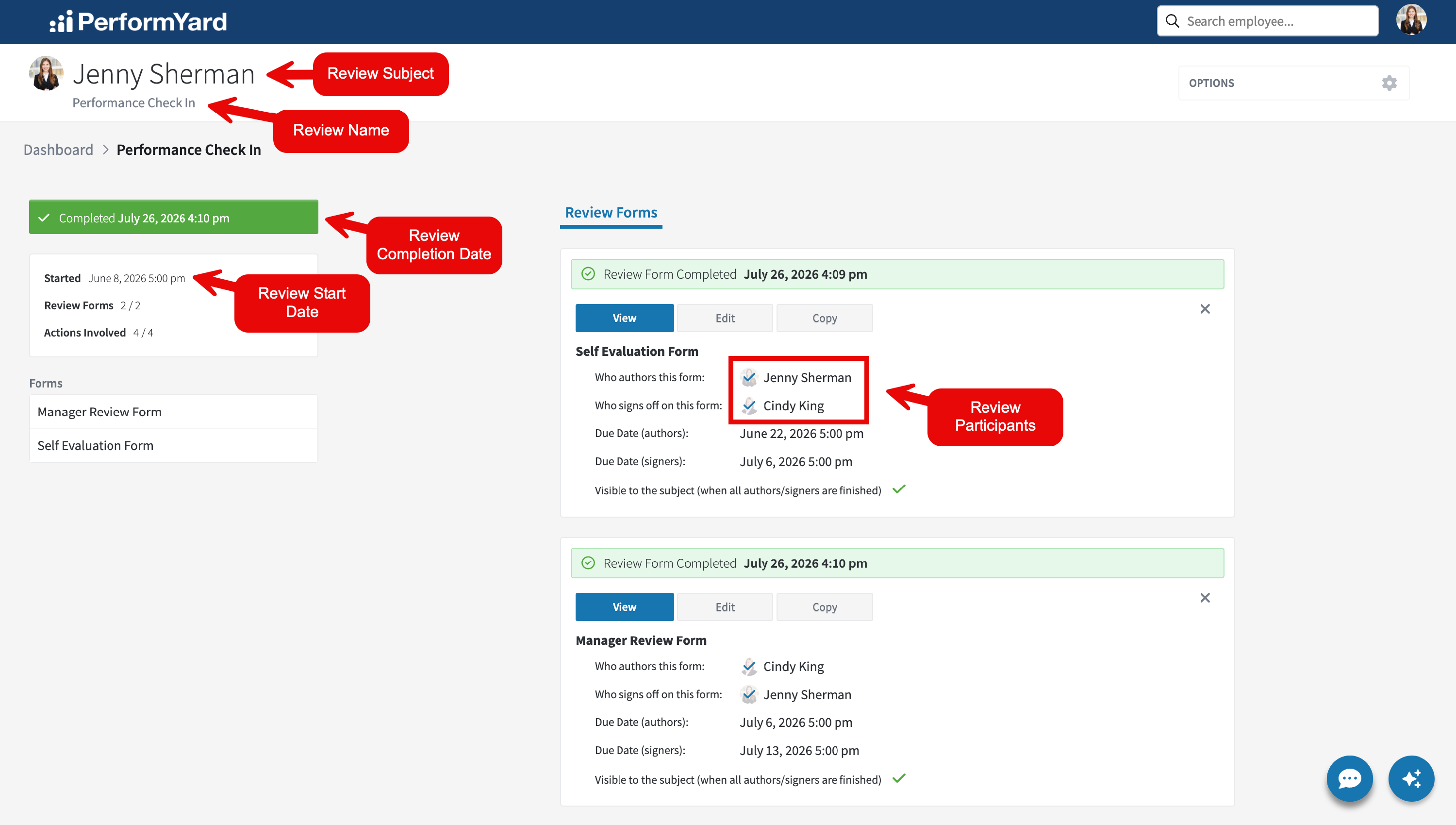
| Field | Description |
| Review Subject | Subject (Employee) of the review and its forms |
| Review Name | Name of the review |
| Review Start Date | Start date of the review |
| Review Complete Date | Date the review and all its forms were completed |
| Review Participants | The list of authors and signers for the review forms in the review |
| Review Status | Status of the review (completed, in progress) |
| 360 Enabled | True when the review includes one or more 360 forms |
| 360 Forms Awaiting Approval | The number of 360 forms in the review awaiting approval by a signer |
Review Form Fields
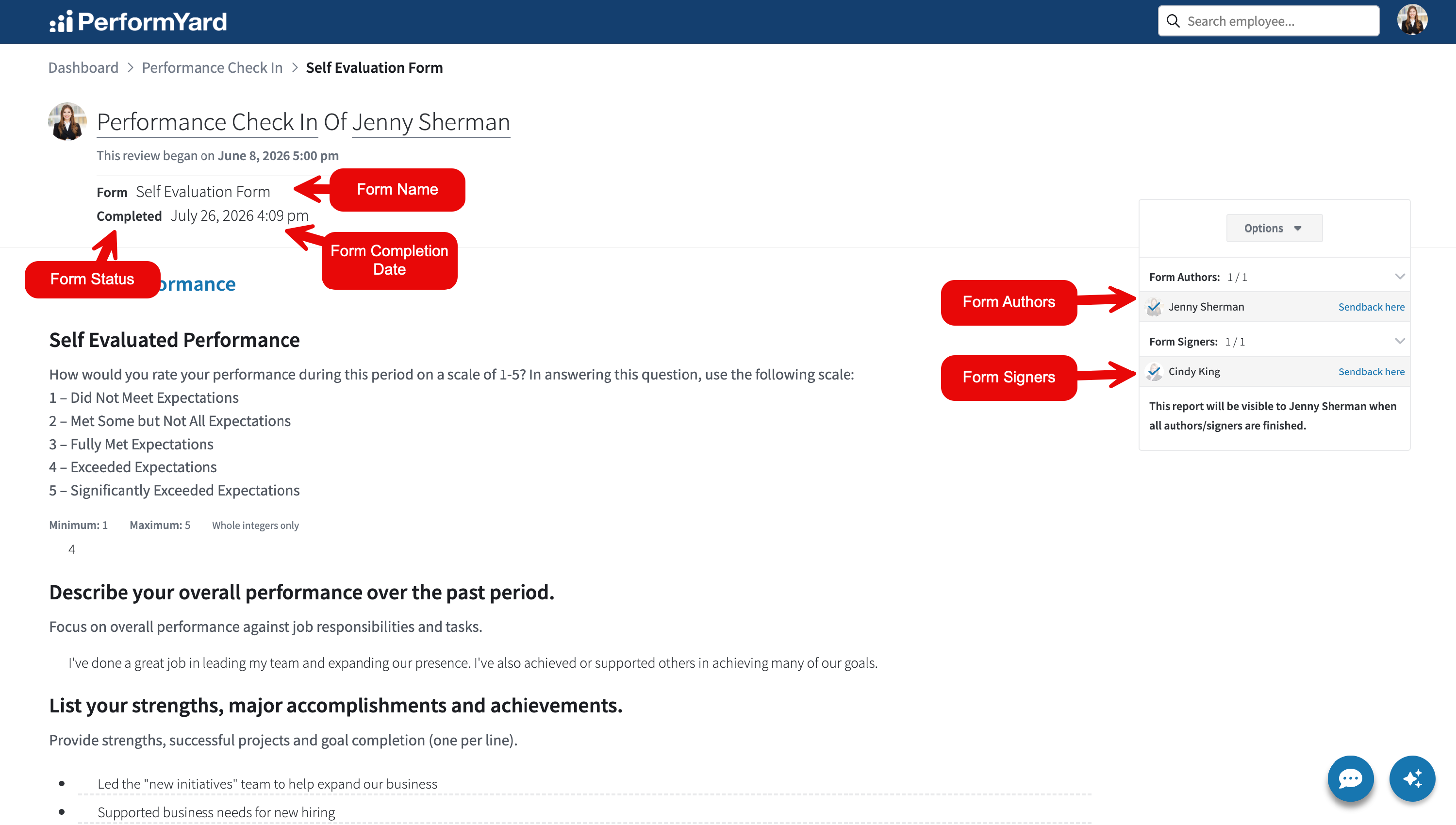
| Field | Description |
| Form Name | Name of the Form |
| Form Status | Status of the review form (completed, started) |
| Authors' Due Date | Date for all the authors to complete authoring the review form |
| Signers' Due Date | Date for all the signers to complete signing the review form |
| Current Author | Current author of the review form |
| Current Signer | Current signer of the review form |
| Form Complete Date | Date the form was completed (authored and signed) |
| Form Authors | List of authors for the form |
| Form Signers
|
List of signers for the form
|
| Questions
|
Questions from the review form.
Note: The following review form question types are not currently available in reporting: Instruction Questions, Goal Creation Questions, and Goal Discussion Questions. |
Note on Multiple Choice Questions
Review reports that include multiple choice questions or question groups will allow users to expand the cell for more detail on the answers provided by the review author(s).
When a report is in a non-summarized state and the question on the form allowed the selection of multiple answers, the grid cell displays the quantity of selections made by the review author. Users can click the accordion icon to view what those specific answers were.
Once summarized, the grid cells for multiple choice questions display the quantity of distinct (unique) answers made to the question across the group. In other words, the quantity reflects the number of different responses given for the respective question. For example, if a report is summarized by employee group and featured a multiple choice question that asked review authors if they would want to work with the review subject again (allowing only one answer to be selected), the number of distinct answers reported would indicate how differently people felt about working with team members in an employee group. On the other hand, if review authors all responded with the same answer (e.g., "Enthusiastically yes!"), this may indicate that team members are having positive interactions.

Additional Filters
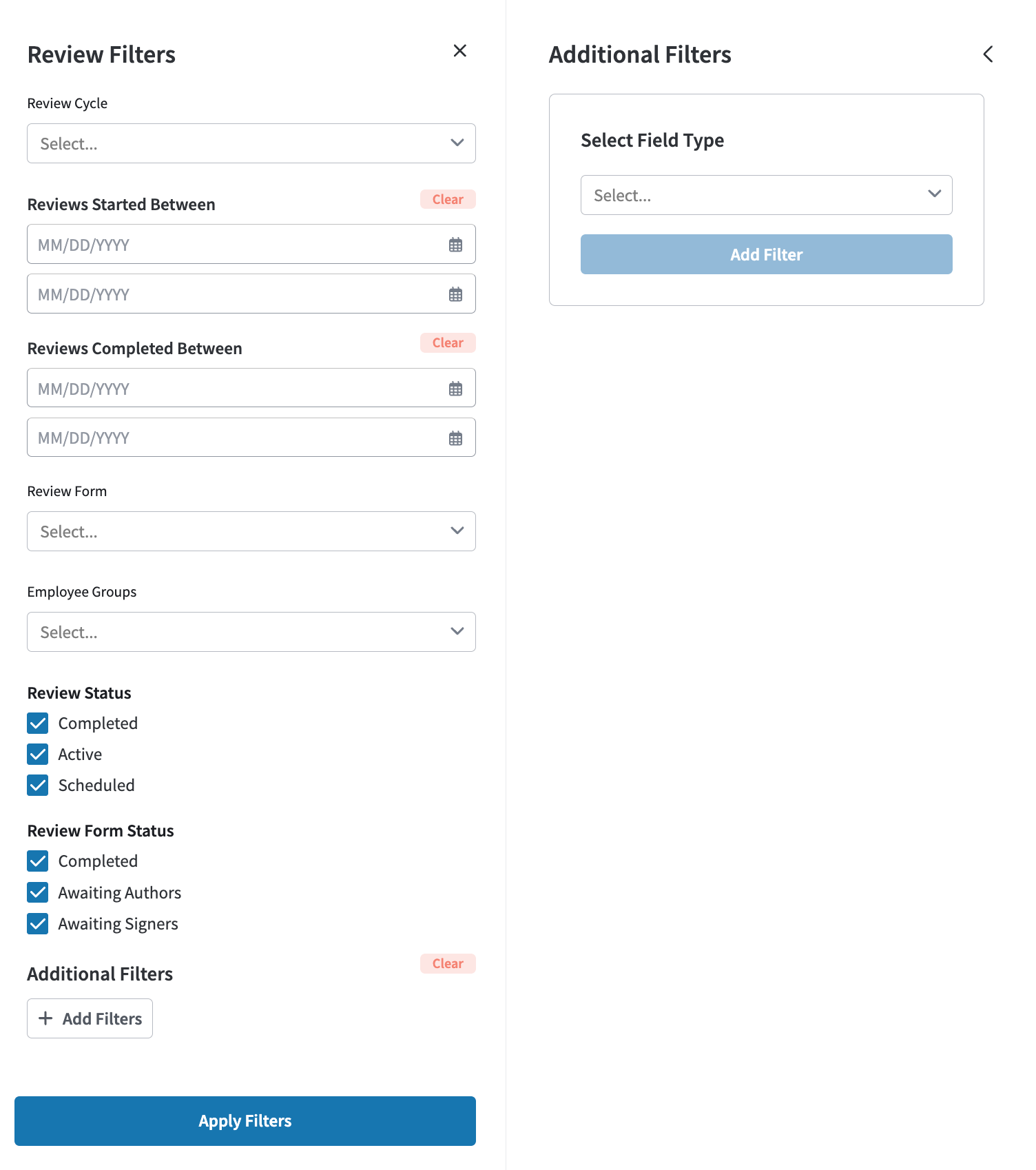
Review reports offer a rich set of Quick Filters that control what review forms should be included in the report. For some reports, it is sometimes necessary to have finer-grained control over the review forms that should be included or excluded from the report. The Additional Filters capability offers additional flexibility over the filtering of review reports. These additional filters complement those offered as quick filters on the Review Report filter panel.
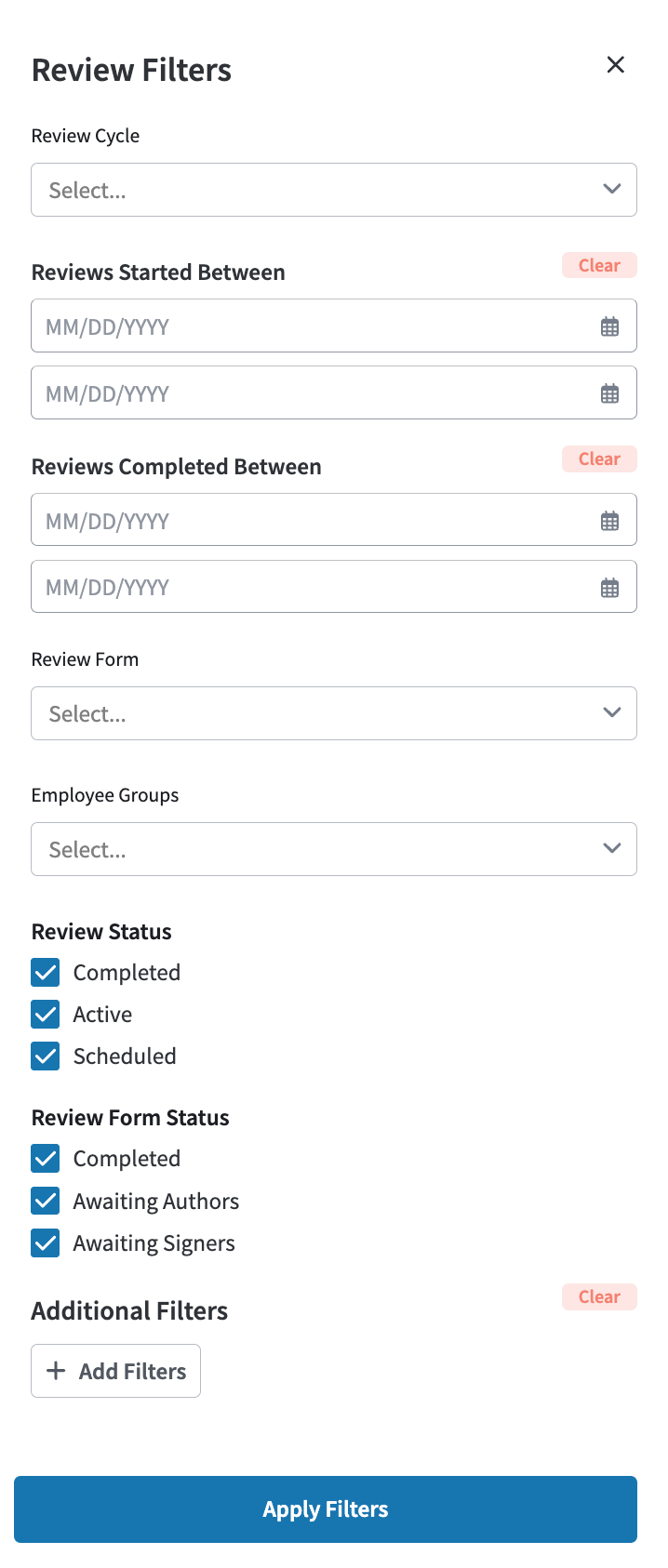
Adding Additional Filters
Adding additional filters is achieved after selecting the [+ Add Filters] button, which will open up an extended filter panel that allows adding any additional filters for the report.
Using a Single Clause in a Filter
A Filter can be made up of one or more clauses. A filter clause is made up of 3 parts:
- A Field Name, for example, "Employee Name"
- A Comparison Operator, for example, "Contains"
- A Comparison Value, for example, "Smith"

Using Multiple Clauses in a Single Filter
A filter can check for multiple clauses or valid values, which are joined together using an OR condition. For example, you could create a filter to include any review forms for review subjects whose last names contain Smith or Jones.

Combining Multiple Filters
It is possible to combine multiple filters, along with any previously defined quick filters. For example, you could combine the above name filter along with a filter on salary, looking for employees whose names are either Smith OR Jones AND who have a salary greater than $100,000. All the individual filters must evaluate to be true for a review form to be included in the resulting report.

Note: If your report appears to have no rows, then it is likely that the combination of filters is excluding all records from the report. This can happen when including two mutually exclusive filters. For example, adding two separate filters, one for Salary Greater Than $20,000 and a second filter for Salary Less Than $20,000, would not have any records that could match since it would be impossible for someone's salary to be both greater than AND less than $20,000.
Supported Comparison Operators
The available comparison operators are adjusted based on the selected Field. For example, fields like name support text comparisons like Equals, Starts With, or Contains, whereas numeric fields support comparisons like Greater Than, Less Than, or Equals. A complete list of available comparison operators is shown below.
| Text Fields | Equals
|
Match if the text matches the field exactly. For example, Last Name Equals Green will only return review forms for review subjects whose last name is precisely Green. |
|---|---|---|
| Does Not Equal | Match if the text does not match the field. For example, Last Name Does Not Equal Green will return review forms for all review subjects whose last names are not Green. | |
| Contains | Match if the text exists within the field. For example, Last Name Contains Green will return review forms for all review subjects whose last names contain Green, including McGreen, Greenberg, Greensmith, and O'Green. | |
| Does Not Contain | Match if the text does not exist within the field. For example, Last Name Does Not Contain Green will return review forms for all review subjects whose last names do not contain Green. | |
| Starts With | Match if the field's value starts with the specified text. For example, Last Name Starts With Green would find review forms for review subjects whose last names begin with Green, including Greenberg, Greensmith, and Green. | |
| Does Not Start With | Match if the field's value does not start with the specified text. For example, Last Name Does Not Start With Green would find review forms for review subjects whose last names did not begin with Green, for example, Meyer, Jones, and Smith, and exclude those that did start with Green, like Greenberg. | |
| Ends With | Match if the field's value ends with the specified text. For example, Last Name Ends With Green would find review forms for review subjects whose last names end with Green, for example, Green and O'Green but would not include Greenberg. | |
| Does Not End With | Match if the field's value does not end with the specified text. For example, Last Name Does Not End With Green would find review forms for review subjects whose last names do not end with Green, for example, Jones, Meyer, and Greenberg but not Green or O'Green. | |
| Numeric Fields | Equals | Match if the field's value matches the specified value exactly. For example, Salary Equals 20,000 will only return review forms for review subjects whose salary is precisely 20,000. |
| Does Not Equal | Match if the field's value does not match the number specified. For example, Salary Does Not Equal 20,000 will only return review forms for review subjects whose salary is not 20,000. | |
| Greater Than | Match if the field's value is greater than the specified value. For example, Salary Greater Than 20,000 will only return review forms for review subjects whose salary is greater than 20,000 but will not include those with a salary of exactly 20,000. | |
| Less Than | Match if the field's value is less than the specified value. For example, Salary Less Than 20,000 will only return review forms for review subjects whose salary is less than 20,000 and will not include those with a salary of exactly 20,000.
|
|
| Greater Than or Equal To | Match if the field's value is greater than or equal to the specified value. For example, Salary Greater Than Or Equal To 20,000 will only return review forms for review subjects whose salary is greater than 20,000 and those with a salary of exactly 20,000.
|
|
| Less Than or Equal To | Match if the field's value is less than or equal to the specified value. For example, Salary Less Than Or Equal To 20,000 will only return review forms for review subjects whose salary is less than 20,000 and those with a salary of exactly 20,000.
|
|
| Person Fields | Equals | Match if the field's value matches the specified person. For example, Manager Equals Jennifer Lopez will return all review forms for reviews whose review subject's manager is Jennifer Lopez. |
| Does Not Equal | Match if the specified person does not match the field's value. For example, Manager Does Not Equal Jennifer Lopez will return all review forms for review subjects whose managers are not Jennifer Lopez. | |
| People Fields | Contains | Match if one of the specified people is found in the field. For example, Participants Contains Bob Smith will return all review forms for reviews whose participants (signers, authors, subject) include Bob Smith. |
| Does Not Contain | Match if the specified person is not found in the field. For example, Participants Does Not Contain Bob Smith will return all review forms for reviews that did not involve Bob Smith as a signer, author, or subject. | |
| Date Fields | Equals | Match if the field's value matches the specified value exactly. For example, Form Complete Date Equals 1/1/2023 will only return review forms completed on January 1st, 2023.
|
| Before | Match if the field's value occurred before the specified value. For example, Form Complete Date Before 1/1/2023 will only return review forms completed before January 1st, 2023, and will not include those completed on January 1st, 2023.
|
|
| After | Match if the field's value occurred after the specified value. For example, Form Complete Date After 1/1/2023 will only return review forms completed after January 1st, 2023, and will not include those completed on January 1st, 2023.
|
Merging Questions
Companies implementing their review processes and cycles sometimes offer tailored review forms for different departments or specific employees. For example, an engineering department may tailor their review questions to engineering topics like code quality, while a sales team may ask questions about meeting pipeline creation goals. Both departments may include a question on a different form that leads to an overall rating score that could allow for comparing employees across departments. A question group will allow treating these two separate questions from different forms, the engineering rating question from the engineering form and the sales rating question from the sales form as if they had been a unified employee rating question for analysis across subjects.

Grouping (merging) Questions
The report column picker allows users to create one or more question groups. The last section is labeled "Question Groups" and lists any question groups already created. Users can also create a new question group by clicking the Create button.

Pressing the Create button will open the Create Question Group dialog. One can select one or more questions to combine and give the grouped question a new name, such as "My Question Group."
Note: The list of available questions for grouping is limited to Numeric-type (Numeric, Rating Scale), Text questions, and Multiple Choice question types. Additional question types will be supported in future updates.

Adding a Question Group as a Column
Once a new question group has been created, one can add it as a new column for the report by selecting it as one would do for any other column.

Ungrouping Question Groups
By choosing Ungroup Questions, a question group can also be removed and replaced with its component questions in the report table.
