
View-Only and Create Permissions for Managers, Contributors, & Group Admins
Introduction
Administrators can give managers, contributors, and/or group admins two kinds of access to Reporting & Analytics:
- View-only access to reports created and shared by an administrator user.
- Create access to build their own employee, review, goal, and survey reports.
Both are controlled from the Reporting & Analytics administration settings. Each role's view and create permissions can be turned on independently. PerformYard automatically filters every report so these users only see data for the people they oversee and the fields they already have permission to view.
Managing Additional Permissions in Reporting & Analytics
To find these settings, go to your Administration Settings and select Reporting & Analytics in the left navigation panel. This page has two sections - one for granting view-only permissions and the other for granting create permissions.
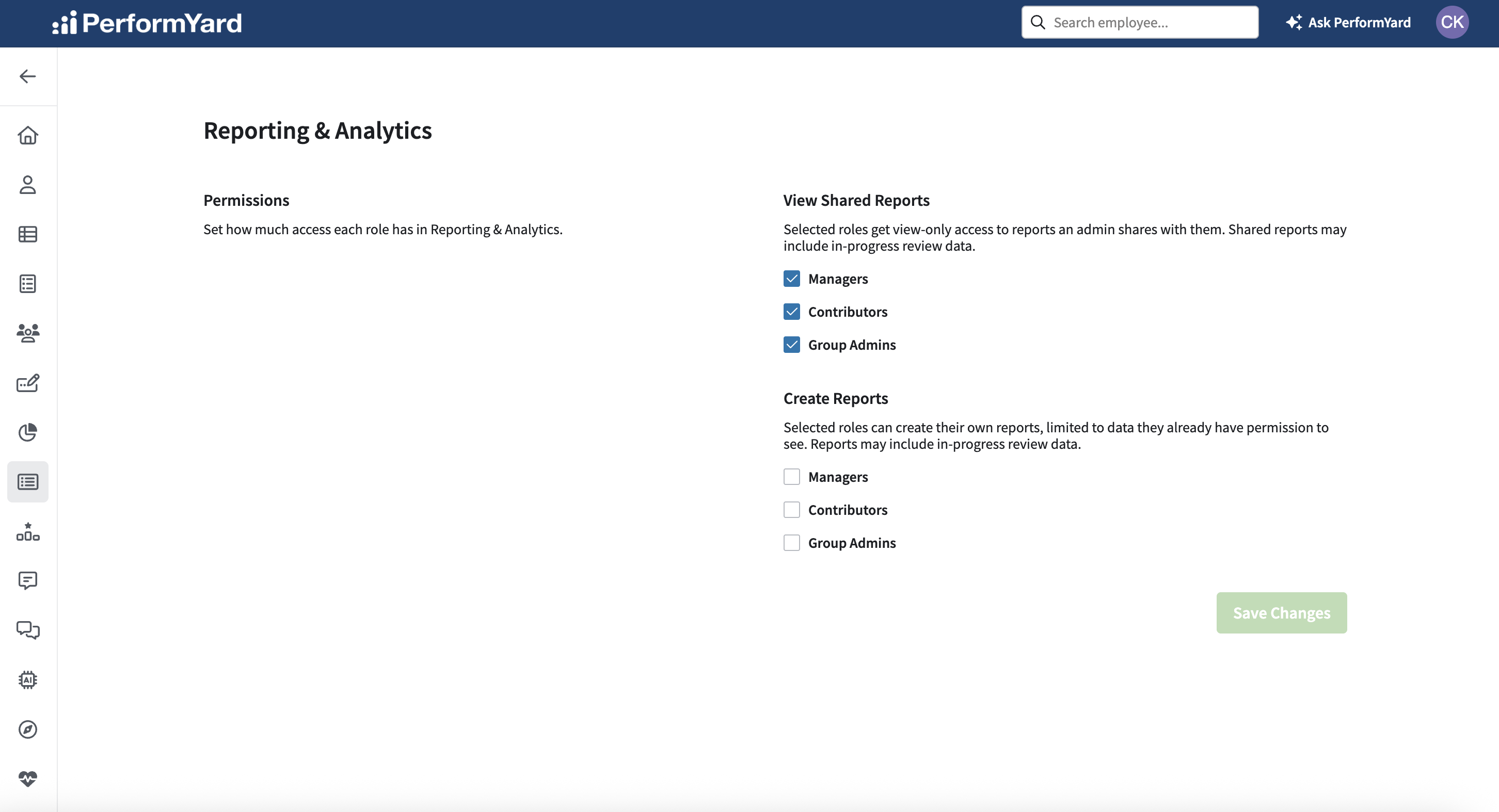
Because view-only access is on by default, administrators can start sharing reports with managers, contributors, and/or group admins right away. To disable view-only access to shared reports, uncheck the box for the desired role or roles and click Save Changes. Admins can also expand non-admin access in Reporting & Analytics by allowing them to create their own reports. To do so, navigate to the Create Reports section, check the desired role or roles to grant create permission, and click Save Changes.
It is important to note that each role's level of access can be turned on independently, allowing admins to customize these permissions to best align with their operations. For example, organizations can allow managers to create their own reports without granting them view-only access to admin-shared reports, or the reverse.
How View and Create Permissions Work Together
What a user sees on the Reporting & Analytics landing page depends on which settings are enabled for their role.
|
View |
Create |
Expected Behavior |
|
|---|---|---|---|
| On | On | Landing page displays their own reports and any admin-created reports shared with their role. User has access to the Create Report button. | |
| On | Off | Landing page displays any admin-created reports shared with their role. User does not have access to the Create Report button. | |
| Off | On | Landing page displays their own reports. User has access to the Create Report button. |
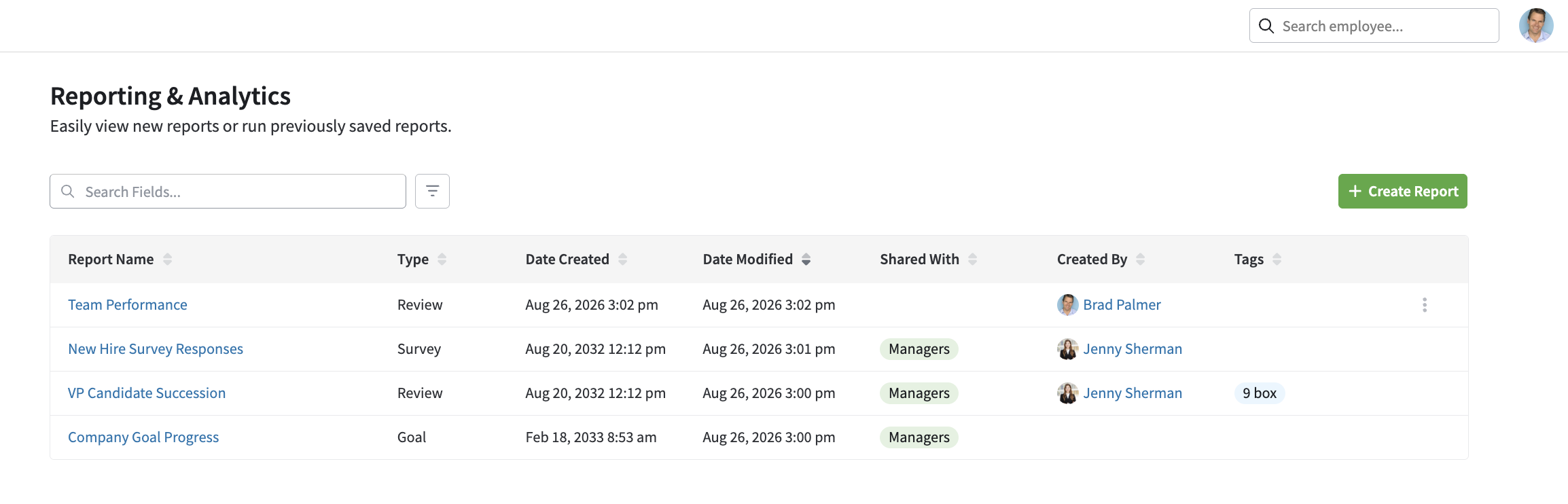 Both Permissions Enabled
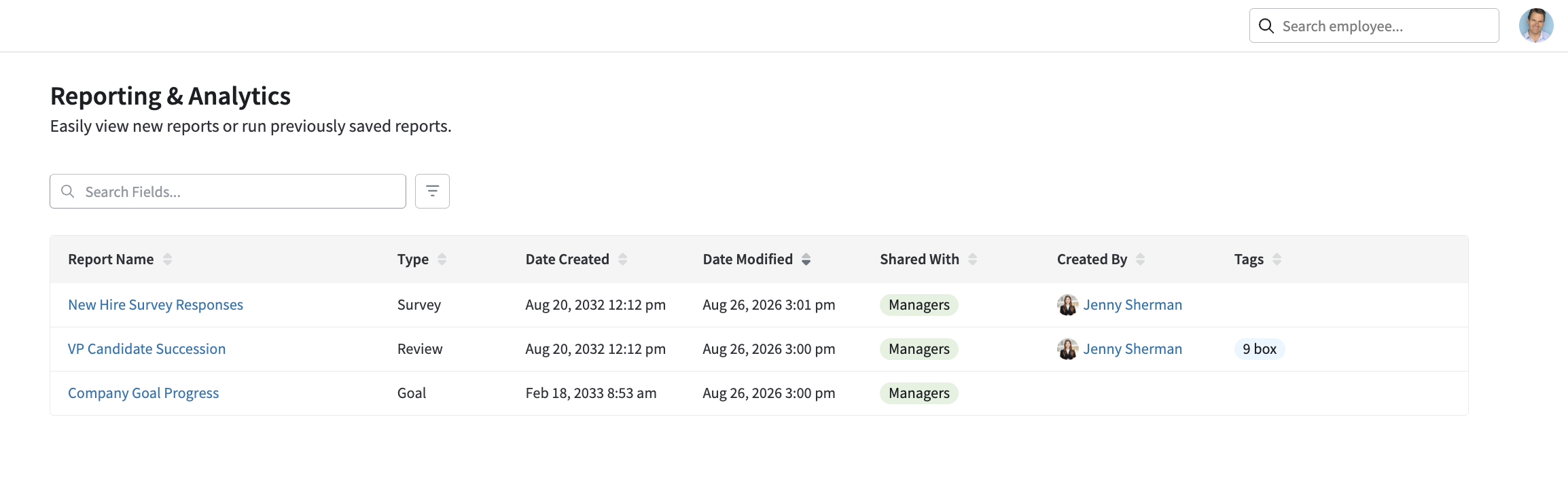 View-Only ON, Create OFF
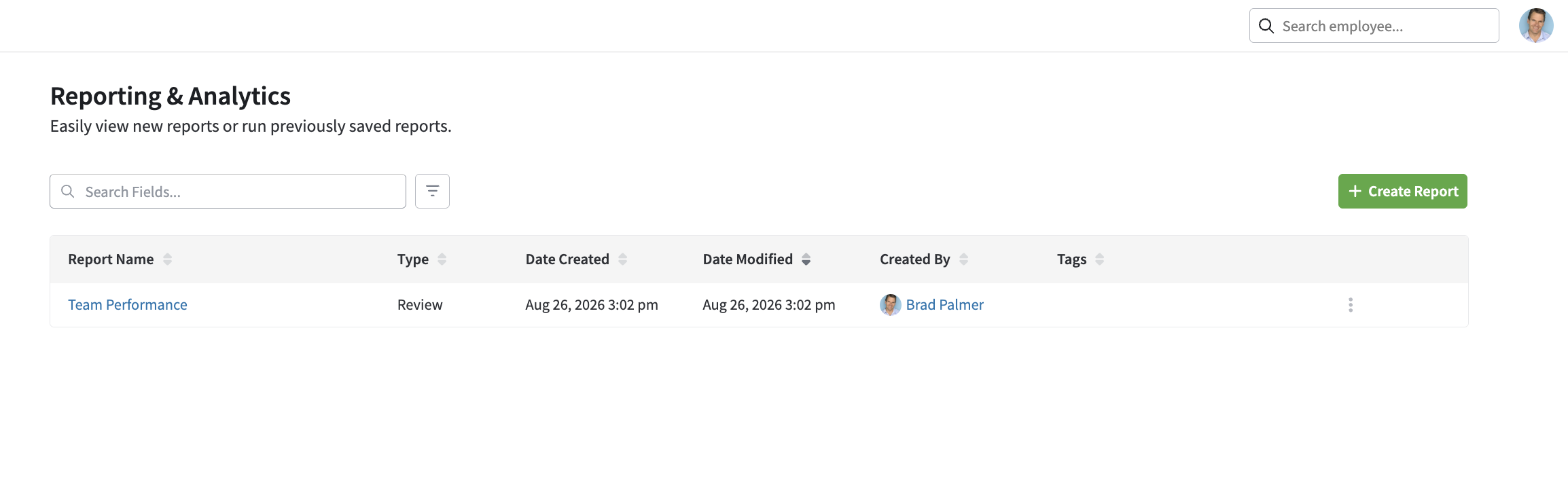 View-Only OFF, Create ON
Sharing Reports (View-Only Access) with Managers, Contributors, or Group Admins
When view-only access is enabled for one or more roles, admins can share reports from the Reporting & Analytics landing page or within the actual report itself.
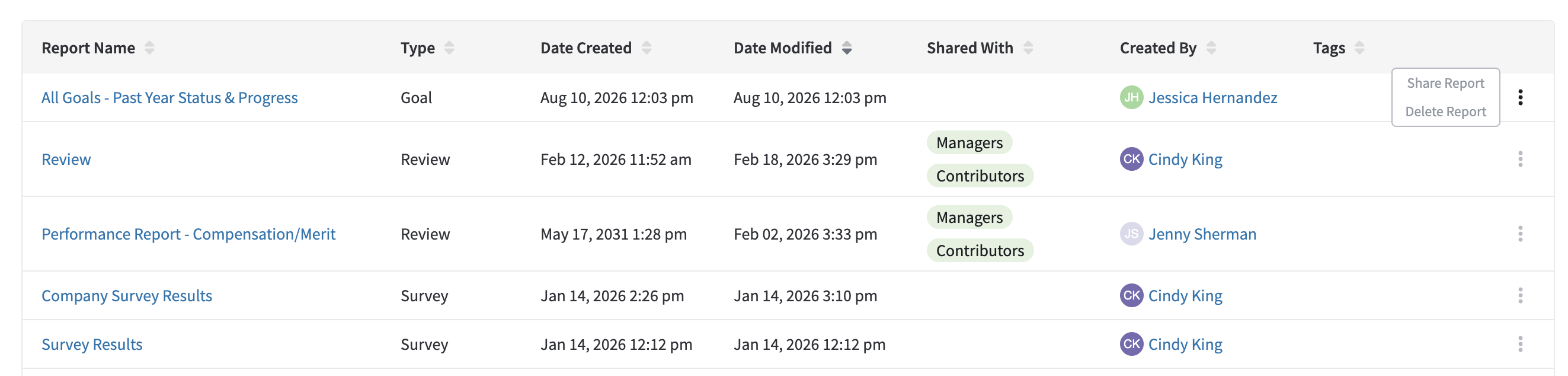
- On the landing page, click the action menu for the desired report row and select Share Report.
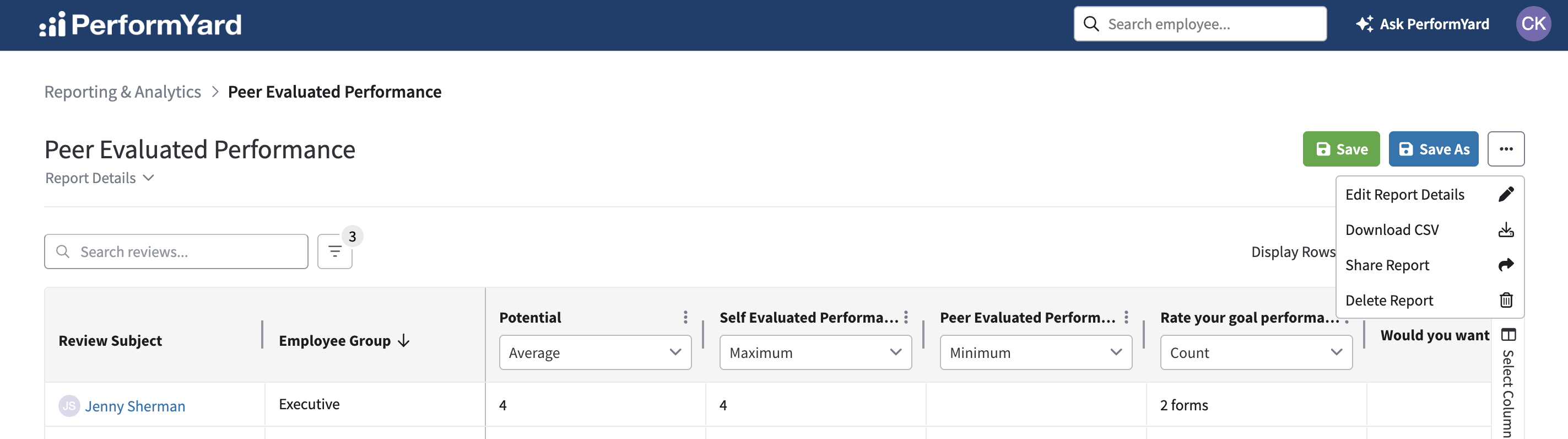
- Within the actual report page, click the action menu in the top right corner (next to Save and Save As) and select Share Report.
- In the Share Report window, check the box for each role you want to share the report with. Only roles with view-only permissions enabled will be displayed as an option to select.
- Click Save.
 Modal display when only one role has view-only permissions
 Modal display when all roles have view-only permissions
Sharing a report will grant view-only access to the report for all managers, contributors, and/or group admins within the organization. Managers are those employees with at least one direct report. Managers will have access to view report results for any of their employees or their employees' employees (and their entire chain of command). Those who are assigned as contributors or group admins to other employees will have access to view report results for the team members they oversee. Shared reports will automatically apply filtering to ensure these roles can only view data for their appropriate team members and only view the data fields they have permission to view. For example, a manager cannot see report data for employees outside of their chain of command. In addition to the automatic filtering mentioned above, managers, contributors, and group admins viewing a shared report:
- cannot add or remove columns from the report
- cannot create, modify, share, or delete reports


Note: Sharing a review report that has been filtered to include in-progress reviews and forms (awaiting signers, awaiting authors) will allow managers, contributors, and group admins to access details about reviews and forms that are still in progress.
Removing View-Only Permissions to Shared Reports
Admins can remove shared access to individual reports or disable view-only access to shared reports entirely.
To remove view-only access to a report that's been shared, navigate to the action menu for the respective report and click Share Report again. Uncheck the box for the desired role or roles and click Save. The Shared With detail will update to reflect your changes and users with that role will no longer have access to view the specific report.
To remove view-only permissions entirely, navigate back to the Reporting & Analytics page in the Administration Settings and uncheck the desired role or roles. Once you've saved your changes, those users will lose access to all shared reports and admins will no longer see that role as an option in the Share Report modal.
Creating Reports as a Manager, Contributor, or Group Admin
When create permissions have been granted, users with that permission see a Create Report button on the Reporting & Analytics landing page. Reports created by non-admins are automatically filtered based on the creator’s own permissions and reporting relationships. These roles can edit and delete reports they’ve created, including saving a report as a summarized table or building visualizations from the data fields they have access to. They CANNOT:
- access reports created by other non-admin users, including users of the same role.
- share their reports (this remains an administrator-only action)
Administrator Visibility Into Non-Admin Reports
Admins can open any report created by a manager, contributor, or group admin. When viewing a report created by a non-admin role, the admin view is limited to the same filtered data the creator sees. Administrators cannot edit or delete reports created by non-admins.
Removing Create Permissions
To remove create permissions for non-admins, navigate back to the Reporting & Analytics page in your Administration Settings, uncheck the desired role or roles, and click Save Changes. Roles without a checkbox will no longer have the ability to create reports in Reporting & Analytics and any pre-existing reports they created will be removed from the landing page list