.png)
Managing Personal Documents
Introduction
PerformYard allows you to upload and manage documents. These can include many different documents, such as past reviews, copies of feedback you have received, projects you completed or anything else you want to include. Additionally, you can access a set of company documents by clicking on the Company Documents link in your file list and you can download any signed documents you may have by clicking on Signed Documents.
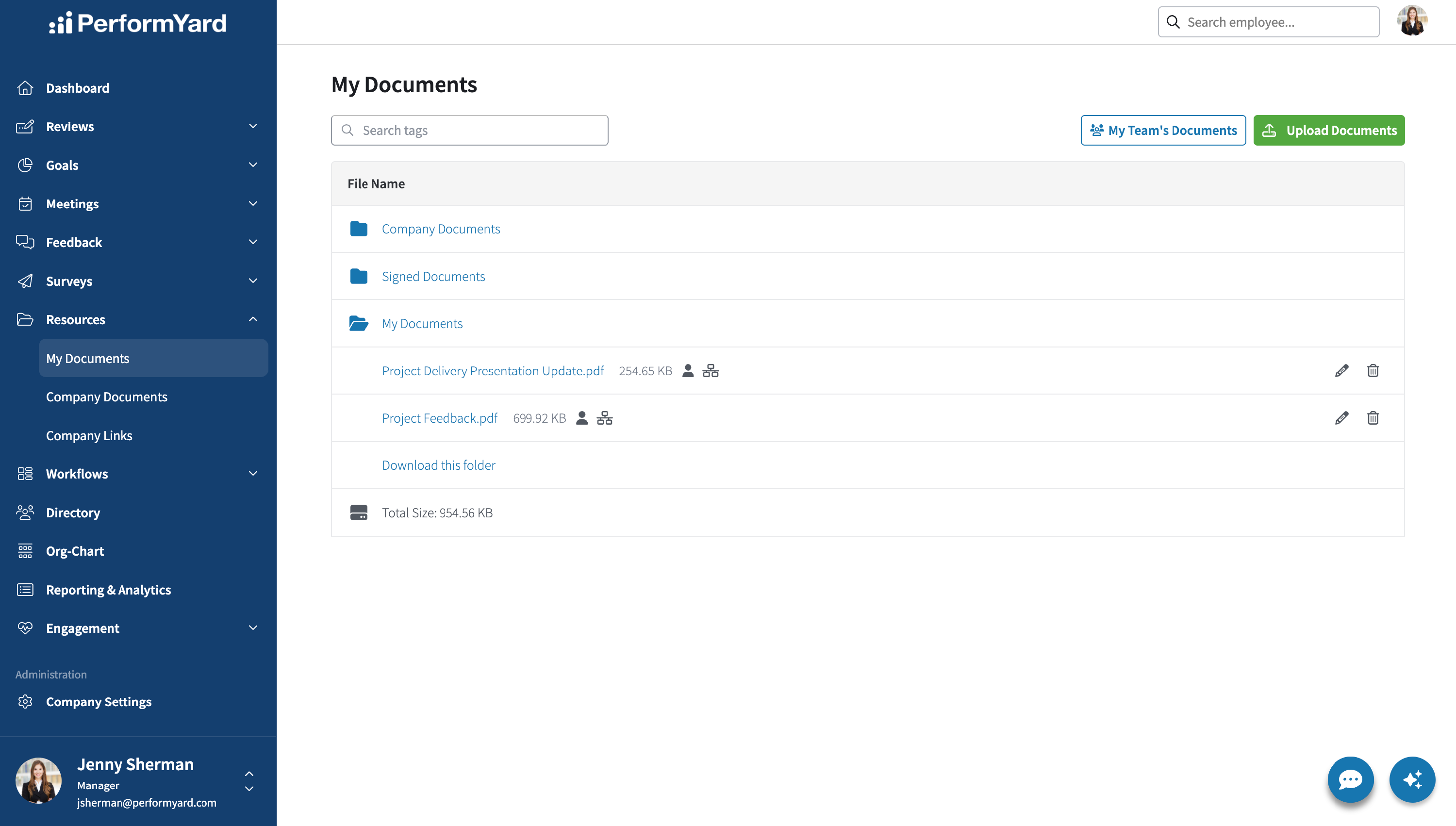
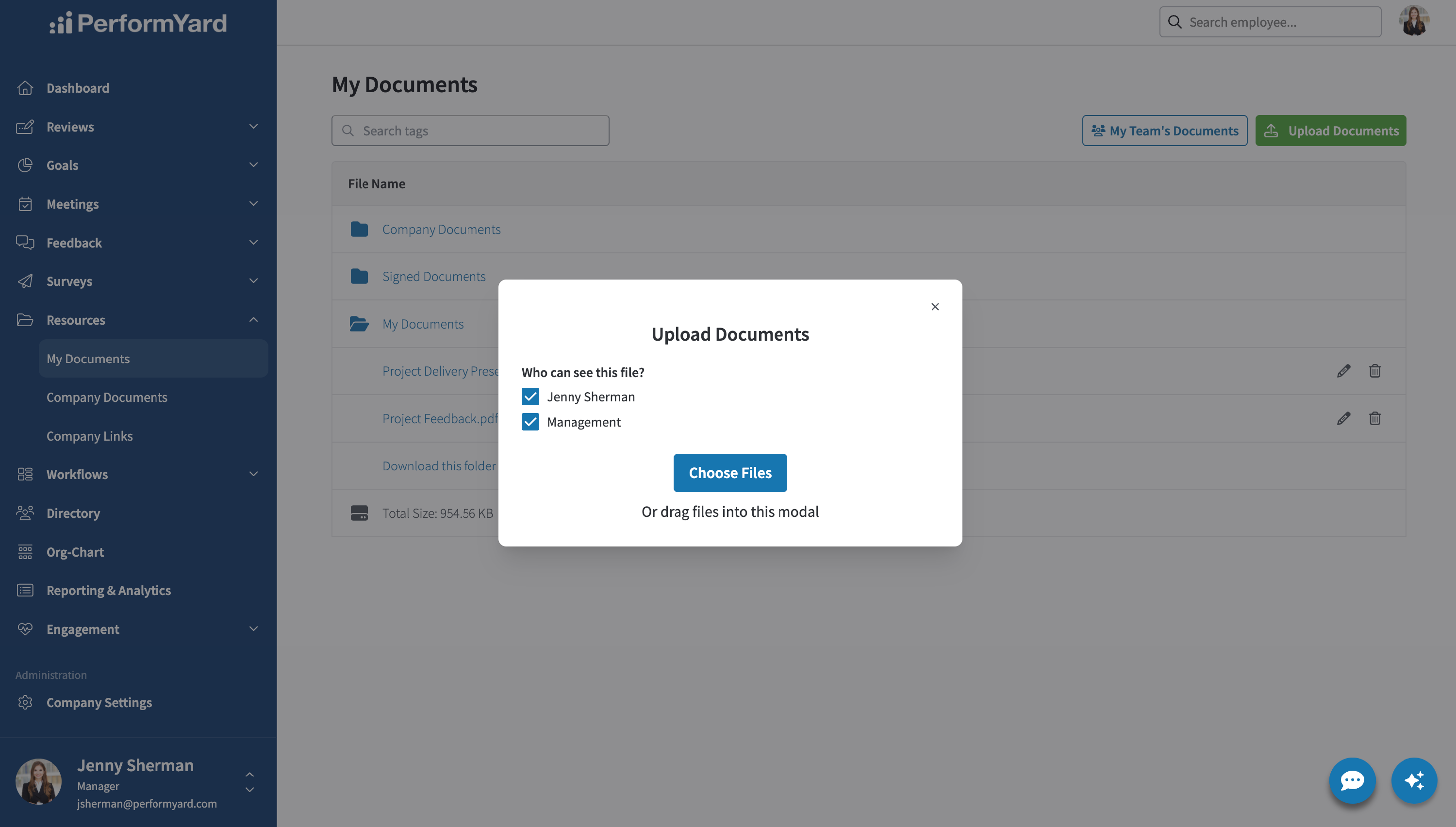
Uploading a Document
To add a document, click the Upload Documents button located in the top right corner of the My Documents page. Before uploading, you'll be prompted to set view permissions for the file(s). You can choose whether your manager should have access to view and download the document. If you grant access to "Management," your assigned PerformYard manager, as well as their manager and others above them in your reporting chain, will be able to access the file from your Documents tab. Please note that system administrators always have access to view and download any uploaded files, regardless of permission settings. To upload your documents, either click Choose Files to select one or more files using the file picker, or simply drag and drop the documents directly onto the page.
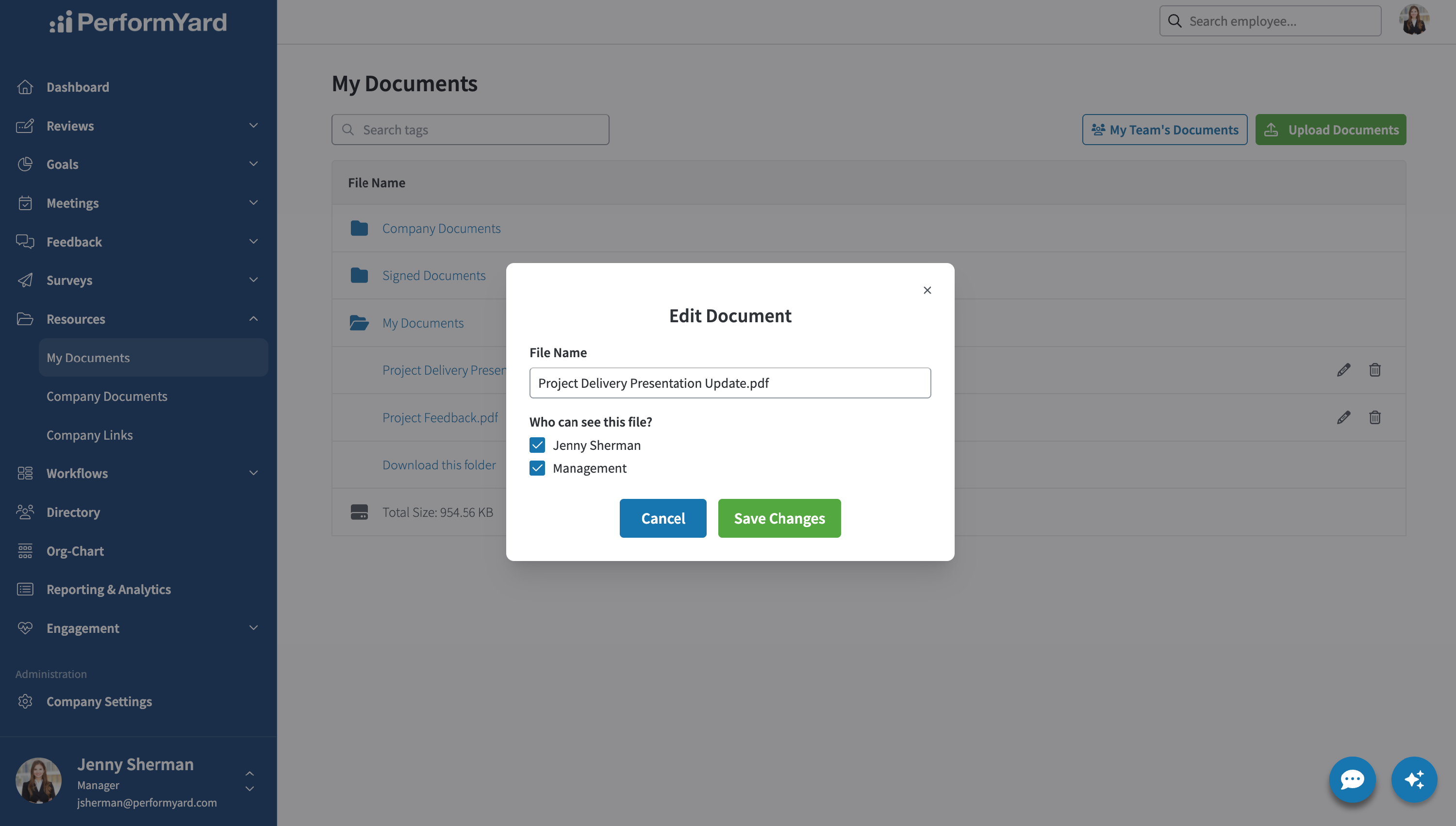
Editing an Existing Document
If you uploaded a file, you'll have permission to edit it—this includes changing the display name and updating its visibility settings. For documents uploaded by others (such as your manager or an administrator), you may not have the ability to edit or delete them. To make changes to a document you uploaded, click the pencil icon next to the file. A pop-up window will appear, allowing you to update the file name and adjust permission settings as needed.
Notes:
- Certain file types (such as executable files) and/or file sizes may be restricted.
- Multiple file selection and drag & drop functionality may not be available on all browsers.
My Team's Documents (Managers, Admins, Contributors, Chain of Command Manager)
Billing admins, regular admins, managers, contributors, and chain of command managers can view, upload, and manage documents for employees they have access to, such as direct reports. Click My Team's Documents to open a popup where you can select the employee whose documents you'd like to view, upload, or manage. Note that the dropdown only shows employees you have access to.
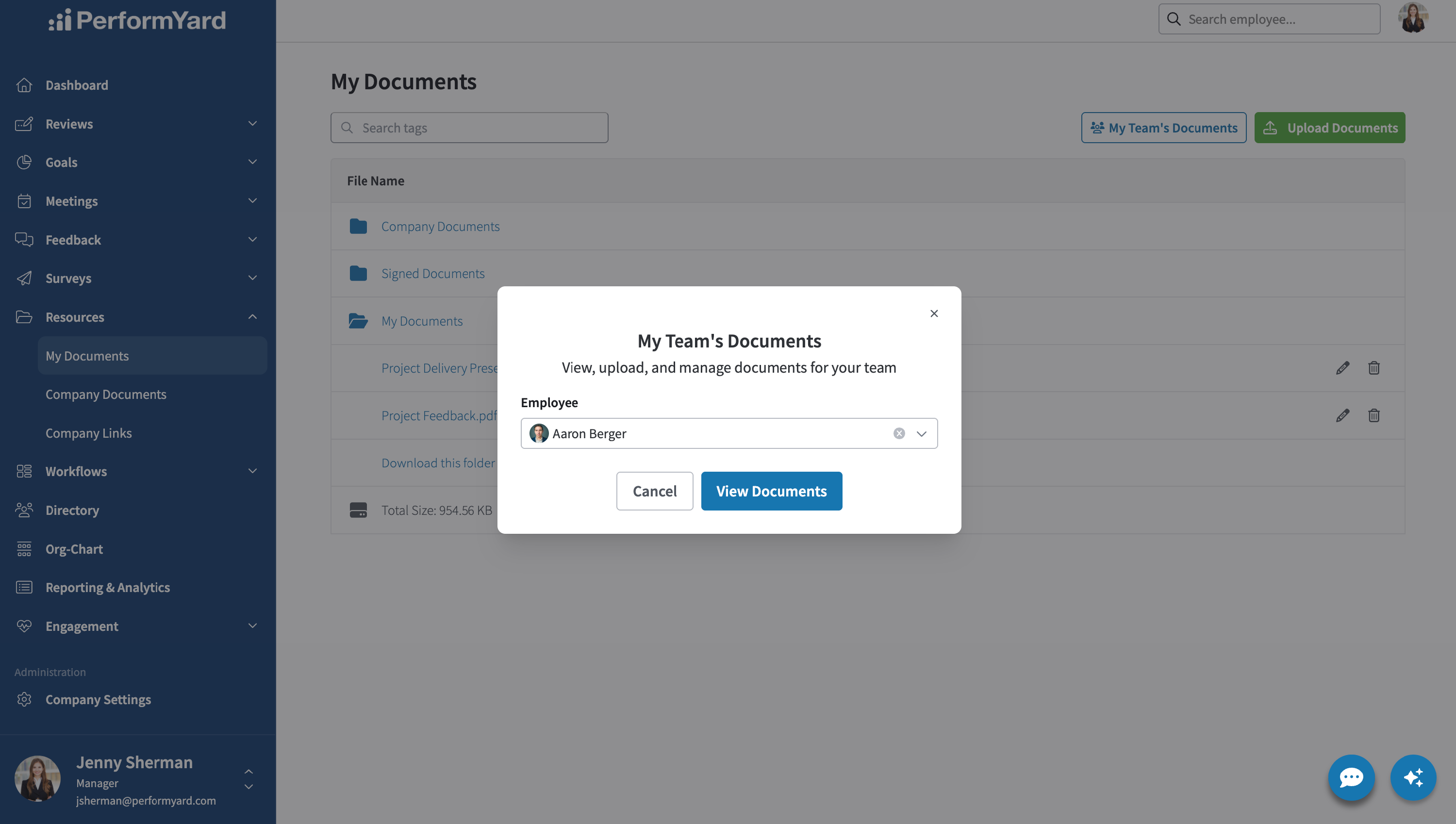
Once you select an employee, you'll see their documents (based on your permissions and the permissions set on each document). From here, you can:
- Upload a new document, which will appear in the {{Employee Name}}'s Documents folder
- Update or delete an existing document
When you're finished managing documents for that employee, click Back to My Documents at the top of the page to return to your own documents view.
