Using Ask PerformYard
Introduction
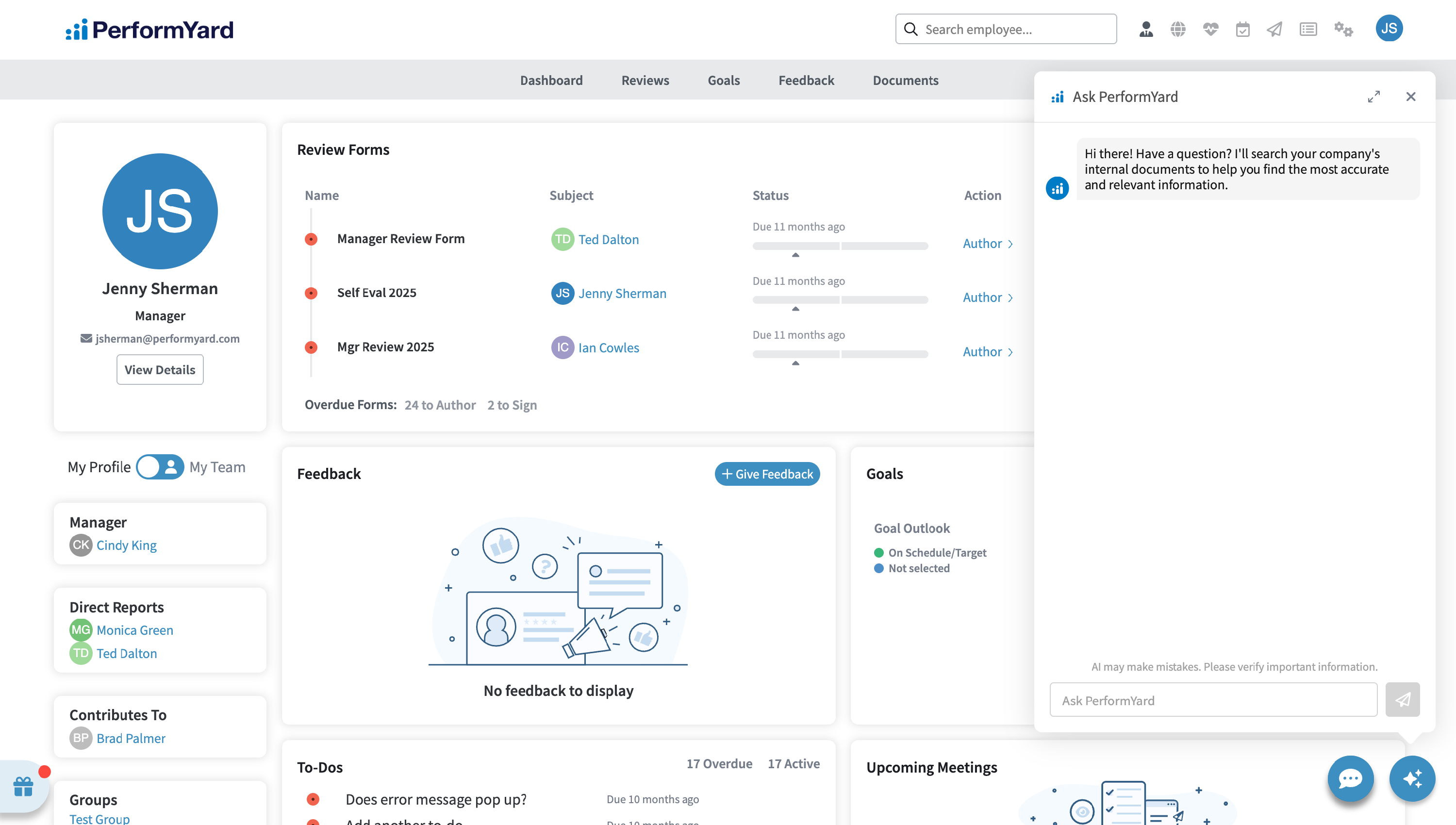
Ask PerformYard is your AI assistant for performance management. Available for PerformYard Premium (formerly Enterprise) accounts, Ask PerformYard helps answer questions and guide users through tasks by leveraging your organization’s internal resources through Ask HR, while also supporting goal setting with AI-assisted recommendations. The Ask HR feature enables administrators to create a custom knowledge base from company documents, allowing employees to quickly access accurate answers to common questions about policies, procedures, and benefits. The Goals feature empowers employees, managers, and administrators to generate clear, actionable, and relevant goals with the help of AI, making the goal-setting process faster and more effective. The Forms feature enables admins to quickly generate relevant review forms and receive question suggestions with the help of AI. Access Ask PerformYard anytime via the blue AI button in the bottom right corner of most pages.
Disclaimer: Ask PerformYard uses artificial intelligence to generate answers to employee questions. While it aims to provide concise and accurate responses, they may not always capture all nuances or context from the original company resources. Please consult company resources alongside any generated responses to ensure proper interpretation and decision-making.
Ask HR
Ask HR is a feature within Ask PerformYard that enables your organization to provide instant, accurate answers to common employee questions using your company's own resources. HR admins can build a custom knowledge base by uploading company documents, such as policies, procedures, handbooks, and guidelines. When employees ask Ask PerformYard a question, the assistant searches this knowledge base to provide relevant, context-aware answers drawn directly from your organization's materials. This feature aims to help reduce the volume of repetitive HR inquiries while ensuring employees get fast, reliable information when they need it. Ask HR intelligently parses uploaded PDF documents and retrieves the most relevant information to answer each question accurately.
Ask HR currently only supports PDF documents uploaded to Company Info > Resources.
Ask HR Knowledge Base

Once Ask HR is enabled, navigate to Company Info > Resources to set up your knowledge base. Existing customers may notice some documents are already included in the Ask HR Knowledge base. This is because we've pre-selected certain resources from your Company Info to help you get started. You can review, modify, or upload additional documents at any time to tailor the feature to your organization's needs.
Managing Documents
You can include any PDF document from Company Resources in the Ask HR knowledge base. To include a document:
1. Navigate to Company Info > Resources and locate the document you want to include
2. Click the the gray AI icon with a slash through it next to the document

3. The document will begin processing and will be added to the knowledge base once complete


Alternative method: Click the pencil icon next to the document, select "Allow Ask PerformYard feature to retrieve and reference this document when answering questions," and click Save Changes.

Once processing is complete, the AI icon will turn blue, indicating the document is ready for use by Ask PerformYard. To remove a document from the knowledge base, simply click the blue AI icon and the document will no longer be used when answering questions.
Document Permissions
Ask PerformYard respects the visibility permissions set for each document in Company Resources. Documents can be visible to everyone or administrators only, meaning Ask PerformYard will only reference documents the user has permission to view.
Example: If your Employee Handbook is set to visible to everyone, any employee can ask questions about PTO, benefits, or working hours, and Ask PerformYard will use that document to provide answers. However, if a Competency Library document is restricted to administrators only, non-admin employees won't receive answers based on that document. Ask PerformYard will search other accessible documents in the knowledge base, and if no suitable information is found, it will let the employee know. If an administrator asks the same question, Ask PerformYard can access the Competency Library and provide a complete answer.
Ask HR Usage

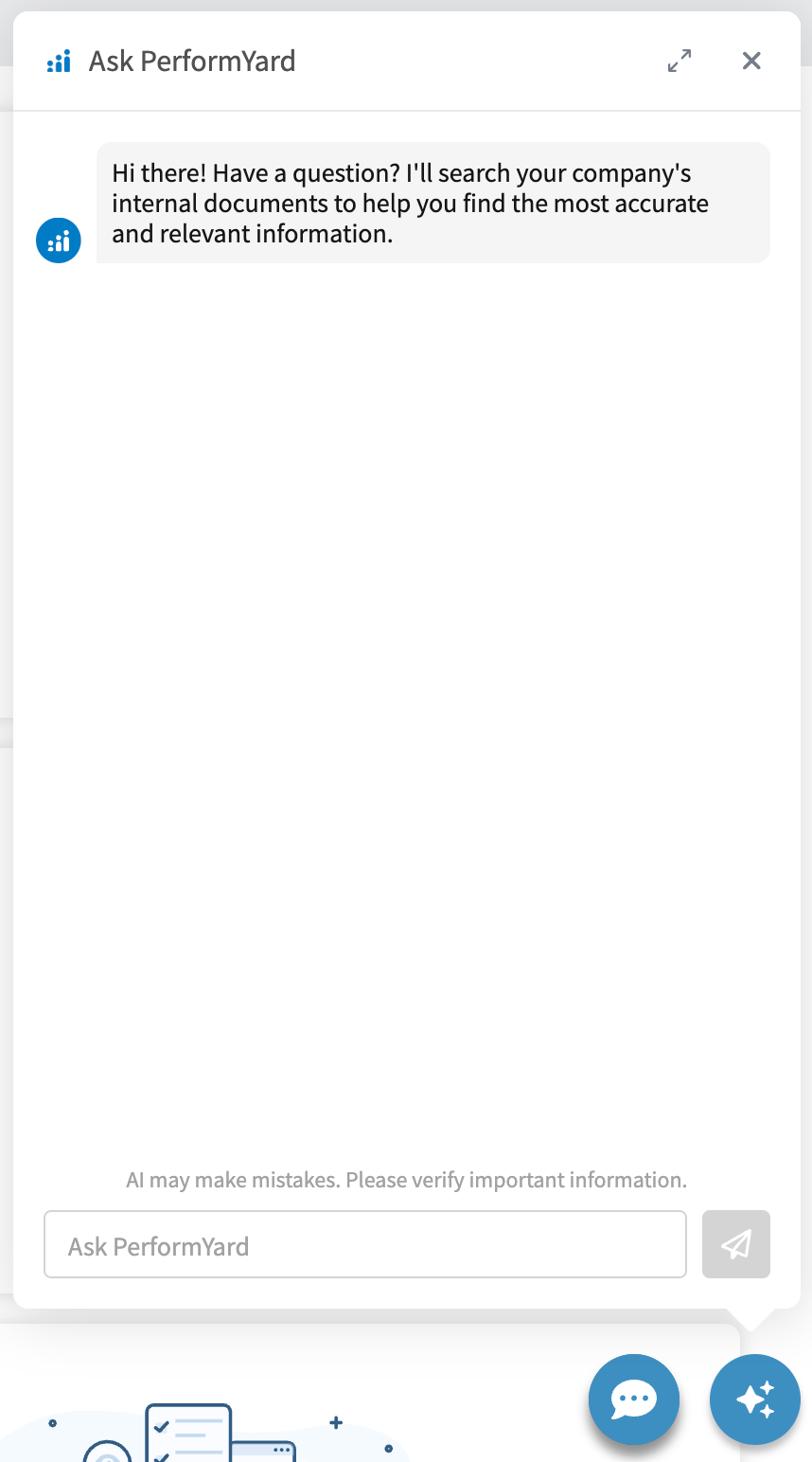
Ask PerformYard is accessible from the blue AI button in the bottom right corner of most pages. Click the button to open the chat interface, where you can ask questions and receive answers based on your organization's Ask HR knowledge base.

Goals
AI-Assisted Goal Creation is a feature within Ask PerformYard that enables employees and managers to quickly generate actionable, relevant goals with the help of AI. When enabled, Ask PerformYard guides users through a short series of questions, such as goal type, focus area, and timeframe, and uses that context alongside existing employee and team data to suggest up to five tailored goals at a time. Employees can create goals for themselves, while managers and skip-level managers can generate goals for their direct and indirect reports, and admins can create goals for anyone in the organization. Suggested goals can be reviewed, edited, and created directly from the chat window, helping reduce the time spent on goal formation while ensuring employees and teams start with clear, well-structured performance expectations.
Goal Suggestions
To access Ask PerformYard, click the blue AI button in the bottom right corner of most pages. This will open the chat interface, where you can ask questions, get answers from your organization's knowledge base, and create AI-assisted goals.
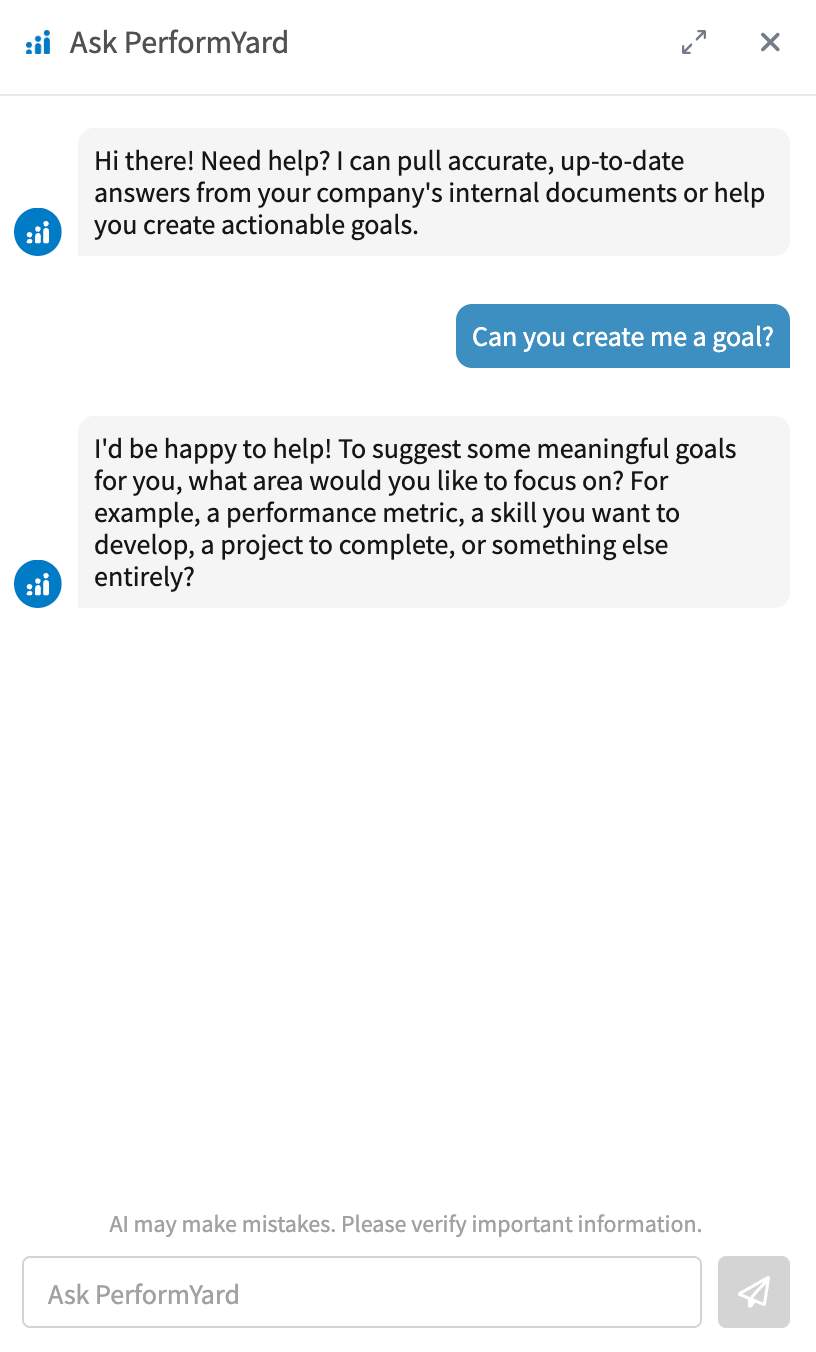
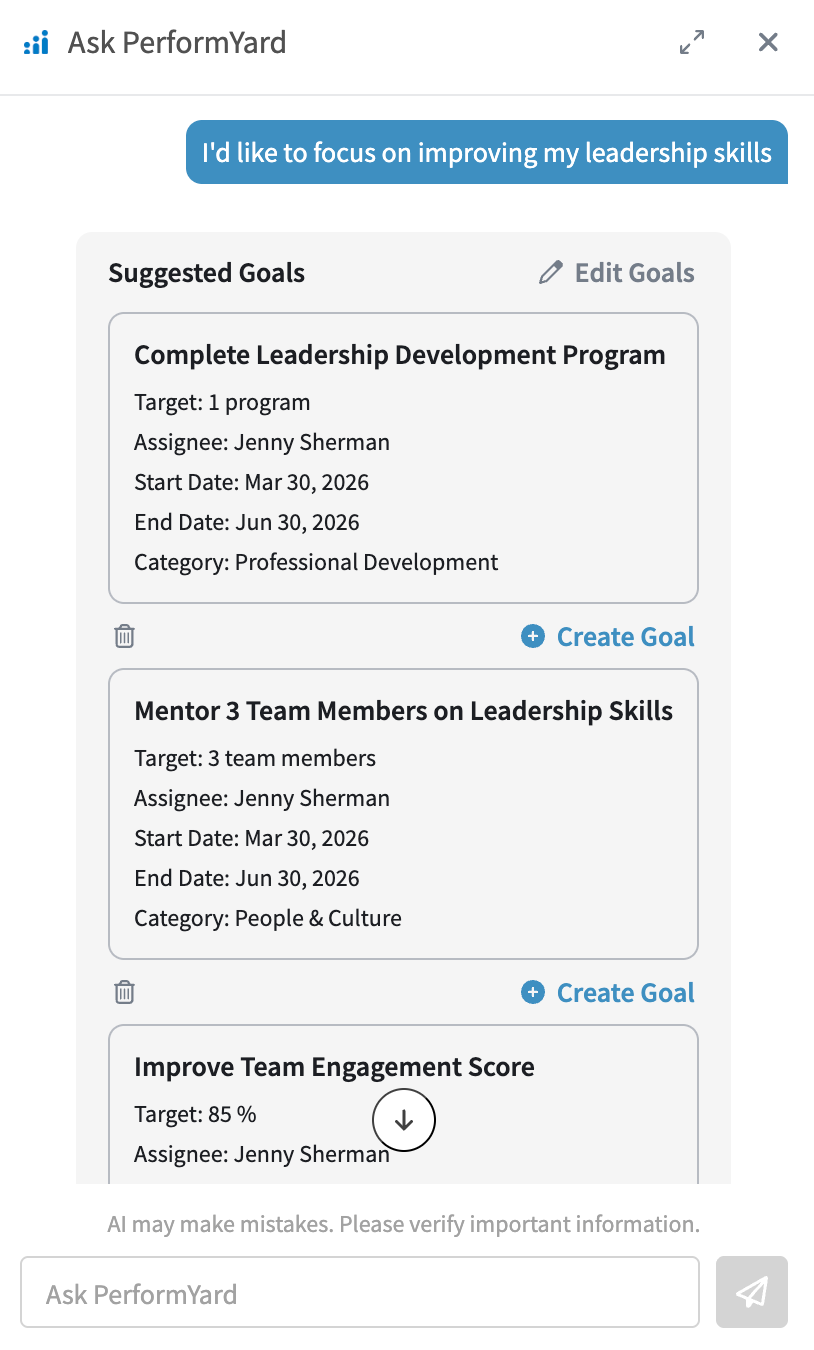
Once the chat interface is open, you can ask Ask PerformYard to help you create goals by typing a request such as "Can you create me a goal?" or "Create a goal for [employee name]." To generate the best suggestions, Ask PerformYard uses a few key pieces of context: the goal type, the focus area, who the goal is for, and the desired timeframe. If you include all of this in your initial message, Ask PerformYard will get straight to work and suggest up to three tailored goals. If some or all of that context is missing, Ask PerformYard will ask a few short questions to gather what it needs before generating your suggestions.
Once Ask PerformYard has the context it needs, it combines that information with relevant data from your organization, such as the assignee's job title and existing goals, to suggest up to five tailored goals. Each suggested goal includes a name, target, assignee, and start and end date. From there, you can create a goal as-is directly from the chat window, remove any suggestions you don't need, or click "Edit Goals" to fine-tune the details before creating them.
Editing Suggested Goals
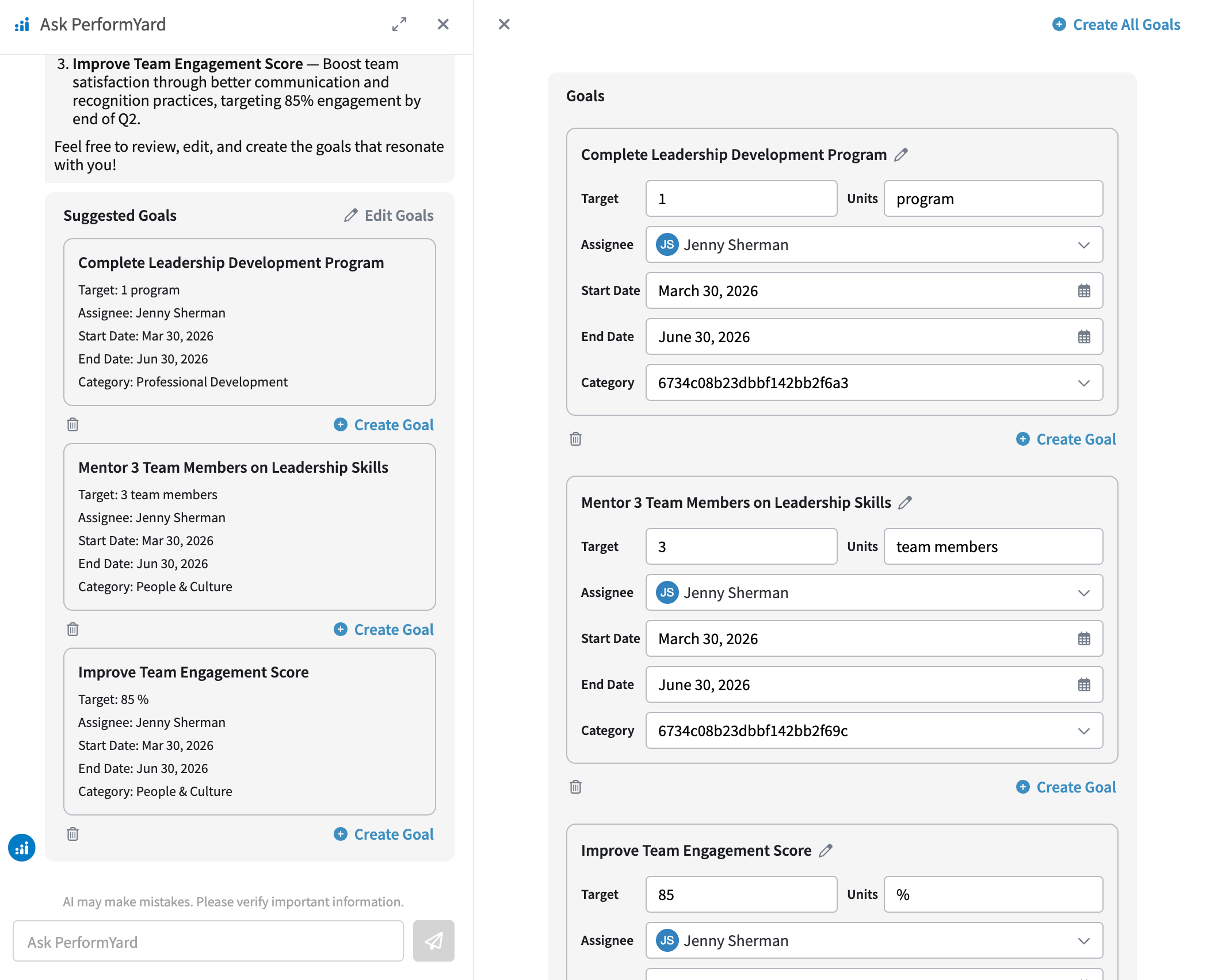
If you'd like to make changes before creating a goal, click "Edit Goals" to open an editing panel where all uncreated suggested goals are displayed. Here, you can update any of the goal's details, including the name, target, start and end date, and category, before finalizing.
Creating Suggested Goals
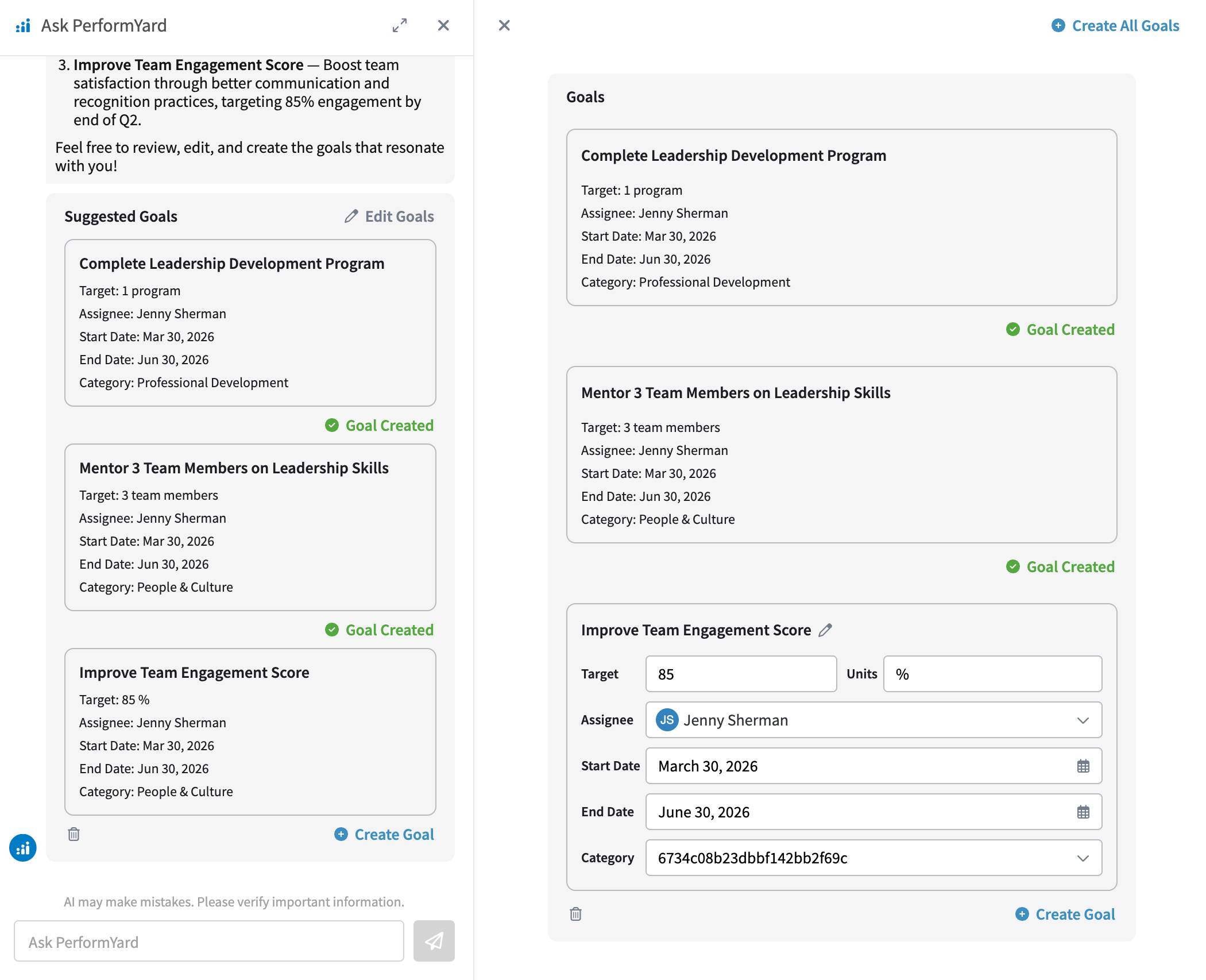
Once you're happy with a goal, whether you edited it or not, click "Create Goal" to create it individually, or use the "Create Goals" button at the top of the panel to bulk create all remaining goals at once. Created goals will display a "Goal Created" indicator in both the edit panel and the main chat window, giving you a clear view of what's been completed.
Forms
AI-Assisted Form features within Ask PerformYard enable admins to quickly generate relevant review forms and receive question suggestions with the help of AI. When enabled, Ask PerformYard gives admins two ways to build smarter forms faster. From anywhere in the platform, admins can ask Ask PerformYard to generate a new review form, it guides them through a few quick questions, such as review type, role, and time period, and uses that context alongside existing organizational data to suggest a form of up to 15 tailored questions. When working inside the form builder, Ask PerformYard automatically shifts into assist mode, offering up to 3 relevant question suggestions for the form already in progress. Suggested forms and questions can be reviewed, refined, and created directly from the chat window, helping reduce the time spent on form building while ensuring teams start with high-quality, role-specific review forms.
Form Suggestions
To access Ask PerformYard, click the blue AI button in the bottom right corner of most pages. This will open the chat interface, where you can ask questions, get answers from your organization's knowledge base, create AI-assisted goals, and create AI-assisted forms.
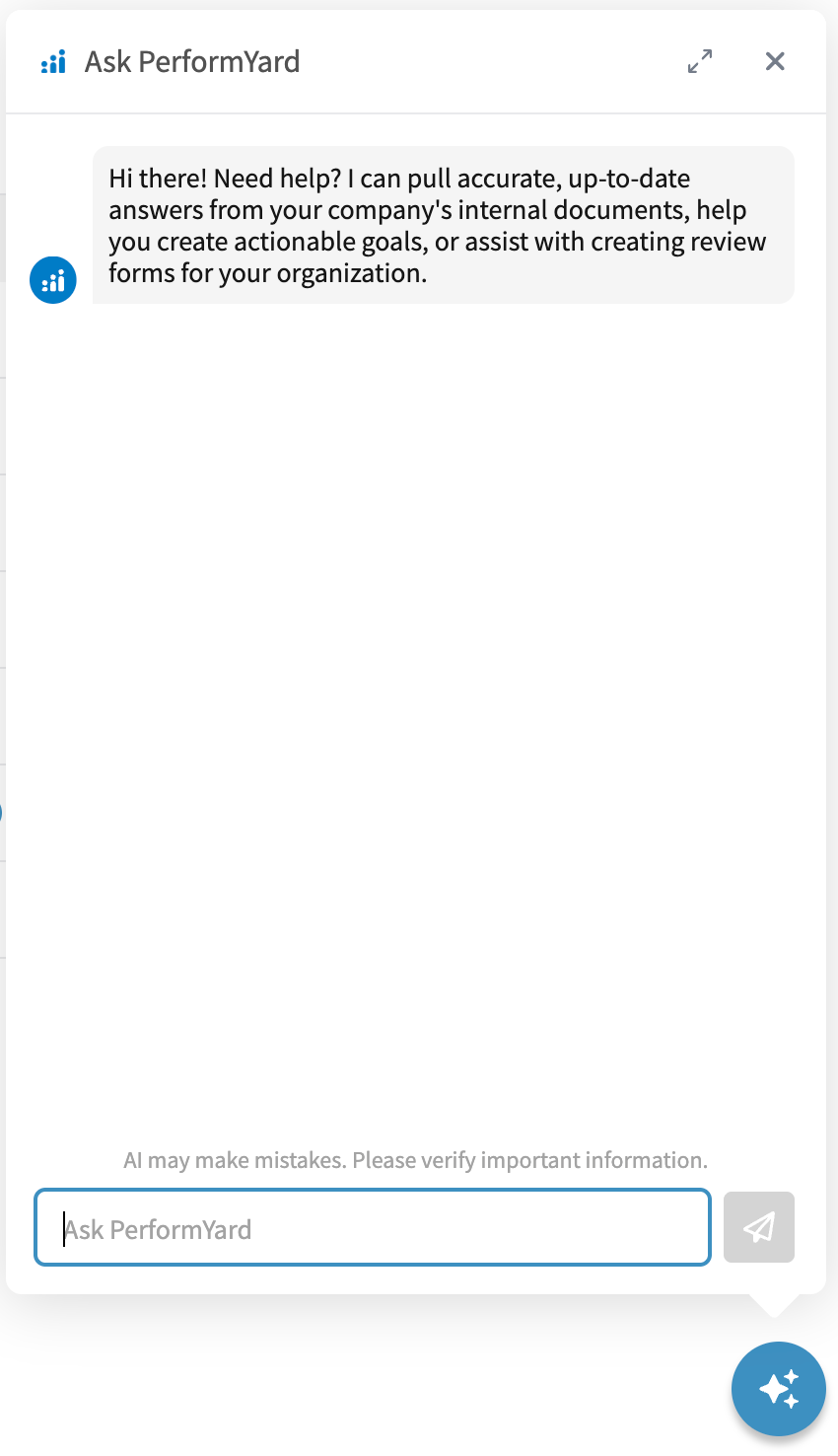
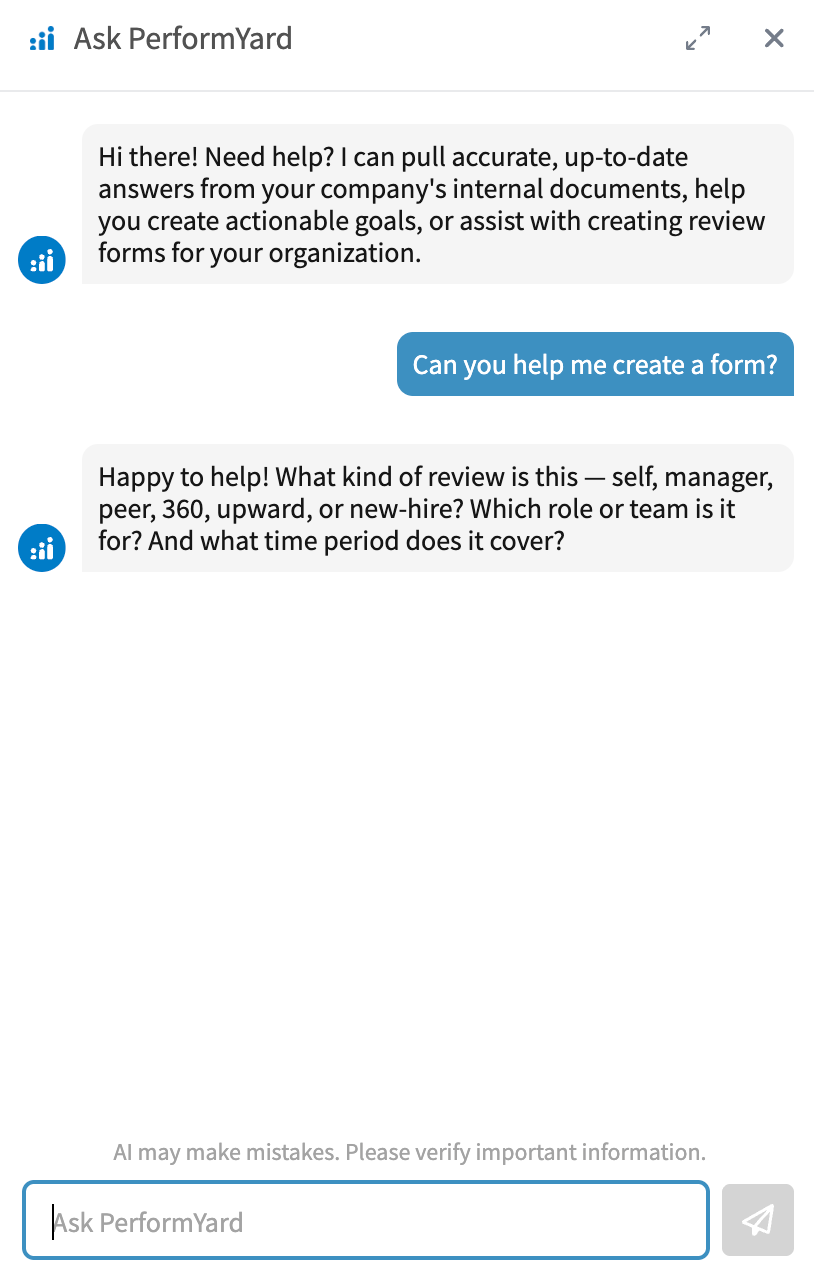
Once the chat interface is open, you can ask Ask PerformYard to help you create forms by typing a request such as "Can you help me create a form?" or "Create a performance review form for a sales manager." To generate the best suggestions, Ask PerformYard uses a few key pieces of context: the form type (self, manager, peer, etc), who the form is for, and the desired timeframe. If you include all of this in your initial message, Ask PerformYard will get straight to work and suggest a form with up to 15 questions. If some or all of that context is missing, Ask PerformYard will ask a few short questions to gather what it needs before generating your suggestions.
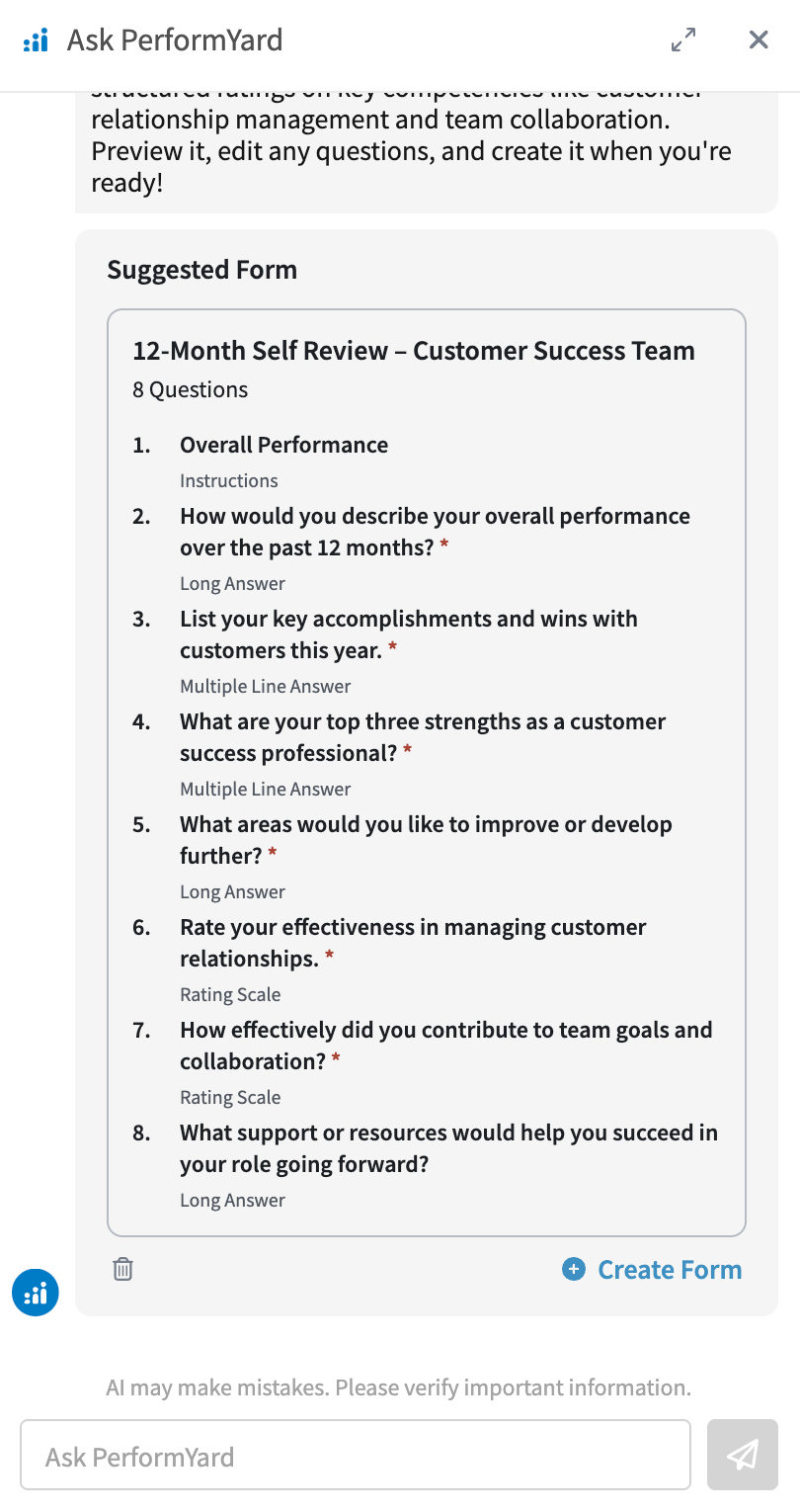
Once Ask PerformYard has the context it needs, it draws on relevant organizational data, like your existing forms, to generate a suggestion of up to 15 tailored questions. Each suggestion includes a form name and fully detailed questions, complete with a title, subtext, and answer options where applicable. When you're ready, you can create the form directly from the chat window with a single click.
Question Suggestions in the Form Builder
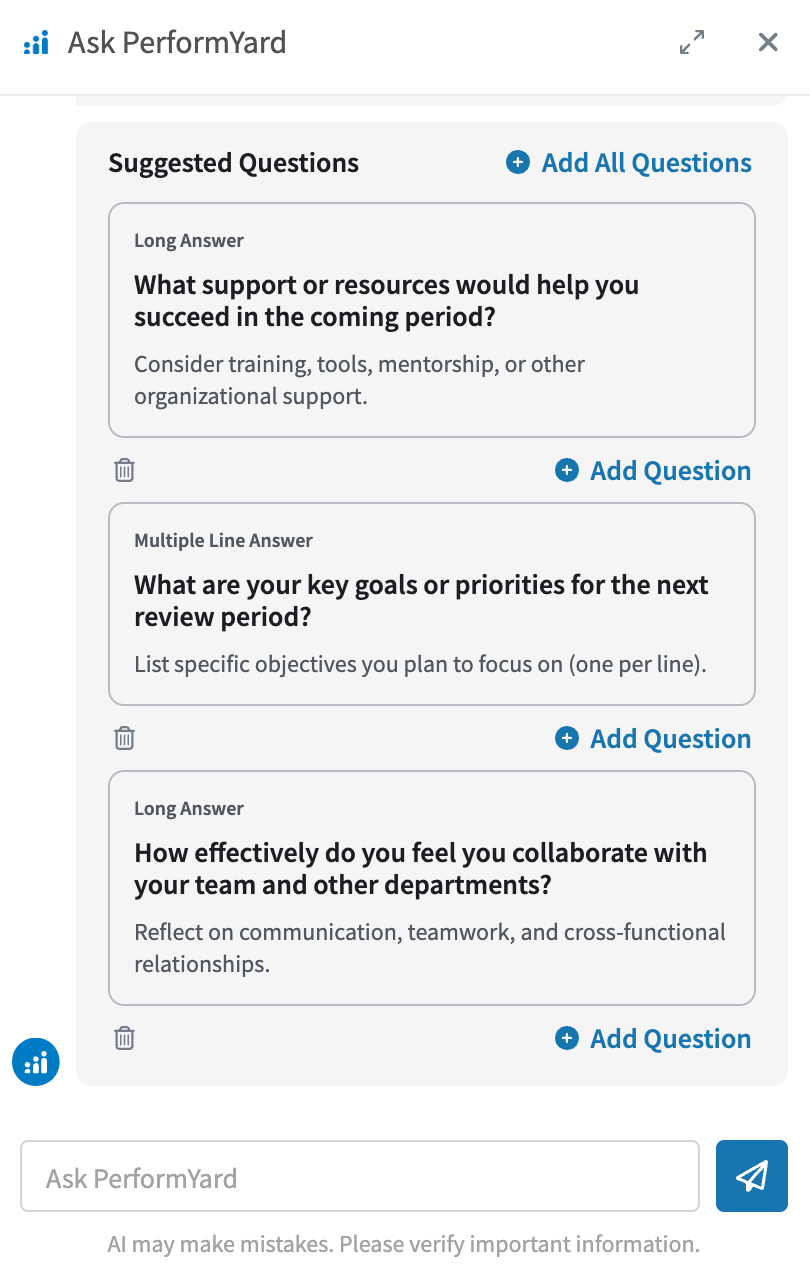
When an admin opens Ask PerformYard from within the form builder, it automatically shifts into assist mode and offers relevant question suggestions for the form in progress. It surfaces up to 3 questions at a time, each of which can be added directly to the form or dismissed. To access Ask PerformYard, click the blue AI button in the bottom right corner of most pages.
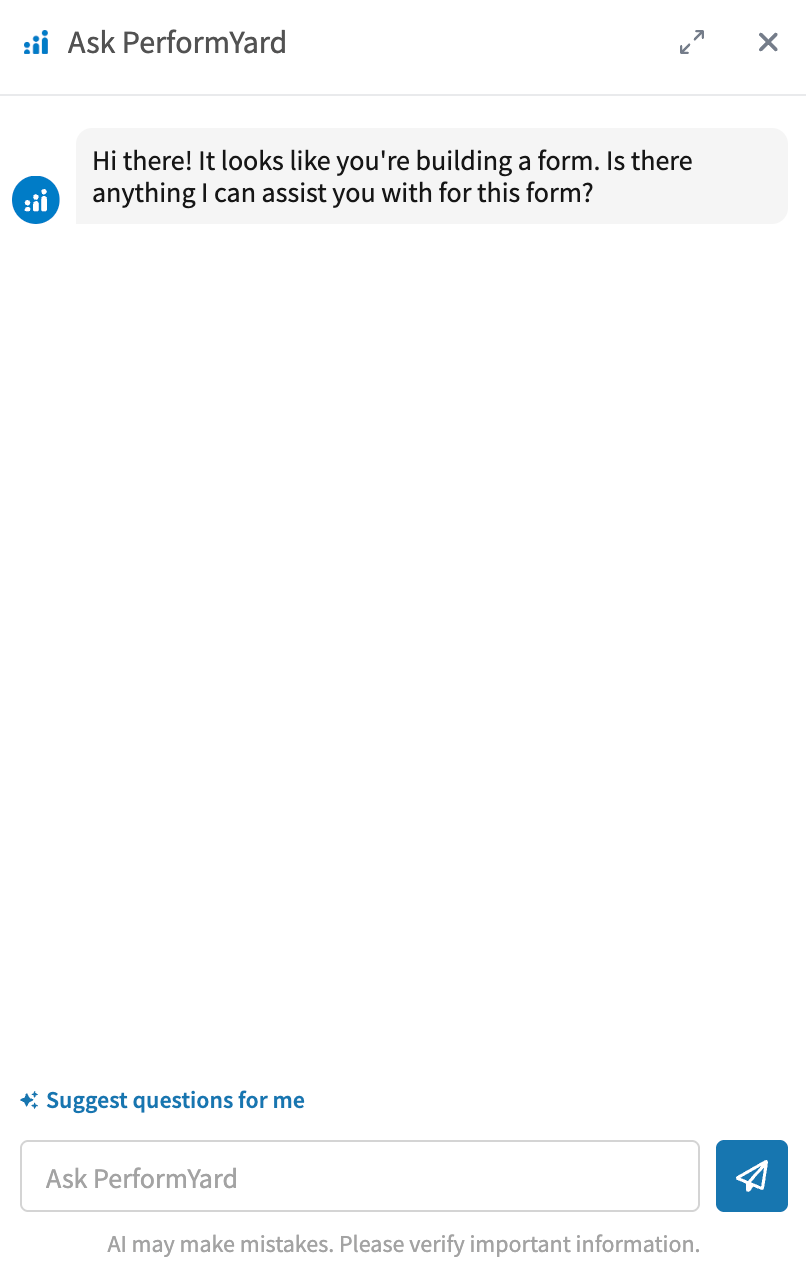
Once the chat interface is open and in the form builder, you can ask Ask PerformYard to help you add questions to your current form by typing a request such as "Suggest a question about collaboration" or "Suggest 3 questions focused on client-facing skills." If your form has 3 or more questions added to it already, Ask PerformYard will take all available created questions and combine that information with relevant data from your organization, such as existing forms, to suggest up to 3 tailored questions with question type, title, subtitle, and answer options (if applicable). Each suggested question can easily be added to the form by clicking "Add Question". Just like with full form generation, you can continue refining through conversation.