How Managers, Contributors, and Group Admins Can View Shared Reports
This guide explains how managers, contributors, and group admins can access and navigate shared reports, a feature designed to provide greater visibility into your team's performance, goal, and survey data.
Accessing Shared Reports
Managers, contributors, and group admins have view-only access to reports that administrators have specifically shared with them.
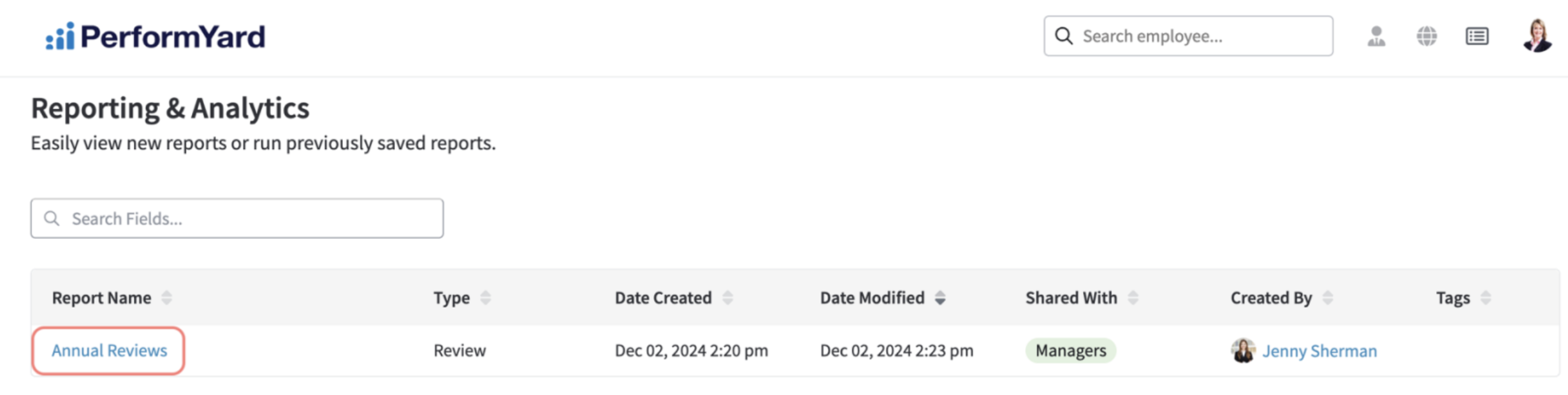
- Navigate to Reporting & Analytics: Click the Reporting & Analytics icon in the top right corner of your navigation bar.

- Locate the Report: You will see a list of reports shared with you. Look for the Shared With column, which will indicate "Managers" or "Contributors" or "Group Admins" for reports you can access.
- Open the Report: Click directly on the Report Name (e.g., "Annual Reviews") to view the data.
Seeing Review Filters
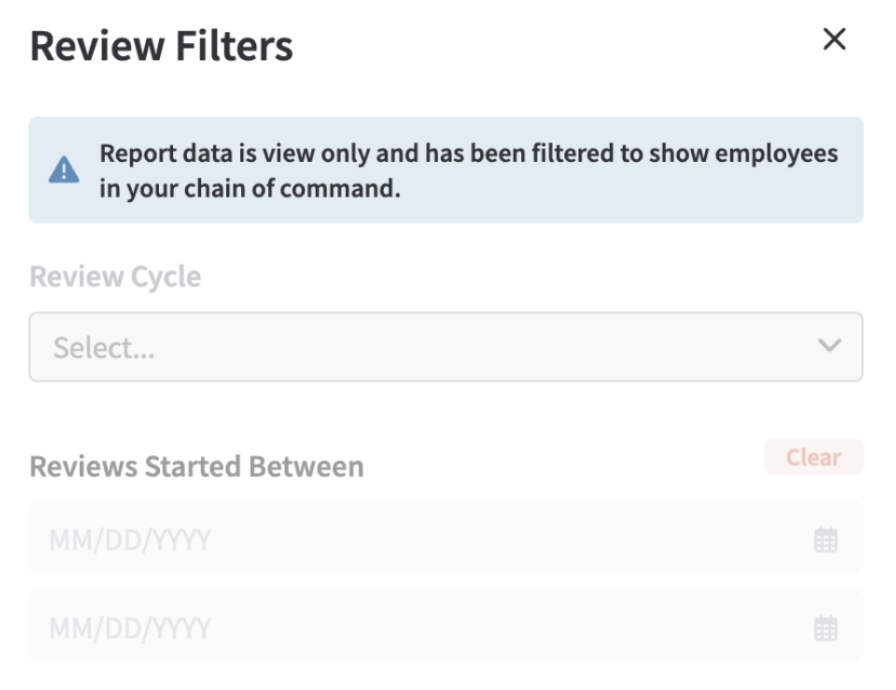
Click on Review Filters to view the filters in your view.
 For Review Reports specifically, the results may include review forms that are still in progress.
Understanding Your View
To ensure data privacy and relevance, your view is automatically customized based on your unique organizational structure.
- Automatic Filtering: You will only see results for employees in your chain of command—this includes your direct reports and anyone who reports up to them.
- View-Only Access: To maintain the integrity of the data, managers, contributors, and group admins are restricted from creating, modifying, sharing, or deleting reports.
- Column Restrictions: Managers, contributors, and group admins cannot add or remove columns from the shared report.