
Using the AI Form Question Rephrase Assistant (admin)
Introduction
With a PerformYard Premium (formerly Enterprise) account and the AI Form Question Rephrase Assistant, rephrasing your form questions and subtitles is simple and seamless. After typing your response, if prompted, the assistant will suggest a rephrase that aligns with your company's language policies and culture. You can then easily insert it, make adjustments, or request a new suggestion for a better fit. This feature is available in your administration settings under AI Assistants → AI Rephrase.
Disclaimer: This feature uses artificial intelligence to generate rephrase suggestions. While it aims to provide helpful alternatives, suggestions may not always be accurate, complete, or utilize your set administration settings to the fullest extent. Please review and verify all rephrased content before using it in your responses.
Rephrasing
When creating a form and adding a question, the Rephrase button will appear inside the text boxes for the question title and subtitle only after you’ve entered some text. If the fields are empty, the button won’t be visible. Once you type something into either box, the AI Form Question Rephrase Assistant will activate, and the Rephrase button will become available. Please note that you can only rephrase either the question title or the subtitle at one time.
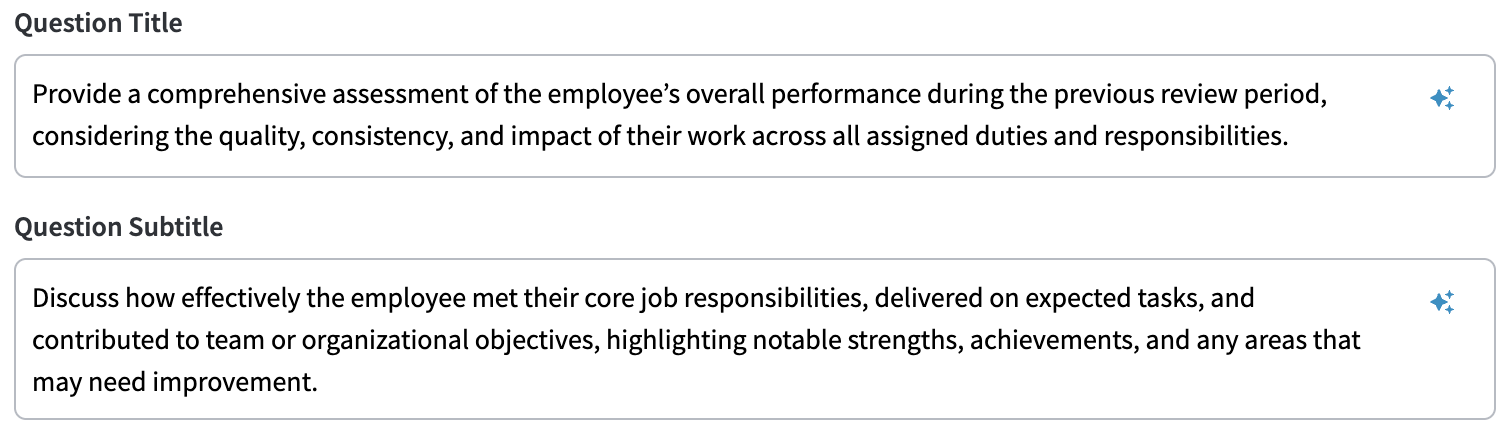
If you are a PerformYard Premium (formerly Enterprise) license holder and don't see the rephrase button when creating a form, ensure that the feature is enabled in Administration Settings.
As soon as you click the rephrase button, the AI Form Question Rephrase Assistant will take your question title or subtitle and adjust the wording, improve sentence structure, change the tone, and/or filter specific language depending on the configuration your company administrators set up. You can use the suggestion as-is, or request a new rephrase if you feel it doesn't fully capture your desired message.
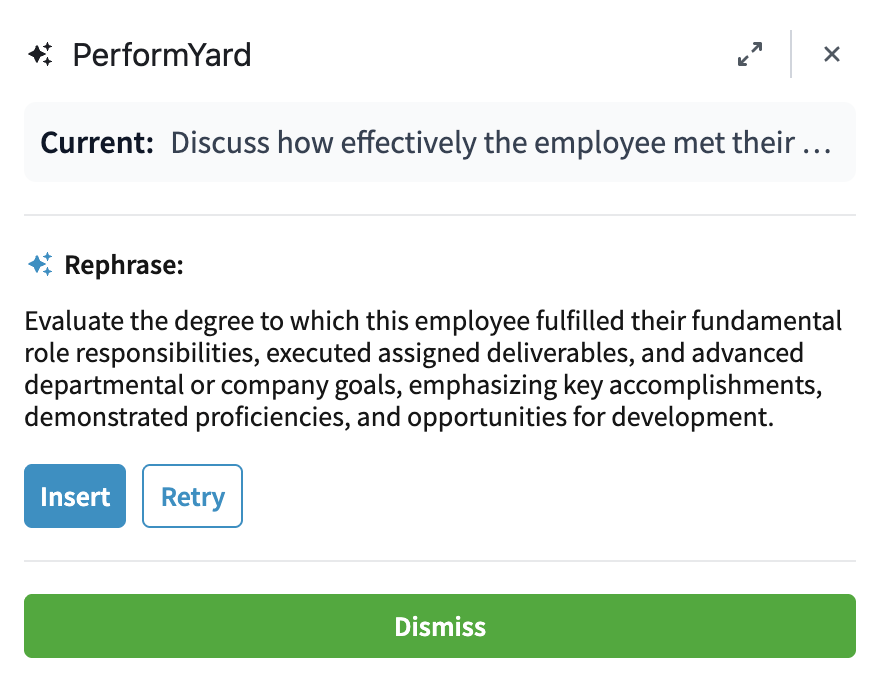
Retrying the Rephrase
If the rephrase suggestion from the AI Form Question Rephrase Assistant isn’t exactly what you’re looking for, you can easily request a new one. Simply click the Retry button beneath any suggested rephrase, and the assistant will generate an alternative version for you to review. All previous rephrase suggestions will remain available for review as long as you don't close the AI Form Question Rephrase Assistant. Once closed, those suggestions will be permanently lost.
Additionally, as you continue to retry the rephrasing, you can delete older suggestions you no longer need. To do this, scroll through the rephrases in the assistant and locate the one you wish to remove. Click the trash can icon next to the rephrase, and it will be permanently deleted from the widget. Remember, once deleted, the suggestion cannot be recovered.
Inserting the Rephrase
Once you're satisfied with the rephrased response, you can easily insert it as the title or subtitle of a form question. Simply click the blue Insert button beneath the rephrase you’d like to use. This will close the widget and automatically insert your selected rephrase into the form being created/edited. Feel free to further edit the rephrased answer to ensure it perfectly matches your intent.