
AI Meeting Workspace Assistant Settings & Options (admin)
Introduction
If you are on a PerformYard Premium (formerly Enterprise) account and have a PerformYard Meetings license, as an administrator, you have the ability to tailor the AI Meeting Workspace Insights Assistant to your organization's needs. You can configure key settings such as enabling or disabling the feature and which sections to include in the insights. This feature is available in your administration settings under AI Assistants → AI Insights → Meetings.
Disclaimer: This feature uses artificial intelligence to generate insights based on meetings and their content. While it aims to provide concise and accurate overviews, these insights may not always capture all nuances or context from any conversation taking place during the meeting. Please look over all meetings alongside any generated insights to ensure proper interpretation and decision-making.

Enable Meeting Workspace Insights Assistant

Administrators have the ability to enable or disable the AI 1:1 Meeting Workspace Insights Assistant feature for their entire organization. This feature can be turned on or off based on the needs of your team or company policies. To disable the AI 1:1 Meeting Workspace Insights Assistant for all 1:1 meeting workspaces, simply set the toggle to “off”. When the feature is disabled, users who can access a 1:1 meeting workspaces and the meetings within, will not have the option to generate insights for any of their 1:1 meeting workspaces.
Insights Content
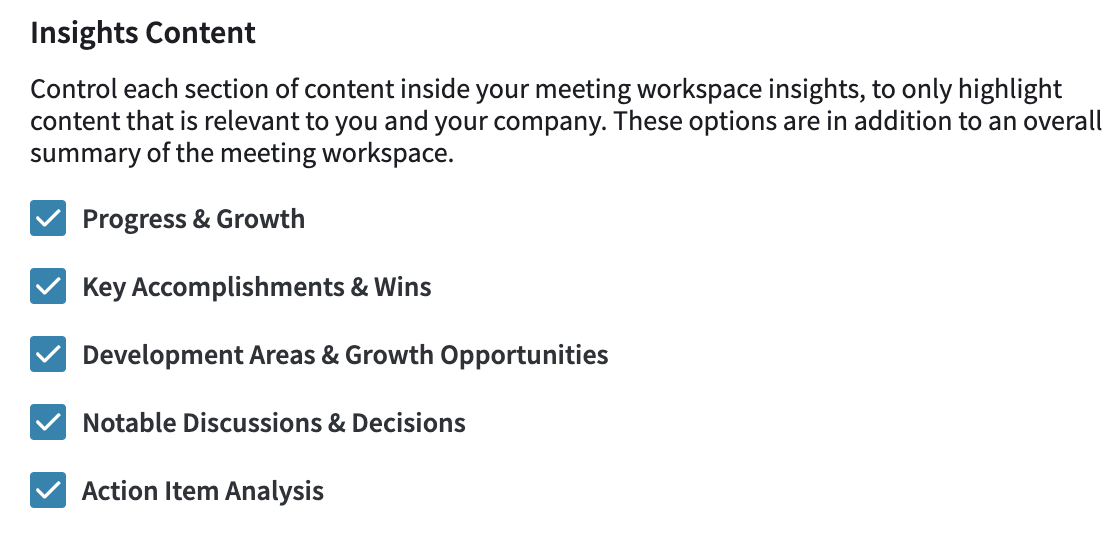
As an administrator, you have control over which sections are included in the AI generated meeting workspace insights. This allows you to tailor the insights to highlight only the most relevant content for your team and organization. The Meeting Workspace Insights Assistant synthesizes multiple meetings into clear, actionable insights, saving you valuable time while ensuring no important information is overlooked. By analyzing patterns across all submitted meetings and their content (agendas, action items, and notes), the assistant identifies progress, growth, wins, development areas and more, all aiming to provide a comprehensive picture of performance that might otherwise be difficult to extract from numerous individual meetings.
- Progress & Growth: This section highlights how meeting participants have grown over time across meetings. It focuses on improvements in skills like communication, decision-making, initiative, and ownership. It analyzes patterns across multiple meetings to identify consistent signs of development, such as better follow-through, increasing leadership, or more complex responsibilities being taken on. It also looks at evolving behaviors, like shifting from task-based to outcome-driven contributions.
- Key Accomplishments & Wins: This section captures the standout achievements over the meeting within the period, whether big or small. It aims to surface recurring successes such as consistently completed action items, impactful decisions, leadership moments, or signs of initiative. It also includes any recognition noted in meetings, such as being trusted with new responsibilities or receiving praise.
- Development Areas & Growth Opportunities: This section identifies opportunities for growth based on patterns of challenge or underperformance across meetings. It looks for repeated blockers such as incomplete tasks, light meeting engagement, or unresolved coordination issues and highlights where additional support or training could be helpful. It also surfaces areas where someone may be ready for more responsibility but hasn’t yet stepped into it.
- Notable Discussions & Decisions: This section highlights pivotal conversations or decisions that affected direction, role, or team alignment. It surfaces key moments such as scope changes, feedback discussions, career conversations, or team alignment captured in meeting notes. It may also include decisions made, rationale discussed, or signs of growing trust or recognition.
- Action Item Analysis: This section provides a high-level overview of how effectively someone follows through on assigned action items. It analyzes completion rates, consistency, deadlines, and whether blockers were communicated and resolved. It also looks at whether someone is showing ownership over outcomes or just checking off tasks.
To add or remove a section from meeting workspace insights:
- Click the checkbox next to each category you wish to include or exclude
- Click the green Save Changes button
The meeting workspace insights will now only include the sections that are checked in the Insights Content section.
Enable Team Meeting Workspace Insights

Administrators have the ability to enable or disable the AI Team Meeting Workspace Insights Assistant feature for their entire organization. This feature can be turned on or off based on the needs of your team or company policies. To disable the AI Team Meeting Workspace Insights Assistant for all team meeting workspaces, simply set the toggle to “off”. When the feature is disabled, users who can access a team meeting workspaces and the meetings within, will not have the option to generate insights for any of their team meeting workspaces.
Team Meeting Insights Content

As an administrator, you have control over which sections are included in the AI generated meeting workspace insights. This allows you to tailor the insights to highlight only the most relevant content for your team and organization. The Meeting Workspace Insights Assistant synthesizes multiple meetings into clear, actionable insights, saving you valuable time while ensuring no important information is overlooked. By analyzing patterns across all submitted meetings and their content (agendas, action items, and notes), the assistant identifies progress, growth, wins, development areas and more, all aiming to provide a comprehensive picture of performance that might otherwise be difficult to extract from numerous individual meetings.
- Recurring Themes & Topics: This section surfaces the topics and agenda items that keep coming up across your meetings, helping you understand what your team is consistently focused on and whether those topics are getting resolved or just recycled. By identifying patterns in what gets carried over versus what gets closed out, you can spot whether recurring discussions reflect healthy ongoing work or stubborn blockers that need more attention.
- Key Accomplishments & Wins: This section captures the standout achievements over the meeting within the period, whether big or small. Rather than focusing on individual contributions, it looks at group-level momentum, evidence that your team is building on prior meetings, following through consistently, and closing out work together.
- Recurring Challenges & Blockers: This section identifies the friction points, unresolved issues, and coordination gaps that keep showing up across your meetings without clear resolution. By tracking carryover patterns, unclear ownership, and topics that resurface repeatedly, it helps you see where your team may be getting stuck and why.
- Notable Discussions & Decisions: This section captures the pivotal moments across your meetings where direction shifted, important calls were made, or your team reached meaningful alignment. It goes beyond just logging what was discussed, it looks for the decisions that actually mattered, the moments where goals or responsibilities were clarified, and instances where something raised in one meeting visibly shaped the direction of a later one.
- Action Item Analysis: This section gives you a high-level view of how well your team is following through on the work it commits to across meetings. It looks at overall completion rates, how ownership is distributed among participants, and whether deadlines are being set and consistently met. If action items are heavily concentrated with one or two people, this section will flag that directly not as a neutral observation, but as a potential risk worth addressing. It also examines how blockers are surfaced and whether they get resolved before the next meeting, giving you a clear picture of whether your team operates with strong collective accountability or whether follow-through tends to be uneven.
To add or remove a section from meeting workspace insights:
- Click the checkbox next to each category you wish to include or exclude
- Click the green Save Changes button
The team meeting workspace insights will now only include the sections that are checked in the Team Meeting Insights Content section.